Setting Up the Printer Driver and Cancelling a Print Job
8
1
Cancelling a Print Job
Windows - Cancelling a Print
Job
A
AA
A
Double-click the printer icon on
the Windows taskbar.
A window appears, showing all
print jobs currently queued for
printing. Check the current status
of the job you want to cancel.
B
BB
B
Select the name of the job you
want to cancel.
C
CC
C
On the [Document] menu, click
[Cancel Printing].
Note
❒ In Windows XP, click [cancel] on
the [Document] menu.
❒ In Windows 95/98/Me, 2000 or
NT 4.0, you can also open the
print job queue window by
double-clicking the machine
icon in the [Printers] window,
and in Windows XP, the [Print-
ers and Faxes] window.
D
DD
D
Press the {
{{
{Printer}
}}
} key on the ma-
chine's control panel.
E
EE
E
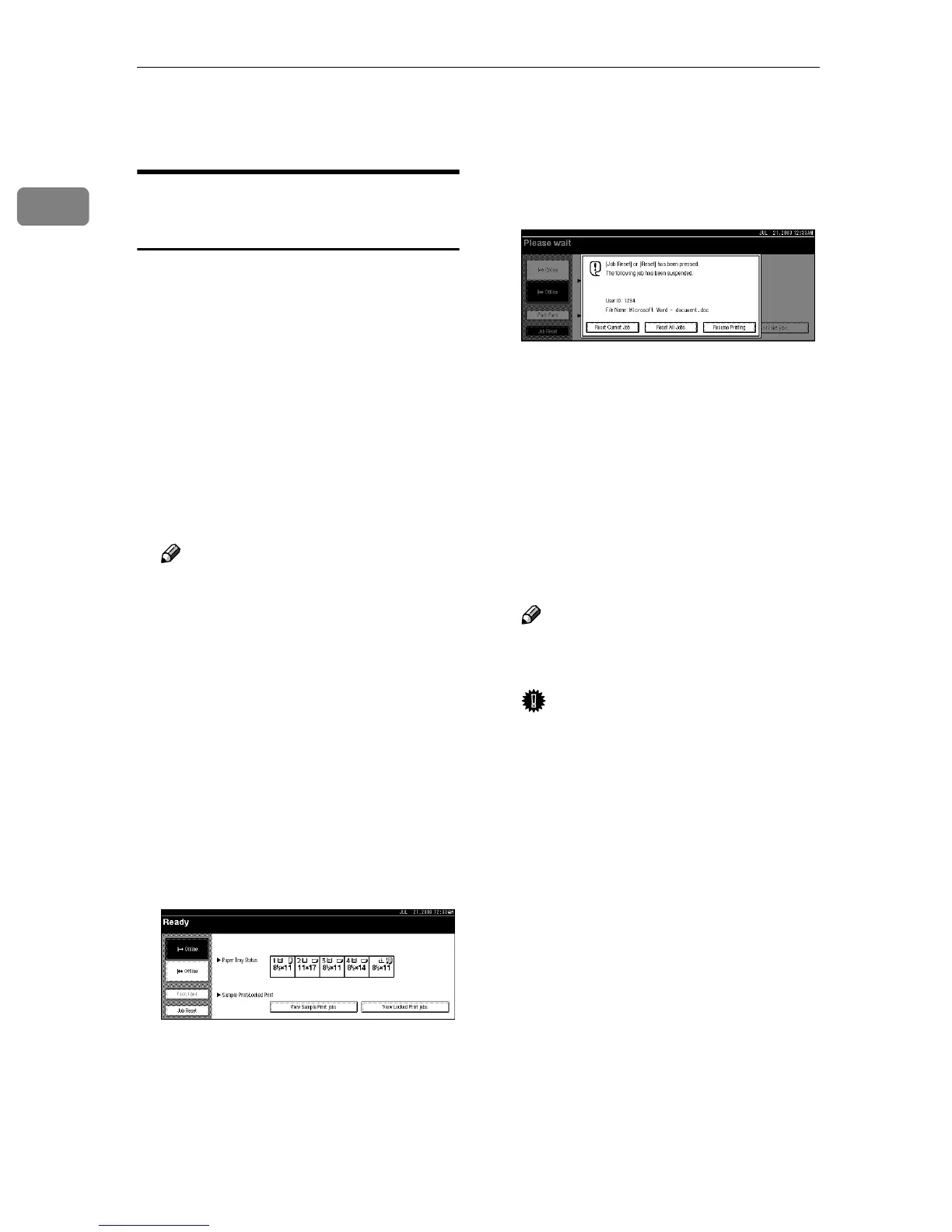
Press [Job Reset] on the display
panel.
F
FF
F
Press [Reset Current Job] or [Reset
All Jobs].
• [Reset Current Job]: cancels the
print job currently being pro-
cessed by the machine
• [Reset All Jobs]: cancels all jobs
in the print queue
• [Resume Printing]: resumes print-
ing jobs
A confirmation message appears.
G
GG
G
Press [Yes] to cancel the print job.
Note
❒ Press [No] to return to the previ-
ous display.
Important
❒ If the machine is shared by mul-
tiple computers, be careful not
to accidentally cancel someone
else's print job.
❒ When the machine is connected
to the computer using a parallel
cable, sent print jobs may be
cancelled if [Reset All Jobs] is
pressed while the “Waiting...”
message is on the display panel.
After the interval set in I/O
Timeout in Printer Features has
passed, the next print job can be
sent. A print job sent from a dif-
ferent client computer will not
be cancelled in the above case.



 To Next Page