EasyManua.ls Logo

Ricoh 7025 - User Manual

Ricoh 7025
452 pages
Print Icon
To Next Page IconTo Next Page
Loading...
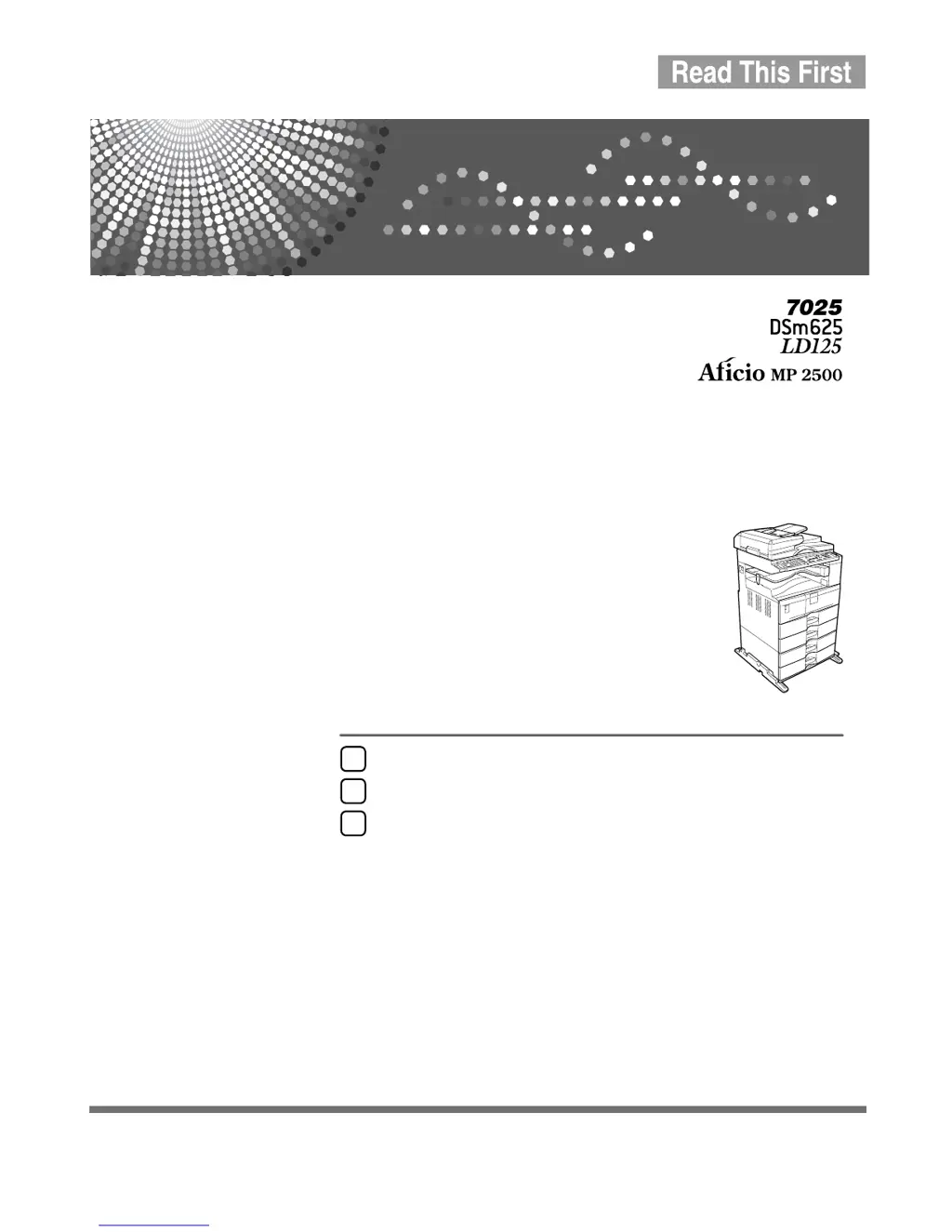
Operating Instructions
About This Machine
Read this manual carefully before you use this machine and keep it handy for future reference. For safe and correct use, be sure to read the
Safety Information in this manual before using the machine.
Getting Started
Entering Text
Appendix
1
2
3

Table of Contents

Other manuals for Ricoh 7025

Questions and Answers

  • N
    Nicholas HuntSep 4, 2025
    What to do if Ricoh 7025 says max number of sets is exceeded?
    • M
      Mrs. Sherry BarnettSep 4, 2025
      If your Ricoh All in One Printer displays a message indicating that the maximum number of sets has been exceeded, it means the number of copies exceeds the maximum copy quantity. You can change the maximum copy quantity.
  • D
    Denise StoneSep 18, 2025
    Why I'm getting authentication failed error due to Windows Authentication, LDAP Authentication, or Integration Server Authentication on Ricoh All in One Printer?
    • B
      Benjamin GutierrezSep 18, 2025
      If you are getting an authentication failed error due to Windows Authentication, LDAP Authentication, or Integration Server Authentication on your Ricoh All in One Printer, it means that the authentication server cannot be accessed. Contact the administrator.
  • H
    Hannah CoxSep 16, 2025
    Why Ricoh 7025 All in One Printer cannot duplex copy this size?
    • S
      shawnbrownSep 16, 2025
      Your Ricoh All in One Printer cannot duplex copy this size because the duplex mode does not support the selected paper size. Select the proper paper size for the Duplex function.
  • J
    John CampbellSep 14, 2025
    Why is Rotate Sort unavailable with this paper size on Ricoh 7025?
    • R
      Richard FrederickSep 14, 2025
      Rotate Sort is unavailable with this paper size on your Ricoh All in One Printer because a paper size for which Rotate Sort is not available is selected. Select the proper paper size for the Rotate Sort function.
  • J
    John LoveSep 12, 2025
    Why Ricoh 7025 All in One Printer says this position cannot be stapled?
    • K
      Kathy GillespieSep 12, 2025
      Your Ricoh All in One Printer indicates that the selected position cannot be stapled because the original orientation and paper mismatches occur when image rotation is unavailable. Select the proper position or original orientation.
  • A
    alanwigginsSep 12, 2025
    Why Ricoh 7025 All in One Printer cannot sort this size?
    • A
      April McphersonSep 12, 2025
      Your Ricoh All in One Printer cannot sort the specified paper size because it is not available with the Sort function. Use copy paper that is not longer than 432 mm (17.0" ).
  • Q
    qedwardsSep 9, 2025
    What to do if staple range exceeded on Ricoh 7025 All in One Printer?
    • D
      Danielle HallSep 9, 2025
      If the staple range is exceeded on your Ricoh All in One Printer, it means that the number of copies exceeds the capacity of the stapler. Check the stapler capacity.
  • L
    Lucas GatesSep 7, 2025
    Why Ricoh 7025 cannot select Bypass Tray in current setting?
    • D
      David CrawfordSep 7, 2025
      Your Ricoh All in One Printer cannot select the Bypass Tray in the current setting because the specified function is not available with the bypass tray. Select a paper tray other than the bypass tray.
  • W
    william54Sep 5, 2025
    How to check original orientation on Ricoh 7025?
    • J
      jennifer23Sep 5, 2025
      If your Ricoh All in One Printer prompts you to check the original orientation, it means the original is not placed in the proper orientation. Change the orientation of the original.
  • R
    Reginald VasquezAug 20, 2025
    What to do if Ricoh 7025 All in One Printer cannot copy because the original is being scanned?
    • B
      Brian LeeAug 21, 2025
      If your Ricoh All in One Printer cannot copy because the original is being scanned by another function, it means the scanner is currently in use. To resolve this, cancel the current scan job by pressing the Clear/Stop key on the scanner screen. When the message “Clear/Stop key was pressed. Stop scanning?” appears, press Stop.

Ricoh 7025 Specifications

General IconGeneral
BrandRicoh
Model7025
CategoryAll in One Printer
LanguageEnglish

Related product manuals