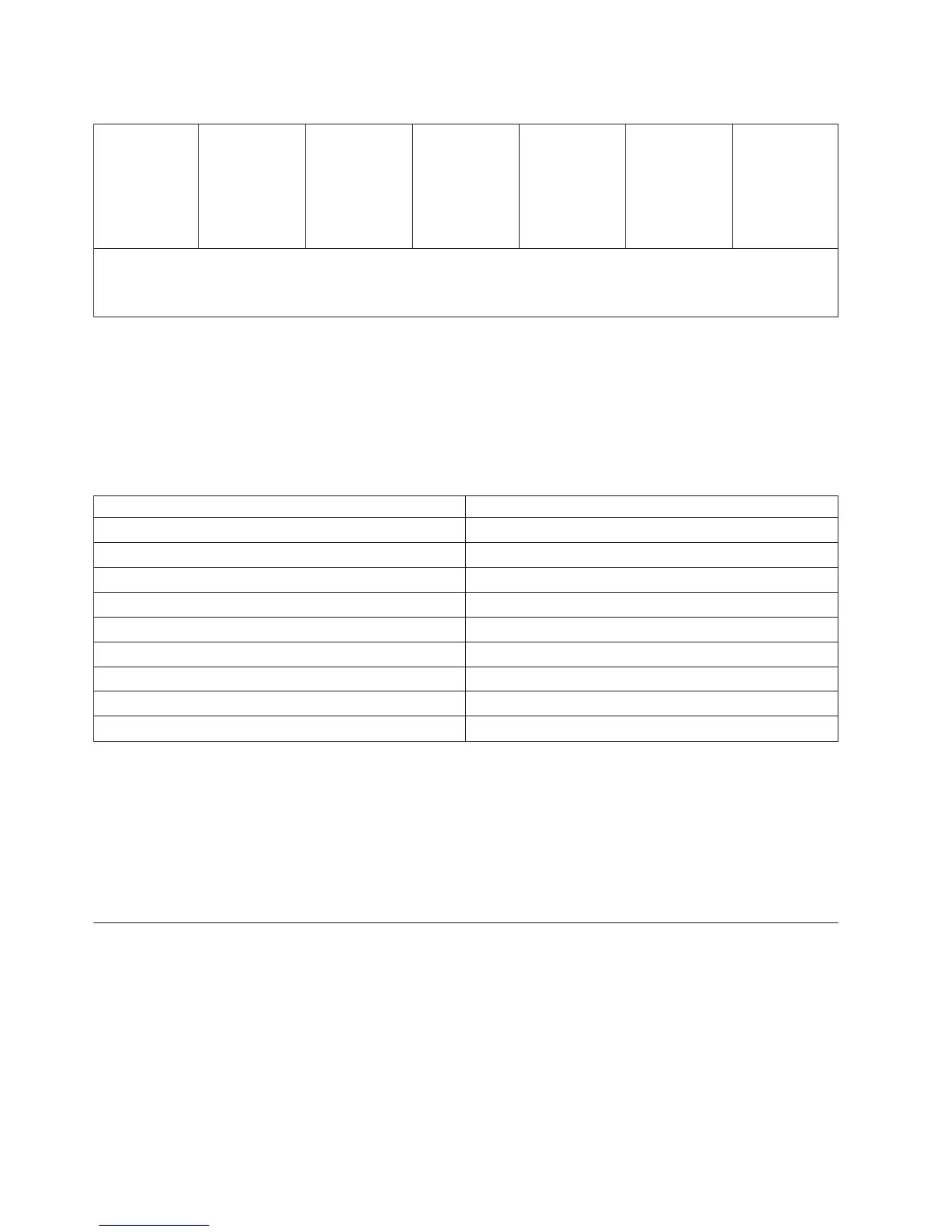
Table 10. Snapshot values (continued)
Forms → Form
Settings
Forms → Print
Registration
Printer
Definition →
Print Quality
Printer
Definition →
Printer → Basic
Printer
Definition →
Printer →
Setup
Printer
Definition →
PDL → IPDS
Printer
Definition →
Pre/Post-
Processing →
Post-
processing
Options
Note:
1. The preheat offset is a CE only value.
2. The internal stacker is available for InfoPrint 4100 Models with Feature Code 4770.
Snapshots affect how the print job is printed. You can create and save your own
Snapshot using the default Snapshots as a template. And you can select and load a
specific Snapshot when you want to print a job that has the same requirements as
those specified in a particular Snapshot. You can also make changes to your
Snapshots and save them on your printer. You can view the Snapshot settings by
selecting the Show Details... button on the Snapshots panel.
Table 11. Default Snapshots
Snapshot Name Description-Length x Width
InfoPrint-2up Letter 2-Up Letter - 11.0 x 18.0 in
InfoPrint-2up Letter Tractorless 2-Up Letter (Tractorless) - 11.0 x 17.0 in
InfoPrint-2up A4 2-Up A4 - 296.3 mm x 445.0 mm
InfoPrint-2up A4 Tractorless 2-Up A4 (Tractorless) - 296.3 mm x 432.0 mm
Letter Letter - 8.5 x 12.0 in
Legal Legal - 8.5 in x 15.0 in
Ledger Ledger - 11.0 in x 18.0 in
A3 A3 - 296.3 mm x 445 mm
Standard Standard - 11.0 x 15.0 in
You can see a description and the ranges of values that you can enter in each field
of each panel by pressing and holding the left mouse button for 2 seconds or by
pressing F1 on the keyboard.
Note: The functions will be greyed out when the printer is Ready. In order to
perform any of the Snapshot tasks you will have to Stop the printer and then
make it ready by selecting Start.
Viewing Snapshots
About this task
Procedure:
Perform this procedure to view the settings that are saved with a Snapshot.
Procedure
1. Select the Snapshots panel (Frequent Tasks → Snapshots) on the touch panel.
62 Operating the InfoPrint 4100



 To Next Page