13. Click [Network].
14. Click [Wi-Fi].
15. Select the SSID (DIRECT-XXXXXX) of the machine from the [Network Name] pop-up
menu.
The window for entering an encryption key is displayed.
16. Enter the encryption key of Wi-Fi Direct.
The default encryption key is "admin123".
For details about changing the encryption key, see page 21 "How to Change the Encryption Key
of Wi-Fi Direct".
17. Confirm the status of the selected SSID changes to "Connected".
Configuring the Wi-Fi settings is complete.
P C300W/C301W
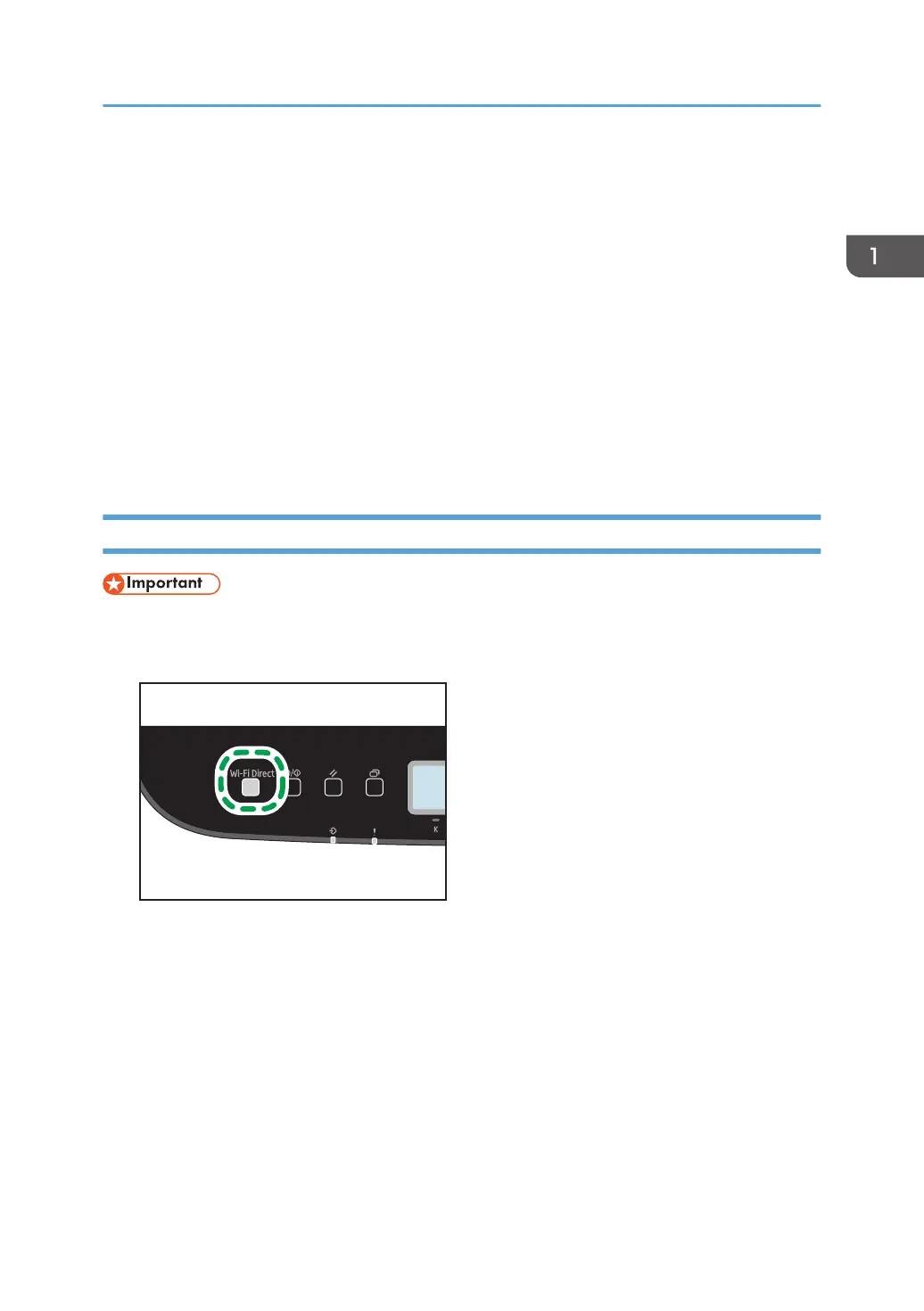
• In Steps 1 to 7, configure each setting within two minutes.
1. Press the [Wi-Fi Direct] key.
The LED of [Wi-Fi Direct] key starts flashing.
2. Start System Preferences in your computer.
3. Click [Network].
4. Click [Wi-Fi].
5. Select the SSID (DIRECT-XXXXXX) of the machine from the [Network Name] pop-up
menu.
The window for entering an encryption key is displayed.
6. Enter the encryption key of Wi-Fi Direct.
The default encryption key is "admin123".
Connecting Using Mac
9


 To Next Page
 Loading...