EasyManua.ls Logo

Ricoh Pro C5100S - User Manual

Ricoh Pro C5100S
222 pages
Print Icon
To Next Page IconTo Next Page
Loading...
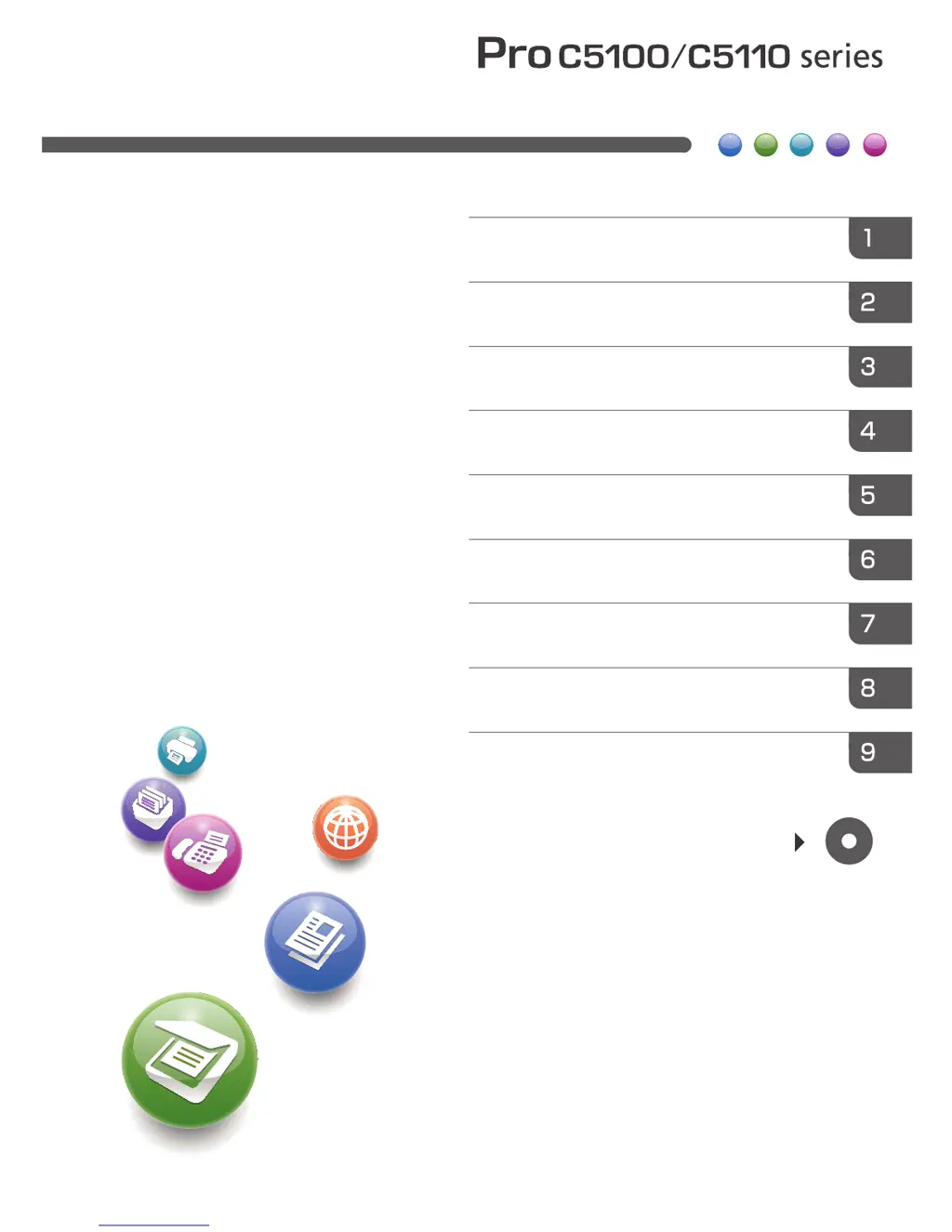
For safe and correct use, be sure to read the Safety Information in
"Read This First" before using the machine.
For information not in this manual, refer to
the HTML/PDF files on the supplied
CD-ROM.
Troubleshooting
Adding Paper and Toner
Web Image Monitor
Document Server
Scan
Print
Copy
Getting Started
What You Can Do with This Machine
User Guide

Table of Contents

Other manuals for Ricoh Pro C5100S

Questions and Answers

  • B
    Brett EdwardsSep 9, 2025
    Why are items missing from the User Tools menu on my Ricoh All in One Printer?
    • Y
      yrodriguezSep 9, 2025
      If the machine has just been turned on and the User Tools screen is displayed, but the User Tools menu has items missing on your Ricoh All in One Printer, functions other than the copier function are not yet ready. Wait a little longer, as time required varies by function. Functions appear in the User Tools menu when they become ready for use.
  • M
    matthewsjenniferSep 12, 2025
    Why does my Ricoh All in One Printer turn off automatically?
    • C
      Christopher ParkerSep 12, 2025
      If the power turns off automatically on your Ricoh All in One Printer, the Weekly Timer setting may be set to [Main Power Off]. Change the Weekly Timer setting.
  • P
    paula41Sep 13, 2025
    What to do if nothing happens when pressing keys on Ricoh All in One Printer?
    • N
      Nancy OrtizSep 13, 2025
      If nothing happens when the [Check Status] key or the [Energy Saver] key is pressed on your Ricoh All in One Printer, the power may be turned off. Make sure the main power indicator is off, and then turn on the power.
  • H
    Heather RossSep 14, 2025
    Why can't I change the Address Book from the display panel on my Ricoh All in One Printer?
    • B
      bgainesSep 14, 2025
      If the Address Book cannot be changed from the display panel of your Ricoh All in One Printer, the Address Book cannot be changed while it is being backed up from Web Image Monitor or other tools running on the computer. Wait until the Address Book backup is complete, and then try to change the Address Book again. If an SC997 error occurs, press [Exit].
  • D
    Dominique JohnsonSep 17, 2025
    Why does only the copier icon appear on my Ricoh All in One Printer?
    • D
      Debbie McdonaldSep 17, 2025
      If, when the Ricoh All in One Printer is turned on, the only icon that appears on the home screen is the [Copier] icon, functions other than the copier function are not yet ready. Wait a little longer.

Summary

What You Can Do with This Machine

Reducing my Costs

Tips and methods for lowering operational expenses.

Making Copies Using Various Functions

Exploring diverse copy features like color, stamps, and duplex.

Printing Data Using Various Functions

Utilizing network and local connections for printing.

Preventing Information Leakage (Security Functions)

Implementing security measures to protect data and prevent unauthorized access.

Preventing Unauthorized Copying

Using embedded patterns to deter unauthorized reproduction of documents.

Getting Started

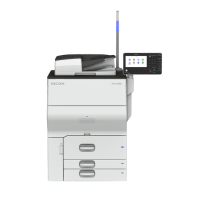
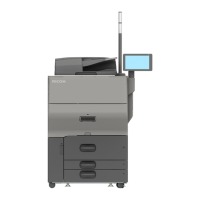
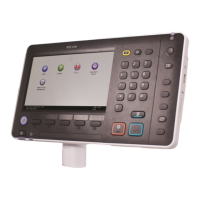
Guide to Names and Functions of Components

Identification and description of machine parts and their functions.

Turning On;Off the Power

Procedures for safely powering the machine on and off.

Copy

Basic Procedure

Step-by-step guide for performing basic copy operations.

Auto Reduce; Enlarge

Automatic adjustment of copy size based on original and paper size.

Duplex Copying

Making copies on both sides of the paper.

Storing Data in the Document Server

Saving scanned documents to the machine's hard disk for later printing.

Print

Quick Install

Step-by-step guide for easily installing printer drivers.

Scan

Basic Procedure When Using Scan to Folder

Scanning documents directly to a network folder.

Basic Procedure for Sending Scan Files by E-mail

Scanning documents and sending them via email.

Document Server

Storing Data

Procedures for saving scanned documents to the Document Server.

Adding Paper and Toner

Precautions for Loading Paper

Important guidelines and safety measures for loading paper.

Recommended Paper Sizes and Types

Guide to suitable paper types, weights, and sizes for the machine.

Adding Toner

Precautions and steps for adding toner to the machine.

Troubleshooting

When a Status Icon Is Displayed

Understanding status icons indicating machine conditions or required actions.

When the Indicator Lamp for the [Check Status] Key Is Lit or Flashing

Diagnosing issues indicated by the check status lamp.

When You Have Problems Operating the Machine

Solutions for common issues encountered during machine operation.

Messages Displayed When Using the Copy;Document Server Function

Troubleshooting error messages related to the Copy/Document Server.

Messages Displayed When Using the Printer Function

Troubleshooting error messages encountered during printing operations.

Messages Displayed When Using the Scanner Function

Troubleshooting error messages related to scanning operations.

When the Machine Cannot Be Operated Due to a Problem with the User Certificate

Resolving errors related to expired or invalid user certificates.

When Problems Occur While Logging In

Troubleshooting authentication failures during login.

When the User Lacks Privileges to Perform an Operation

Resolving errors when users lack necessary permissions.

Ricoh Pro C5100S Specifications

General IconGeneral
Print TechnologyLaser
Print Speed (Color)65 ppm
Print Speed (Black)65 ppm
Print Resolution1200 x 4800 dpi
Warm-up TimeLess than 30 seconds
Network ConnectivityEthernet 10Base-T/100Base-TX/1000Base-T
Monthly Duty Cycle300, 000 pages
Supported Media SizesA3, A4, A5, B4, B5
Supported Media TypesPlain paper, recycled paper, envelopes
Duplex PrintingAutomatic

Related product manuals