EasyManua.ls Logo

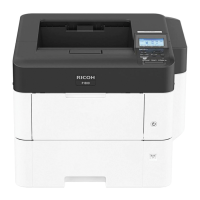
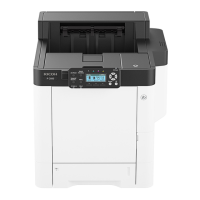
Ricoh P C600 - User Manual

Ricoh P C600
128 pages
Print Icon
To Next Page IconTo Next Page
Loading...
For safe and correct use, be sure to read Safety Information before
using the machine.
For information not found in paper manu-
als, see the online manuals available on our
web site (https://www.ricoh.com/).
Troubleshooting
Loading Paper
Getting Started
User Guide

Table of Contents

Other manuals for Ricoh P C600

Questions and Answers

  • J
    Jacob ChandlerJul 28, 2025
    Why is my Ricoh P C600 Printer not automatically recognized?
    • A
      Angela LeeJul 29, 2025
      Your Ricoh Printer might not be automatically recognized due to a couple of reasons. First, the USB cable might not be properly connected. To solve this, disconnect the USB cable, turn off the printer, and then turn it on again. After the printer fully boots up, reconnect the USB cable. Another reason could be that Windows has already configured the USB settings. In this case, check if your computer has identified the printer as an unsupported device. Open Windows' Device Manager, and under the 'Universal Serial Bus controllers' section, remove any conflicting devices, indicated by a [!] or [?] icon.

Summary

Getting Started

Control Panel Operations

Explains the function of each key and display element on the printer's control panel.

Installing Printer Options

Provides step-by-step instructions for installing various optional hardware units and cards.

Turning Printer Power On and Off

Details the correct procedure for powering the printer on and off to prevent damage.

Consumable Management

Guides users on replacing consumables like print cartridges and waste toner bottles.

Loading Paper

Paper Loading Procedure

Outlines the steps required to load paper correctly into the printer's input trays.

Paper Size and Type Specifications

Lists supported paper sizes and types for each input tray and the printer's capabilities.

Paper Handling Precautions

Provides essential safety and handling guidelines to prevent paper jams and ensure print quality.

Loading Paper into Trays

Detailed instructions for loading paper into the main paper trays (Tray 1, 2, 3, 4).

Troubleshooting Common Issues

Ricoh P C600 Specifications

General IconGeneral
TypeOriginal
Printing colorsBlack
Quantity per pack1 pc(s)
Built-in drum unit-
Brand compatibilityRicoh
Black toner page yield18000 pages
Print technologyLaser printing
Weight and Dimensions IconWeight and Dimensions
Package typeBox
Package weight379 g

Related product manuals