EasyManua.ls Logo

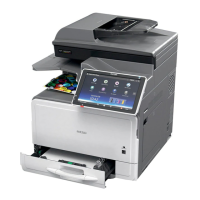
Ricoh MP C307 - User Manual

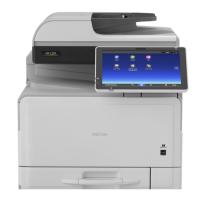
Ricoh MP C307
1241 pages
Print Icon
To Next Page IconTo Next Page
Loading...
MP C307/C407
Machine Code: D296/D297/D298/D299
Field Service Manual
Ver 1.0
Latest Release: Nov, 2017
Initial Release: Nov, 2016
Copyright (c) 2016 Ricoh Co.,Ltd.

Table of Contents

Questions and Answers

  • M
    Molly MurilloSep 23, 2025
    What to do if my Ricoh Printer displays 'The Android SDK version required by the application is not installed on the control panel'?
    • B
      brandon51Sep 23, 2025
      If the Android SDK version required by the application is not installed on the control panel, check that the Android SDK version required by the application is installed on the control panel.
  • J
    Jon MarshallAug 23, 2025
    What to do if my Ricoh Printer's HDD cannot be used?
    • P
      Pamela GreerAug 25, 2025
      If the HDD cannot be used, try turning the main power OFF and then ON again, and repeat the procedure. If the problem persists, the HDD may be damaged and need replacement.
  • A
    Amanda WilliamsAug 25, 2025
    What to do if my Ricoh MP C307 failed to terminate an application when attempting to update or uninstall it?
    • A
      Andrew LongAug 26, 2025
      If the Ricoh printer fails to terminate an application during an update or uninstall, it could be because a job is currently running within that application. Wait for the job to finish, and then try the procedure again. Alternatively, you can turn the main power OFF and then ON, and repeat the procedure.
  • M
    Michael CannonAug 27, 2025
    What to do if my Ricoh Printer displays 'Failed to connect to the eDC server'?
    • J
      James HernandezAug 27, 2025
      If your Ricoh printer fails to connect to the eDC server, check the network connection (SSL) settings and the proxy settings. If the server is under maintenance, wait a while before trying again.
  • J
    Jeremy WalkerAug 27, 2025
    What to do if my Ricoh Printer displays 'Failed to write data when updating the control panel firmware. • There is a problem with the hardware.'?
    • J
      joshuagillAug 27, 2025
      If the Ricoh printer fails to write data when updating the control panel firmware, turn the main power OFF and then ON, and repeat the procedure. If the update fails again, the control panel may need to be replaced.
  • S
    Steven LamSep 16, 2025
    What to do if my Ricoh Printer displays 'The application could not be uninstalled because deactivation failed'?
    • J
      Joe GoodmanSep 16, 2025
      If the application could not be uninstalled because deactivation failed, check whether the network is configured correctly. If the server is under maintenance, wait a while and repeat the procedure. Check the activation status of the application; if it has not been activated, activate it.
  • J
    Jenna RichardsonSep 13, 2025
    What to do if my Ricoh MP C307 displays 'The target update file is invalid'?
    • S
      Steven HamiltonSep 13, 2025
      If the target update file is invalid, repeat the procedure using a valid file.
  • J
    Jason TorresSep 14, 2025
    What to do if my Ricoh Printer displays 'The folder directory of the control panel firmware is invalid'?
    • G
      Gwendolyn NguyenSep 15, 2025
      If the folder directory of the control panel firmware is invalid, repeat the procedure using a valid directory.
  • D
    Daniel AndersonSep 5, 2025
    What to do if my Ricoh MP C307 Printer displays 'Failed to execute installation because another function was being used on the MFP'?
    • T
      Travis RobinsonSep 6, 2025
      If the Ricoh printer fails to execute the installation because another function was being used, wait a while and repeat the procedure. Alternatively, turn the main power OFF and then ON, and repeat the procedure.
  • D
    David TylerSep 3, 2025
    What does it mean if my Ricoh MP C307 Printer displays 'You are trying to install the same application with a different part number. Is it OK to continue?'?
    • D
      Douglas AndersonSep 3, 2025
      This message appears when you're attempting to update an application that is the same but has a different part number. Check the file, and then select either [OK] or [Cancel].

Ricoh MP C307 Specifications

General IconGeneral
TypeMultifunction Printer
FunctionsPrint, Copy, Scan, Fax
Print TechnologyLaser
Print Resolution1200 x 1200 dpi
Maximum Paper SizeA4
Duplex PrintingYes
Scan Resolution600 x 600 dpi
Mobile PrintingApple AirPrint, Google Cloud Print, Mopria
Operating Systems SupportedWindows, Mac OS, Linux
Print Speed (Black)30 ppm
Print Speed (Color)30 ppm
Standard Paper Capacity350 sheets
Supported Paper SizesA4, A5, A6, B5, B6, Letter, Legal
Scanner TypeFlatbed with ADF (Automatic Document Feeder)
Copier Speed (Black)30 cpm
Copier Speed (Color)30 cpm
Copy ResolutionUp to 600 dpi
Zoom Range25% to 400%
ConnectivityEthernet, USB
Max. Paper Capacity1, 350 sheets
Display10.1-inch color touchscreen

Videos

How to Connect Ricoh MP C307 to WiFi?

Related product manuals