EasyManua.ls Logo

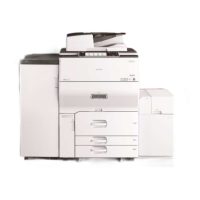
Ricoh MP 7503 Series - User Manual

Ricoh MP 7503 Series
252 pages
Print Icon
To Next Page IconTo Next Page
Loading...
For safe and correct use, be sure to read the Safety Information in
Read This FIrst before using the machine.
Information for This Machine
Troubleshooting
Adding Paper and Toner
Web Image Monitor
Document Server
Scan
Print
Fax
Copy
Getting Started
What You Can Do with This Machine
User Guide

Table of Contents

Questions and Answers

  • V
    vincent92Aug 19, 2025
    What to do if documents don't print from Ricoh MP 7503 Printer?
    • M
      maytylerAug 19, 2025
      If documents and reports do not print, it might be because the paper output tray is full. Remove the prints from the tray. Another reason could be that there is no paper left. In this case, load paper into the printer.
  • J
    jordanvargasAug 21, 2025
    Why does my Ricoh Printer keep misfeeding?
    • V
      Virginia TuckerAug 21, 2025
      Frequent misfeeds can occur for several reasons: * Using curled paper can cause misfeeds. Try to straighten out the curl or load the paper upside down so that the curled edges face downward. * The tray's side or end fences may not be set properly. Ensure that the side or end fences are correctly set and locked. * Copy paper size setting is not correct. * There is a foreign object on the output tray. Do not place anything on the output tray. * There is a foreign object on the finisher tray. Do not place anything on the finisher tray. * The staple cartridge is not set correctly. Set the staple cartridge properly.
  • A
    allenpatrickAug 23, 2025
    What to do if a Ricoh Printer error has occurred?
    • M
      Michael McdanielAug 25, 2025
      If an error has occurred, a function with the status "Error Occurred" will appear in the [Check Status] screen. Press [Check] for the function where the error occurred, read the displayed message, and take the appropriate action. You can use other functions normally.
  • D
    David BuchananAug 26, 2025
    How to fix Ricoh MP 7503 Printer network connection error?
    • D
      Donna RochaAug 26, 2025
      If the Ricoh printer cannot connect to the network, a network error might have occurred. Check that the printer is correctly connected to the network and that the settings are correct.
  • N
    Nicholas GrimesAug 27, 2025
    What to do if Ricoh MP 7503 error message persists after removing misfed paper?
    • B
      bhillAug 27, 2025
      If an error message is still displayed after removing misfed paper, it's possible that paper is still jammed in the tray. Remove the jammed paper by following the procedures displayed on the control panel.
  • A
    Amy PierceAug 30, 2025
    Why can't I print in duplex mode on my Ricoh Printer?
    • B
      bbeckerAug 30, 2025
      If you cannot print in duplex mode, it may be because you have selected a paper tray that is not set for duplex printing. Change the setting for "Apply Duplex" in "Tray Paper Settings" to enable duplex printing for the paper tray. Another reason might be that you have selected a paper type that cannot be used for duplex printing. In "Tray Paper Settings", select a paper type that can be used for duplex printing.
  • S
    Shelby HarrisSep 1, 2025
    What to do if Ricoh MP 7503 Printer shows error after closing the cover?
    • A
      Aimee RamirezSep 1, 2025
      If an error message is still displayed even after the indicated cover is closed, one or more of the covers that are not indicated may still be open. Ensure that all the covers of the machine are closed.
  • M
    Michael CainSep 3, 2025
    Why are images printing on the reverse side of the paper with my Ricoh Printer?
    • D
      drew27Sep 3, 2025
      If images are printed on the reverse side of the paper, you may have loaded the paper incorrectly. Load the paper correctly.
  • M
    michellerussoSep 5, 2025
    Why does only the copier icon appear on my Ricoh MP 7503?
    • T
      tbergSep 5, 2025
      If, when the printer is turned on, the only icon that appears on the home screen is the [Copier] icon, it means that functions other than the copier function are not yet ready. Wait a little longer.
  • M
    Melissa DanielsSep 7, 2025
    What to do if the Ricoh Printer display panel is not responding?
    • K
      Karen ThompsonSep 7, 2025
      If nothing happens when the display panel is touched, the power may be turned off. Make sure the main power indicator is off, and then turn on the power.

Summary

What You Can Do with This Machine

Searching by What You Want to Do

Guides users to find procedures based on desired actions.

Preventing Information Leakage (Security Functions)

Details protecting documents from unauthorized access and copying.

Getting Started

Guide to Names and Functions of Components

Identifies and describes the machine's main components and their functions.

Main power switch

Explains how to turn the main power switch on and off.

Copy

Basic Procedure

Explains the fundamental steps for making copies of originals.

Fax

Basic Procedure for Transmissions (Memory Transmission)

Explains the basic steps for sending documents using Memory Transmission.

Print

Quick Install

Guides on easily installing printer drivers using the provided CD-ROM.

Standard Printing

Details the standard printing process using the PCL 6 printer driver.

Scan

Basic Procedure When Using Scan to Folder

Outlines the steps for scanning documents and sending them to a folder.

Basic Procedure for Sending Scan Files by E-mail

Outlines the steps for scanning documents and sending them via email.

Document Server

Storing Data

Describes the procedure for storing documents on the machine's hard disk.

Web Image Monitor

Adding Paper and Toner

Precautions for Loading Paper

Important safety and handling precautions when loading paper.

Troubleshooting

When a Status Icon Is Displayed

Explains the meaning of various status icons on the machine.

Ricoh MP 7503 Series Specifications

General IconGeneral
Print Resolution1200 x 1200 dpi
Duplex PrintingStandard
Hard Disk Drive320 GB (Optional)
Power Source220-240V, 50/60Hz
Print Speed75 ppm
Paper CapacityMaximum: 8, 300 sheets
ConnectivityUSB, Ethernet, Wi-Fi
Supported Paper SizesA3, A4, A5, B4, B5
First Print Speed2.9 seconds
Memory (RAM)2 GB
Supported Media TypesPlain paper, Recycled paper, Thick paper, Thin paper, Envelopes
Monthly Duty Cycle300, 000 pages

Related product manuals