EasyManua.ls Logo

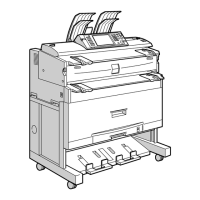
Ricoh MP W6700SP - User Manual

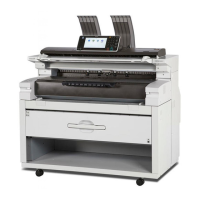
Ricoh MP W6700SP
184 pages
Print Icon
To Next Page IconTo Next Page
Loading...
For safe and correct use, be sure to read the Safety Information in
Read This First before using the machine.
For information not in this manual, refer to
the HTML/PDF files on the supplied
CD-ROM.
Information for This Machine
Troubleshooting
Adding Paper and Toner
Web Image Monitor
Document Server
Scan
Print
Copy
Getting Started
What You Can Do with This Machine
User Guide

Table of Contents

Questions and Answers

  • R
    Ricardo NelsonSep 23, 2025
    Why am I getting an error in the scanner of my Ricoh MP W6700SP Printer?
    • R
      Robert WallerSep 23, 2025
      If an error has occurred in the scanner, it means that the application-specified scan conditions have exceeded the setting range of the machine. Check whether the scanning settings made with the application exceed the setting range of the machine.
  • W
    William WallAug 23, 2025
    What to do if error message persists on Ricoh Printer after closing the cover?
    • R
      Robert SmithAug 23, 2025
      If an error message is still displayed even after closing the indicated cover, it means that one or more covers that are not indicated are still open. Ensure that all the covers of the Ricoh printer are properly closed.
  • R
    Rachael RodriguezAug 25, 2025
    What to do if Ricoh MP W6700SP Printer shows error after removing jammed paper?
    • A
      Anthony ParkerAug 25, 2025
      If an error message continues to appear even after removing the misfed paper, it indicates that paper is still jammed in the tray. Remove the jammed paper by following the procedures displayed on the control panel.
  • K
    Kristopher Hernandez PhDAug 26, 2025
    Why is the display turned off on my Ricoh MP W6700SP?
    • M
      Michael GoodAug 27, 2025
      The display is turned off because the Ricoh printer is in Sleep mode. Press the [Energy Saver] key or the [Check Status] key to exit Sleep mode.
  • A
    Amber AshleyAug 27, 2025
    Why does the Authentication screen appear on my Ricoh MP W6700SP Printer?
    • J
      James SantanaAug 27, 2025
      This occurs because Basic Authentication, Windows Authentication or LDAP Authentication is set. Enter your login user name and user password to proceed.
  • P
    Paul ThompsonSep 18, 2025
    What does 'Exceeded the maximum number of scan modes to save' mean on Ricoh Printer?
    • M
      Megan WashingtonSep 18, 2025
      If the Ricoh printer has exceeded the maximum number of scan modes to save, it means that the maximum number of registrable scan modes has been exceeded. The maximum number of modes that can be stored is 100. Delete unneeded modes.
  • A
    anthonyyoungSep 15, 2025
    What does 'Cannot find the specified path' mean on my Ricoh Printer?
    • R
      Robert HughesSep 15, 2025
      If the Ricoh printer cannot find the specified path, and displays a message to check the settings, it indicates that the destination computer name or folder name is invalid. Verify that the computer name and the folder name for the destination are correct.
  • J
    John RodriguezSep 16, 2025
    Why can't my Ricoh Printer find the specified path?
    • R
      Rodney SimpsonSep 16, 2025
      If the Ricoh printer cannot find the specified path and prompts you to check the settings, an antivirus program or a firewall might be preventing the machine from connecting to your computer. * If you are using antivirus software, add the program to the exclusion list in the application settings. * To prevent a firewall from blocking the connection, register the machine's IP address in the firewall's IP address exclusion settings.
  • K
    Kenneth GuzmanSep 6, 2025
    What to do if misfeeds occur frequently on Ricoh Printer?
    • W
      William RodriguezSep 6, 2025
      If misfeeds occur frequently, check for a foreign object on the output tray. Remove the misfed paper and do not place anything on the output tray.
  • D
    Dr. Trevor RiveraSep 3, 2025
    Why are items missing from the User Tools menu on my Ricoh MP W6700SP Printer?
    • A
      anna50Sep 4, 2025
      If the Ricoh printer has just been turned on and the User Tools screen is displayed, but the User Tools menu has items missing, it means that functions other than the copier function are not yet ready. Wait a little longer; functions will appear in the User Tools menu when they are ready for use.

Summary

What You Can Do with This Machine

Searching by What You Want to Do

Guide to finding procedures based on desired actions.

Preventing Information Leakage (Security Functions)

Security measures to protect data and prevent unauthorized access.

Monitoring and Setting the Machine Using a Computer

Using Web Image Monitor to check status and change settings remotely.

Using Scanned Files on the Computer

Instructions on accessing and utilizing scanned documents on a computer.

Operating the Machine More Effectively

Tips and methods to improve machine usage efficiency.

Getting Started

Guide to Names and Functions of Components

Overview of the machine's parts and their functionalities.

Logging In the Machine

Steps for authenticating and accessing the machine's functions.

Placing Originals

Instructions on how to position originals for scanning or copying.

Logging In Using the Control Panel

Procedures for logging into the machine via its control panel.

Turning On;Off the Power

Procedures for safely powering the machine on and off.

Guide to the Names and Functions of the Machines Control Panel

Detailed explanation of the control panel buttons and display elements.

Copy

Copy Output Locations

Specifies where copies are delivered after printing.

Reducing or Enlarging Originals

Methods for adjusting the size of originals during copying.

Combined Copying

Copying multiple pages onto a single sheet of paper.

Specifying the Length of Copy Paper Cut

How to set the paper cut length for roll paper.

Copying from the Bypass Tray

How to copy onto standard size paper using the bypass tray.

Storing Data in the Document Server

Process for saving scanned documents to the machine's hard disk.

Basic Procedure

Step-by-step guide for performing basic copying operations.

Print

Displaying the Printer Driver Properties

Steps to access and configure printer driver settings.

Standard Printing

Instructions for performing basic printing operations from a computer.

Combining Multiple Pages into Single Page

How to print multiple pages on one sheet to save paper.

Locked Print

Secure printing method requiring a password to release print jobs.

Hold Print

Temporarily holds print jobs for later printing.

Stored Print

Saves print jobs on the machine for later printing via control panel.

Saving and Printing Using the Document Server

Store, edit, and print documents using the machine's hard disk.

Scan

Basic Procedure When Using Scan to Folder

Steps for scanning documents directly to a network folder.

Registering an SMB Folder

How to register network folder destinations for scanning.

Registering an E-mail Destination

How to add email addresses to the address book.

Creating a Shared Folder on a Computer Running Windows;Confirming a Computers Information

Guide to setting up a shared folder for scanning on Windows.

Basic Procedure for Sending Scan Files by E-mail

Steps for scanning documents and sending them via email.

Basic Procedure for Storing Scan Files

Process for saving scanned files to the machine's storage.

Specifying the File Type

Setting the format (e.g., PDF, TIFF) for scanned files.

Document Server

Storing Data

Procedure for saving documents to the machine's hard disk storage.

Web Image Monitor

Adding Paper and Toner

Loading Paper

Detailed guide on how to load paper into the machine's trays.

Replacing Toner

Step-by-step instructions for replacing the toner cartridge.

Loading Paper into the Paper Roll Tray

Specific instructions for loading paper rolls into the tray.

Adding Toner

Steps and precautions for installing new toner cartridges.

Troubleshooting

When a Status Icon Is Displayed

Explains icons indicating machine status and required actions.

When the Indicator Lamp for the [Check Status] Key Is Lit or Flashing

Troubleshooting steps when the check status indicator is active.

When You Have Problems Operating the Machine

Solutions for common operational issues and unexpected behavior.

Messages Displayed When You Use the Copy;Document Server Function

Explains error messages related to copy and document server operations.

Messages Displayed When You Use the Printer Function

Lists and explains messages encountered during printer usage.

Messages Displayed When You Use the Scanner Function

Explains error messages and issues encountered during scanning operations.

When There Is a Problem Scanning or Storing Originals

Troubleshooting steps for scanning and storage issues.

Information for This Machine

Model-Specific Information

Guide to the Names and Functions of the Machines Control Panel

Turning On;Off the Power

Logging In the Machine

Logging Out Using the Control Panel

How to properly log out of the machine from the control panel.

Placing Originals

Basic Procedure

Basic Procedure When Using Scan to Folder

Basic Procedure for Sending Scan Files by E-mail

Basic Procedure for Storing Scan Files

Loading Paper

Adding Toner

When the Indicator Lamp for the [Check Status] Key Is Lit or Flashing

When You Have Problems Operating the Machine

Messages Displayed When You Use the Copy;Document Server Function

Messages Displayed When You Use the Printer Function

Messages Displayed When You Use the Scanner Function

When There Is a Problem Scanning or Storing Originals

When Problems Occur While Logging In

Ricoh MP W6700SP Specifications

General IconGeneral
Print TechnologyLaser
Print Speed (A0)3.4 ppm
WeightApprox. 200 kg
Memory2 GB
HDD320 GB
Power source220 - 240 V, 50/60 Hz
TypeLarge Format Printer
Media SizeA0, A1, A2, A3, A4
Media TypesPlain paper, Coated paper, Film
ConnectivityUSB 2.0, Ethernet
Operating System CompatibilityWindows, macOS
Warm-up time120 seconds
Paper sizeA0, A1, A2, A3, A4

Related product manuals