EasyManua.ls Logo

Ricoh Pro C7110x - User Manual

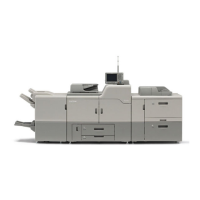
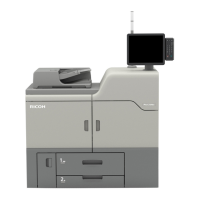
Ricoh Pro C7110x
212 pages
Print Icon
To Next Page IconTo Next Page
Loading...
Operating Instructions
About This Machine
For safe and correct use, be sure to read the Safety Information in Read This First before using the machine.

Table of Contents

Other manuals for Ricoh Pro C7110x

Questions and Answers

  • J
    Jeff FernandezSep 8, 2025
    Why does my Ricoh Copier misfeed when printing on envelopes?
    • J
      james29Sep 8, 2025
      If your Ricoh Copier misfeeds when printing to envelopes, the envelopes may be curled. Make sure you fully flatten curled envelopes before you load them. Do not stack envelopes over the specified limit for the paper tray. If misfeeds still occur after the envelopes have been flattened, load envelopes on the tray one at a time and print them individually. Also, if you printed envelopes with a non-rectangular flap when [Skew Detection] was set to [On], make sure you set [Skew Detection] to [Off] when printing envelopes with a non-rectangular flap.
  • J
    Jennifer HallAug 22, 2025
    What to do if documents don't print from my Ricoh Copier?
    • D
      davisbrianAug 22, 2025
      If documents and reports do not print out from your Ricoh Copier, it might be due to the paper output tray being full. Remove the prints from the tray. Alternatively, there might be no paper left. In this case, load paper into the copier.
  • W
    William RaySep 5, 2025
    What to do if Ricoh Copier does not turn off after switching off the main power?
    • J
      Joshua CarterSep 5, 2025
      If the Ricoh Copier does not turn off 13 minutes after the main power is turned off, the machine cannot perform the shutdown procedure. Repeat the shutdown procedure. If the machine still does not turn off, turn off the AC power switch.
  • L
    Lori BradshawSep 4, 2025
    Why does my Ricoh Copier power off automatically?
    • M
      Maria ShortSep 4, 2025
      If your Ricoh Copier turns off automatically, the Weekly Timer setting is likely set to [Main Power Off]. Change the Weekly Timer setting.
  • J
    Jill MckenzieSep 2, 2025
    Why are images printing on the reverse side of the paper on my Ricoh Copier?
    • M
      matthewperrySep 2, 2025
      If images are printing on the reverse side of the paper with your Ricoh Copier, you may have loaded the paper incorrectly. Load the paper correctly.
  • H
    hleeSep 1, 2025
    What to do if the error message is still displayed on Ricoh Copier, even if the indicated cover is closed?
    • A
      Anthony SchmidtSep 1, 2025
      If an error message remains on the Ricoh Copier display even after closing the indicated cover, one or more of the covers that are not indicated are still open. Close all the covers of the machine.
  • S
    seansparksAug 30, 2025
    What to do if nothing happens when pressing [Check Status] or [Energy Saver] key on Ricoh Copier?
    • J
      Justin WillisAug 30, 2025
      If nothing happens when you press the [Check Status] key or the [Energy Saver] key on your Ricoh Copier, the power might be turned off. Make sure the main power indicator is off, and then turn on the power.
  • T
    turnermitchellAug 29, 2025
    What to do if the error message is still displayed on Ricoh Copier after removing jammed paper?
    • M
      Meagan WagnerAug 29, 2025
      If an error message persists on your Ricoh Copier even after removing misfed paper, it's likely that paper is still jammed in the tray. Remove the jammed paper by following the procedures displayed on the control panel.
  • M
    Matthew MurphyAug 27, 2025
    How to turn on Ricoh Copier?
    • J
      jennifer65Aug 27, 2025
      If your Ricoh Copier does not turn on, the AC power switch might not be turned on. Turn on the AC power switch.
  • L
    Lauren DuranAug 27, 2025
    How to turn on the display on Ricoh Copier?
    • M
      Mr. Bryan DavisAug 27, 2025
      If the display on your Ricoh Copier is turned off, the machine might be in Low Power mode. Touch the display panel or press one of the keys on the control panel to cancel Low Power mode. Alternatively, the machine could be in Sleep mode. Press the [Energy Saver] key or the [Check Status] key to exit Sleep mode.

Summary

Operating Instructions

About This Machine

Provides an overview of the machine's features and capabilities.

Easy Search

Guides users to find procedures based on their desired actions.

Reduce Costs and Operate Effectively

Explains cost reduction, efficiency improvements, and basic operations.

Machine Capabilities and Customization

Describes features like screen customization, printing functions, and security.

Security and Remote Management

Details security features and remote monitoring via Web Image Monitor.

Prevent Unauthorized Copying

Describes using embedded patterns to prevent unauthorized copying.

Getting Started Guide

Machine Overview and Components

Introduces the machine, its features, and major components.

Component Identification and Functions

Illustrates and labels machine components like power switches and covers.

Attention Light and Safety Features

Explains the attention light and earth leakage breaker functions.

Optional Equipment and Functions

Describes external options like finishers, binders, and paper trays.

Control Panel Operation

Identifies control panel keys and explains basic operations like reset and login.

Media Storage and Screen Navigation

Guides on using memory devices and navigating machine screens.

Mode and Screen Switching

Explains how to switch modes, screens, and use function keys.

Machine Information and Energy Saving

Environmental Regulations and ENERGY STAR

Covers environmental compliance and ENERGY STAR program details.

Energy Saving Functions Explained

Explains Low Power mode, Sleep mode, and Fusing Unit Off mode.

Paper Handling and Specifications

Loading Paper Precautions and Methods

Provides general precautions and steps for loading paper into various trays.

Loading Specific Paper Types and Trays

Details loading for Tray 1, A3/11x17, Tray 2, Bypass, LCTs, and Interposer.

Changing Paper Size Settings

Guides on changing paper sizes, including manual and custom settings.

Recommended Paper Guide

Lists recommended paper types, weights, and sizes for optimal machine performance.

Convenient Functions and Job Management

Home Screen Customization

Explains customizing the Home screen by adding, arranging, or deleting icons.

Displaying Custom Images

Explains how to display custom images on the Home screen.

Machine Status and Network Information

Covers checking paper status, toner levels, and machine network addresses.

Print Job Management

Covers managing jobs: checking status, changing order, deleting, and viewing history.

Maintenance, Specifications, and Safety

General Requirements and Safety Precautions

Outlines essential safety rules and prohibitions for machine usage.

Data Backup and Consumables Management

Covers backing up data and managing toner, waste toner, staples, and glue.

Machine Placement, Moving, and Power

Provides guidance on machine placement, moving, and safe power connection.

Machine Maintenance and Safety Checks

Details cleaning procedures and checking earth leakage breakers.

Useful Information and Machine Specifications

Covers counter, inquiry functions, and detailed technical specifications.

Appendix

Trademarks Information

Lists trademarks and proprietary names associated with the machine and software.

Ricoh Pro C7110x Specifications

General IconGeneral
Print TechnologyLaser
Color Print Speed (A4)71 ppm
Black Print Speed (A4)71 ppm
Print Speed (Color)71 ppm
Print Speed (Black)71 ppm
Maximum Print Resolution1200 x 4800 dpi
Monthly Duty Cycle300, 000 pages
Maximum Paper Size330.2 x 487.7 mm
ConnectivityEthernet, USB, Wi-Fi
Paper Weight52 - 300 gsm
Duplex PrintingStandard

Related product manuals