EasyManua.ls Logo

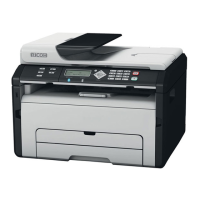
Ricoh SP 203 SF - User Manual

Ricoh SP 203 SF
208 pages
Print Icon
To Next Page IconTo Next Page
Loading...
Operating Instructions
User Guide
For safe and correct use, be sure to read "Safety Information" before using the machine.

Table of Contents

Questions and Answers

  • J
    jacobramirezSep 23, 2025
    How to adjust the print position on my Ricoh All in One Printer?
    • C
      Carl RobinsonSep 23, 2025
      To correct a misaligned print position on your Ricoh All in One Printer, specify [Registration] in [System Settings] to adjust the print position.
  • C
    campbelljamesAug 25, 2025
    Why is my Ricoh SP 203 SF feeding multiple sheets at once?
    • J
      Joseph KellyAug 25, 2025
      If multiple sheets of paper are fed at once in your Ricoh All in One Printer, try these steps: * Fan the paper well before loading, and ensure the edges are even. * Make sure the paper guides are correctly positioned. * Use supported paper types. * Do not load paper beyond the upper limit markings on the paper guide. * Only add paper when the tray is empty.
  • A
    Andrew RodriguezAug 25, 2025
    Why is the paper curled after printing from my Ricoh SP 203 SF?
    • A
      Ashley AllenAug 26, 2025
      If the printed paper from your Ricoh All in One Printer is curled, try loading the paper upside down in the input tray. Also, ensure that the paper is not damp and has been stored properly.
  • H
    heather67Aug 27, 2025
    Why is the printout from my Ricoh SP 203 SF All in One Printer blurred?
    • C
      charles74Aug 27, 2025
      If the whole printout from your Ricoh All in One Printer is blurred, ensure that the paper is not damp and has been stored properly. If you have enabled [Toner Save:], printing may be less dense. If there has been a rapid change in temperature or humidity, allow the machine to acclimatize before using it.
  • J
    James RodriguezAug 27, 2025
    How to fix images printing diagonally on my Ricoh All in One Printer?
    • B
      Brian HutchinsonAug 27, 2025
      To address images printing diagonally on pages from your Ricoh All in One Printer, adjust the paper guides to eliminate any gaps between the paper and the guides.
  • S
    Sheri HarrisSep 16, 2025
    What to do if an error occurs on Ricoh SP 203 SF?
    • J
      jason01Sep 16, 2025
      If an error occurs when printing with your Ricoh All in One Printer, try changing the computer or printer driver settings. Check that the printer icon name does not exceed 32 alphanumeric characters; if it does, shorten it. Close any other applications that may be interfering with printing, and if the problem persists, close unneeded processes. Ensure that you are using the latest printer driver.
  • J
    James JensenSep 13, 2025
    Why is my Ricoh SP 203 SF making a strange noise?
    • J
      John WilliamsSep 13, 2025
      If your Ricoh All in One Printer is making a strange noise, check that the consumable is properly installed.
  • S
    Sarah TorresSep 15, 2025
    Why does a fax sent from my Ricoh SP 203 SF All in One Printer appear blank?
    • J
      Joshua AcevedoSep 15, 2025
      If a fax you sent from your Ricoh All in One Printer appears blank when received, ensure that the original was placed in the correct orientation.
  • M
    Mary BerrySep 5, 2025
    How to remove moire pattern from copies on Ricoh All in One Printer?
    • E
      Edward SmithSep 6, 2025
      If a moire pattern is produced when copying with your Ricoh All in One Printer, the original probably has heavily lined or dotted areas. Try switching the setting for image quality between [Photo] and [Text/Photo] to eliminate the moire pattern.
  • O
    ochoaashleySep 3, 2025
    Why is the paper blank after photocopying with my Ricoh All in One Printer?
    • M
      madisonwilliamsSep 3, 2025
      If the photocopied paper is blank when using your Ricoh All in One Printer, ensure that the original was placed correctly.

Ricoh SP 203 SF Specifications

General IconGeneral
Print TechnologyLaser
FunctionalityPrint, Copy, Scan, Fax
Print Speed (Black)22 ppm
Print Resolution1200 x 1200 dpi
Paper Capacity250 sheets
DisplayLCD
Duplex PrintingManual
Copy Speed22 cpm
Copy Resolution600 x 600 dpi
Scan Resolution600 x 600 dpi
Fax Speed33.6 Kbps
First Print Out Time10 seconds
Fax Transmission Speed3 seconds per page
ConnectivityEthernet

Related product manuals