23
4
Note: On some devices the layout of controls within the Spotify app may
be different from that shown and may also change with different versions
of the app. Refer to VSRWLI\FRPFRQQHFW if needed.
Playing music using Spotify Connect
Spotify Connect lets you push a button to control the music between your
Spotify Connect enabled devices. While playing a song, you can switch
playback from your smart-phone, tablet, Desktop or even to a Connect
enabled radio.
1. Ensure your speaker is switched on and connected to your network.
2. Make sure that both your speaker and Apple iOS / Android device are
connected to the same network and that you have downloaded the
latest Spotify app on your device.
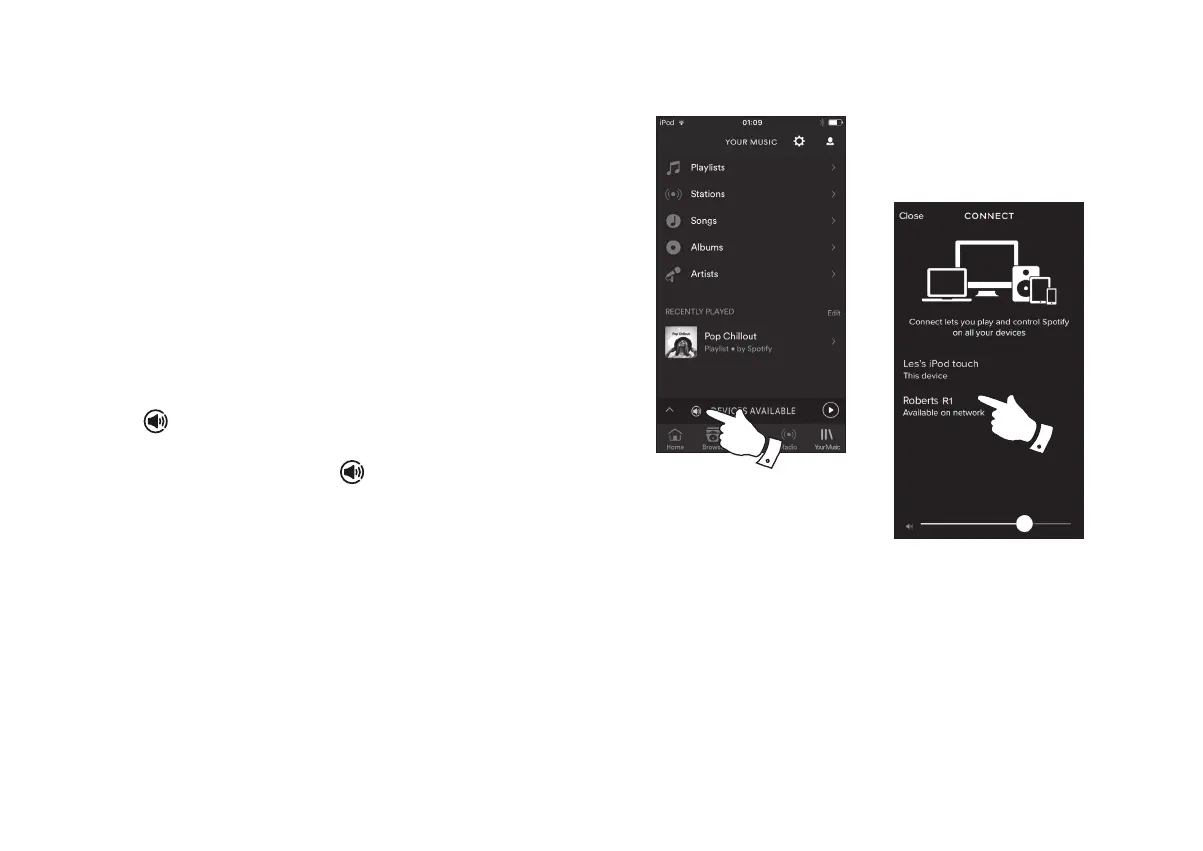
3. Simply open the Spotify app on your Apple iOS / Android device and
FKRRVHDWUDFNRUSOD\OLVW:KHQWKH6SRWLI\DSSKDVLGHQWL¿HGRWKHU
devices that are compatible with Spotify Connect, the 6SRWLI\ Connect
icon
will be shown with the text 'Devices available'.
Tap the 6SRWLI\ &RQQHFW LFRQ
or the 'Devices available' text
to show a list of Spotify Connect enabled devices to which you can
transfer the playing of the music.
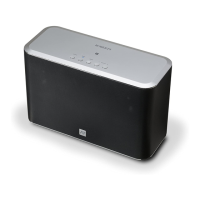
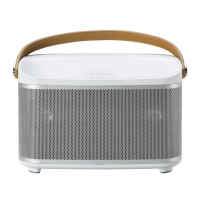
4. To select your speaker choose R1 on the Spotify Connect devices
VFUHHQ<RXDUHQRZUHDG\WRSOD\PXVLFWKURXJK\RXUVSHDNHUXVLQJ
Spotify Connect. The Spotify app will also allow remote control of the
volume and track selection.
The next time you open Spotify, it will continue playing from the previously
selected device.
3


 To Next Page