25
Bluetooth mode
7KH%OXHWRRWKPRGHRQ\RXUVSHDNHUDOORZV\RXWRSOD\DXGLRSOD\VRXQGIURPYLGHR¿OHVDQGVWUHDPPXVLFIURP%OXHWRRWKFDSDEOHGHYLFHVVXFK
as your moblie phone, computer, tablet etc. through your speaker's loudspeakers.
Ɣ :KHQD%OXHWRRWKHQDEOHGGHYLFHVXFKDV\RXU5VSHDNHULVLQDGLVFRYHUDEOHVWDWHRWKHU%OXHWRRWKGHYLFHVFDQGHWHFWSDLUZLWKRUFRQQHFW
to it.
Ɣ %OXHWRRWKSDLULQJRFFXUVZKHQWZR%OXHWRRWKHQDEOHGGHYLFHVDJUHHWRHVWDEOLVKDFRQQHFWLRQDQGFRPPXQLFDWHZLWKHDFKRWKHU
Connecting Bluetooth devices
(QVXUHWKDWWKH%OXHWRRWKFDSDELOLW\RQ\RXUSKRQHWDEOHWRU3&LVHQDEOHG<RXPD\QHHGWR
refer to the user documentation for your device, since the method will vary with each device.
2. Ensure your speaker is switched on.
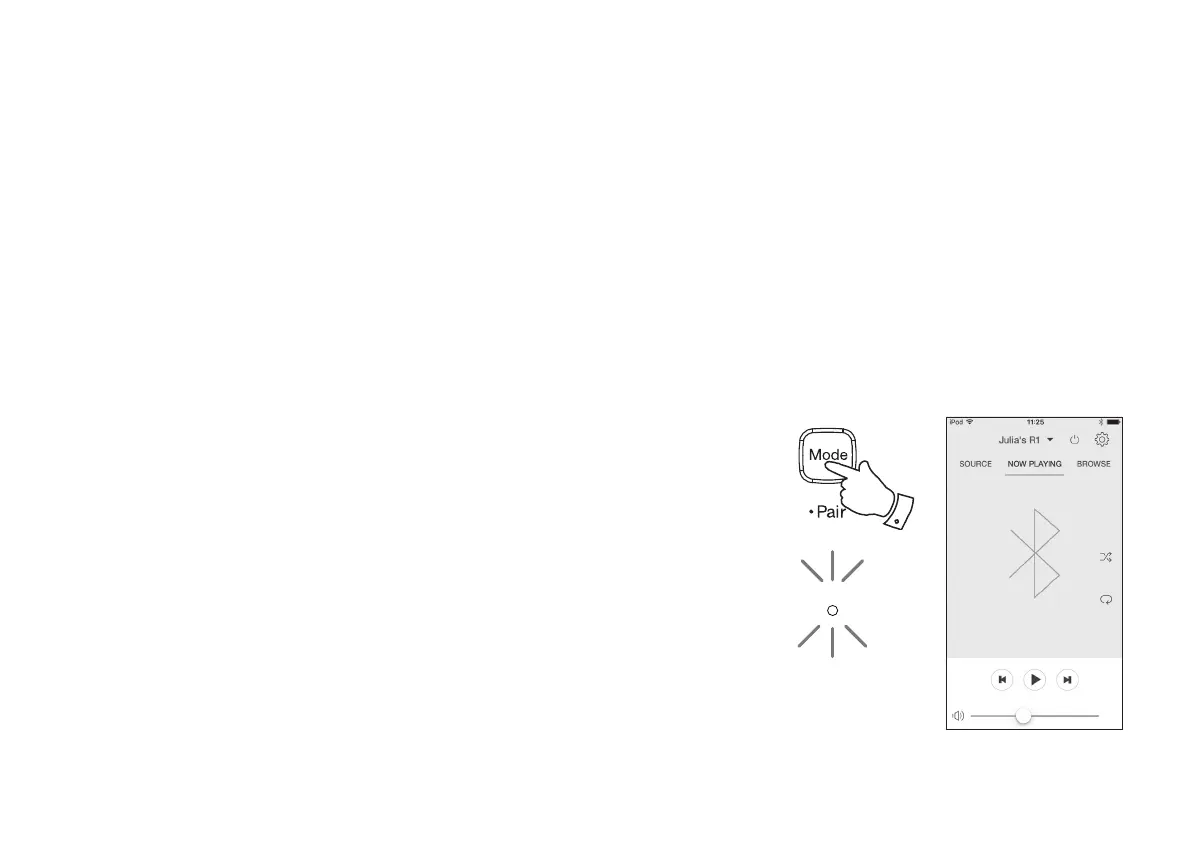
3. Press and release the Mode / Bluetooth Pair button on your speaker until the Bluetooth
mode is selected or alternatively open the UNDOK app and select 'Bluetooth' as the music
source. <RXUVSHDNHUZLOOVKRZWKDWLWLVGLVFRYHUDEOHDQGWKHMode / Bluetooth indicator
ZLOOÀDVKEOXH,IWKHLQGLFDWRULVEOXHDQGQRWÀDVKLQJWKHQWKHVSHDNHULVDOUHDG\FRQQHFWHG
to another device. To cause the speaker to become discoverable, press and hold the Mode /
Bluetooth Pair button.
4. Using the Bluetooth settings of your phone, tablet or PC direct it to search for 'discoverable'
devices. After a few seconds, you should see a device named 'R1'. Just occasionally it may
take longer for the speaker to be found by your device.
5. Select 'R1' to cause your phone, tablet or PC to pair with your speaker and to establish a
connection.
6. Once the connection is established the Bluetooth indicator will remain steady.
<RXFDQQRZEHJLQSOD\LQJPXVLFIURP\RXUVPDUWSKRQHWDEOHWHWF
Some Bluetooth devices may require a 'Passkey' (an authentication key) in order to establish a link
between devices. A passkey is similar to a password, although you only need to use the passkey
once to establish a link. If your device asks for a passkey to be able to pair with your speaker then
enter a code of 0000 (four zeroes).
3
Mode


 To Next Page