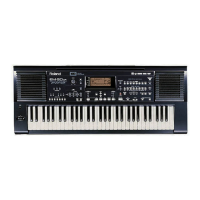
Panel & Display Description
Front Panel
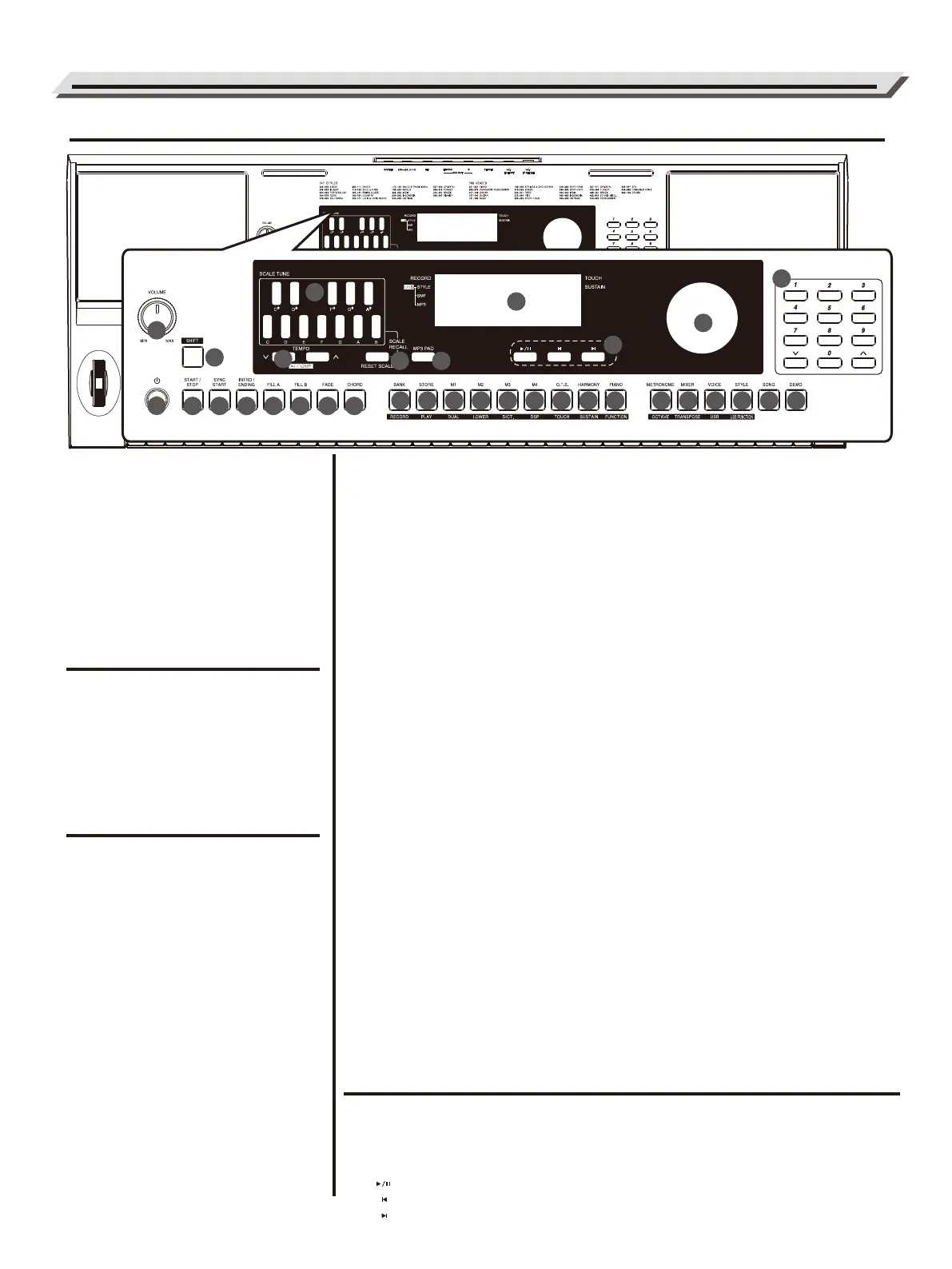
1. [VOLUME] knob (P.08)
Adjust the master volume.
2. POWER SWITCH (P.08)
Turn the Power on or off.
3. [SHIFT] button
Select the secondary functions
of other buttons.
7. [MP3 PAD] button (P.31)
Switch between Scale Tune
mode and MP3 PAD mode.
In Scale Tune Mode
4. [SCALE TUNE] button (P.31)
Set the Scale parameters.
6. [RESET SCALE] button (P.31)
Reset the scale.
In MP3 PAD Mode
4. [MP3 PAD] button (P.32)
Select an MP3 to play back.
8. [START/STOP] button (P.12)
Start or Stop playing the style.
9. [SYNC START] button (P.12)
Turn the Sync Start on or off.
10. [INTRO/ENDING] button (P.13)
Play the Intro or Ending.
11. [FILL A] button (P.13)
Play the fill-in pattern A.
12. [FILL B] button (P.13)
Play the fill-in pattern B.
13. [FADE] button (P.13)
Turn the fade-in or fade-out
function on or off.
14. [CHORD] button (P.12)
Enter the chord mode.
When the [SHIFT] button pressed
5. ACCOMP [˅]/[˄] button (P.14)
Adjust the accompaniment volume.
15. [RECORD] button (P.27)
Enter the Recording mode.
16. [PLAY] button (P.27)
Play back the recording.
17. [DUAL] button (P.11)
Turn the Dual function on or off.
18. [LOWER] button (P.11)
Turn the Lower function on or off.
19. [DICT.] button (P.29)
Enter the Chord Dictionary.
20. [DSP] button (P.25)
Turn the DSP function on or off.
21. [TOUCH] button (P.24)
Enter the Touch setting menu.
22. [SUSTAIN] button (P.24)
Turn the Sustain function on or off.
23. [FUNCTION] button (P.16)
Enter the Function menu.
24. [OCTAVE] button (P.24)
Enter the Octave setting menu.
25. [TRANSPOSE] button (P.25)
Enter the Transpose setting menu.
26. [USB] button (P.33)
Enter USB flash drive play menu.
27. [USB FUNCTION] button (P.33)
Enter the USB flash drive function
menu.
32. DATA DIAL
Adjust the parameter value.
33. [˅] / [˄] and NUMERIC buttons
Set parameters value or select the
number.
When the [SHIFT] button released
5. TEMPO [˅]/[˄] button (P.15)
Adjust the current Tempo.
15. [BANK] button (P.26)
Select a memory bank.
16. [STORE] button (P.26)
Register the panel settings.
17~20. [M1]~[M4] button (P.26)
Recall a registered panel setting.
21. [O.T.S.] button (P.26)
Turn the One Touch Setting function
on or off.
22. [HARMONY] button (P.25)
Turn the Harmony effect on or off.
23. [PIANO] button (P.28)
Enter the Piano Mode.
24. [METRONOME] button (P.24)
Turn the metronome on or off.
25. [MIXER] button (P.23)
Enter the Mixer menu.
26. [VOICE] button (P.11)
Enter the Voice mode.
27. [STYLE] button (P.12)
Enter the Style mode.
28. [SONG] button (P.29)
Enter the Song mode.
29. [DEMO] button (P.28)
Enter the Demo Mode.
30. LCD Display
Display all parameters and values
related to the current operation.
31. [SONG CONTORL] button (P.29)
[ ] Play or pause playing a song.
[ ] Select the previous song.
[ ] Select the next song.
04
1
112
20
12 13 14
15 16
17
18
19
5
6
7
8 9 10
4
3
21
22
24 2726 28
23
25 29
30
31
32
33



 To Next Page