EasyManua.ls Logo

Roland IU-1000F - User Manual

Roland IU-1000F
144 pages
Print Icon
To Next Page IconTo Next Page
Loading...
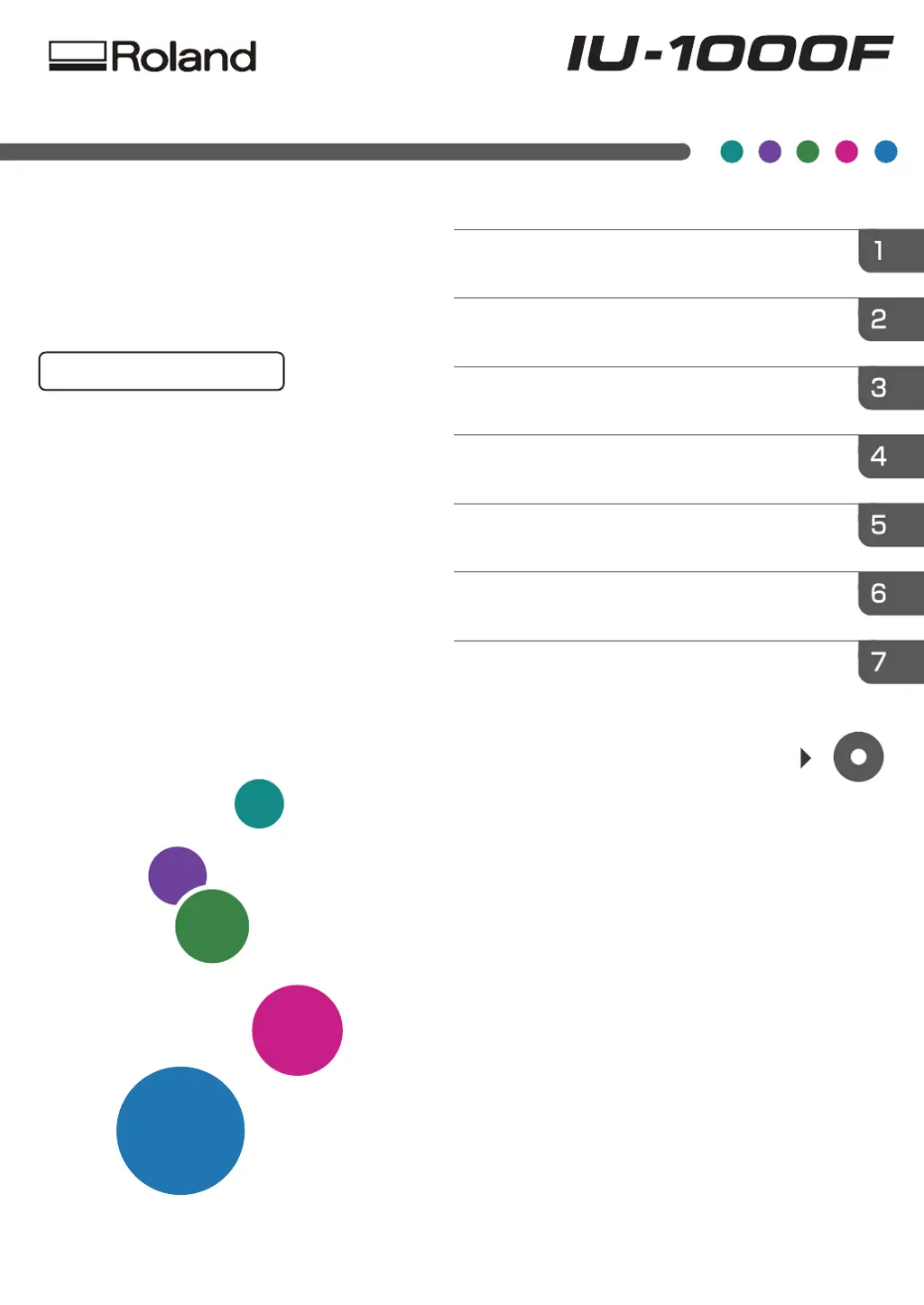
For safe and correct use, be sure to read Safety Informaon before
using the machine.
For informaon not in this manual, refer to
the PDF files on the supplied CD.
Appendix
Maintenance and Specificaons
Troubleshoong
Convenient Usage
Basic Operaons
Using Print Control
Geng Started
Operating
Instructions
Original Instructions

Table of Contents

Other manuals for Roland IU-1000F

Questions and Answers

  • M
    Margaret PrinceSep 23, 2025
    Why are there blisters on the media surface when printing with my Roland Plotter?
    • H
      hendersonchristineSep 23, 2025
      If you notice blisters on the media surface after printing with your Roland Plotter, it's likely due to dust on the media surface. Try to make the work environment less dusty.
  • K
    Kathy WilliamsAug 23, 2025
    Why does my Roland Plotter show "Memory is insufficient"?
    • K
      Kyle EnglishAug 25, 2025
      If your Roland Plotter displays the message "Memory is insufficient," it means the computer lacks sufficient memory or the RIP file size is too large. Try closing unnecessary applications and restarting Print Control. Alternatively, reduce the RIP file resolution or increase the computer's memory capacity.
  • S
    Spencer PetersAug 25, 2025
    What to do if my Roland Plotter says "Insufficient ink"?
    • M
      Matthew HarperAug 26, 2025
      If the Roland Plotter displays the message "Insufficient ink", it means that the ink level is low or the ink detection sensor has malfunctioned. Replenish the ink. If the problem persists, contact your authorized Roland DG Corporation representative.
  • T
    tamarajohnsonAug 27, 2025
    Why does my Roland Plotter say "It is now printing"?
    • R
      Ryan ZhangAug 27, 2025
      If your Roland Plotter displays the message: "It is now printing. Try again Later. Or abort software process and restart program.", it means that the machine is currently printing. Please try again after the printing is complete. If the message persists, restart Print Control.
  • M
    monicaestesAug 27, 2025
    Why won't the beeping stop on my Roland Plotter?
    • K
      Katie RomeroAug 28, 2025
      If your Roland Plotter is beeping, it could be due to a full waste ink tank or low ink levels. Dispose of the waste ink if the tank is full. Check and replenish any ink tanks that are low on ink.
  • C
    Charlotte CampbellSep 16, 2025
    What to do if my Roland Plotter says "Illegal print head voltage found!"?
    • K
      Kelly RiveraSep 16, 2025
      If your Roland Plotter displays the error message: "Illegal print head voltage found", it means that an error has occurred in the carriage or the print heads. Turn the power to the machine off and then on again. If the same message still appears, contact your authorized Roland DG Corporation representative.
  • L
    Lauren NicholsSep 13, 2025
    What to do if my Roland Plotter shows "Incorrect Print Head Channel Parameter"?
    • J
      jason37Sep 13, 2025
      If your Roland Plotter displays the message "Incorrect Print Head Channel Parameter", it means there's a problem with the print head settings or the settings file is corrupted. Restore the settings file. If the message persists, reinstall Print Control, and then restore the settings file.
  • L
    Linda HughesSep 15, 2025
    Why does my Roland Plotter say "Hardware configuration is incorrect, machine cannot print"?
    • A
      andrew79Sep 15, 2025
      If your Roland Plotter displays the error message: "Hardware configuration is incorrect, machine cannot print", it means that the operating system does not support Print Control. Check the version of Print Control and the operating system being used, and contact your authorized Roland DG Corporation representative.
  • P
    paulwebbSep 5, 2025
    Why are the images blurred when printing from my Roland Plotter?
    • K
      Kevin HooverSep 6, 2025
      If your Roland Plotter is printing blurred or misaligned images soon after starting, it's likely because the ink inside the print head has become viscous due to the time spent in standby mode. Print a test pattern before starting to check for ink ejection defects such as nozzle clogging.
  • T
    Taylor OrtizSep 3, 2025
    What to do if my Roland Plotter displays "When doing reset, there is no carriage encoder signal"?
    • N
      Nicolas MontgomerySep 3, 2025
      If the Roland Plotter displays the message: "When doing reset, there is no carriage encoder signal", it means that the machine's front cover is open, or the carriage is positioned too far to the left or right. Close the cover properly, and then reboot Print Control. Move the carriage by hand approximately 10 cm toward the center, and then reboot Print Control. If the same message appears even after this is performed, turn the machine off and on. If the same message still appears, contact your authorized Roland DG Corporation representative.

Summary

Getting Started

Before You Start

Information to review before beginning operation, including manual reading and setup.

Guide to Names and Functions of Components

Connecting the Power Cord

Instructions and safety precautions for connecting the machine's power cord.

About Ink

Supported Ink

Details on the types of UV ink compatible with the machine.

Using Print Control

About Print Control

Overview of the Print Control software and its capabilities.

Installing Print Control

Step-by-step guide for installing the Print Control software from the CD.

Basic Operations

Procedure to Print

Step-by-step guide for preparing and executing a print job.

Turning On;Off the Power

Instructions and safety precautions for powering the machine on and off.

Test Printing

Performing test prints to check for nozzle clogging and print quality issues.

Cleaning Print Head Nozzles

Procedure for cleaning print head nozzles to resolve printing problems.

Setting Media

Instructions on how to correctly set printing media on the machine's table.

Convenient Usage

Backing Up;Restoring the Settings

Saving and loading Print Control configurations for backup and recovery.

Troubleshooting

If You Cannot Turn On the Power

Solutions for issues preventing the machine from powering on.

When You Have Problems Operating the Machine

Troubleshooting steps for common operational problems and error messages.

When You Cannot Print Properly

Addressing issues related to print quality, such as blurring or fading.

When nozzle clogging does not clear

Procedures to resolve persistent nozzle clogging after cleaning attempts.

If Ink Mixes or Missing Nozzles Occur Due to Aeration

Steps to remove air bubbles that cause ink mixing or missing nozzles.

Color Offset Adjustment

Adjusting ink drop position misalignment between color nozzles.

Adjustment for Misalignment in Bidirectional Printing

Correcting subtle misalignments in bidirectional printing passes.

When You Check Messages

Display of messages indicating the machine's status and system events.

If a Message Appears

Detailed error messages, their causes, and recommended solutions.

Maintenance and Specifications

Roland IU-1000F Specifications

General IconGeneral
Maximum Print Width1000 mm
Print Resolution1440 dpi
ConnectivityEthernet, USB
Media Width1000 mm
Media Thickness1 mm
InterfaceEthernet
Weight386 lb (175 kg)

Related product manuals