EasyManua.ls Logo

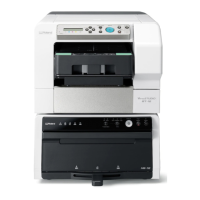
Roland VersaStudio BT-12 - User Manual

Roland VersaStudio BT-12
234 pages
Print Icon
To Next Page IconTo Next Page
Loading...
OperatingInstructions
Forsafeandcorrectuse,besuretoreadSafetyInformationbefore
usingthemachine.

Table of Contents

Other manuals for Roland VersaStudio BT-12

Questions and Answers

  • W
    whitefrancisAug 2, 2025
    What to do if Roland VersaStudio BT-12 test print fails?
    • K
      kyle55Aug 2, 2025
      If the Roland Printer test print fails, make sure the power cord, USB cable, and Ethernet cable are properly connected. If the port connection is not properly set, select USB or network printer in the list. Also, wait until ink feed is complete. If a printer error has occurred, check the error message on the display, resolve the problem, and then perform the test print again.
  • P
    Peter KramerAug 9, 2025
    Why is my Roland VersaStudio BT-12 not printing?
    • L
      loridavisAug 9, 2025
      If your Roland Printer isn't printing, first check if the power lamp is lit; if not, turn the machine on. If the power lamp doesn't light up or flash when you press the power button, verify the power cord is properly plugged into the receptacle. You can also view the Status Monitor to check for any error messages.
  • J
    Jacqueline StrongAug 15, 2025
    How to improve Roland VersaStudio BT-12 print quality?
    • R
      Robin WaltersAug 15, 2025
      To improve Roland Printer print quality, start by printing the nozzle check test pattern. If necessary, clean the print heads. If you see blurred or double lines, adjust the head position. Ensure the fabric's printing surface is flat and check for fabric compatibility. If using an optional finisher, lower the temperature and adjust it for the fabric. If the heater and fabric are in contact, attach the spacer to the inside of the tray.
  • V
    vleeAug 21, 2025
    What to do if Roland Printer tray is not working?
    • Z
      Zoe OliverAug 21, 2025
      If the Roland Printer tray isn't working correctly, ensure the fabric is loaded smoothly from the center outward. Straighten out the fabric before printing. Tuck under any fabric edges protruding from the tray. Try removing the loaded fabric and loading a usable fabric. Adjust the tray height if uneven fabric is loaded. If the fabric is wrinkly, set [Select Print Quality:] to [Fine]. Push the tray in slowly until it clicks. Adjust the tray height if it's too high. Remove any foreign objects inside the machine.
  • A
    Abigail RichardsOct 27, 2025
    How to fix Roland VersaStudio BT-12 Printer software installation failure?
    • A
      Amy ReynoldsOct 27, 2025
      If you're having trouble installing the Roland Printer software, try these steps: Reinstall the software. Ensure the CD-ROM is correctly inserted, undamaged, and the CD-ROM drive functions properly. Verify the power cord and USB cable are properly connected and undamaged. Confirm your computer's operating system is compatible. Check for sufficient hard disk space. Close all other applications. If the machine was on during installation, turn it off, then on, and retry 'Quick Install for USB'. For USB connection issues, unplug the USB cable, relaunch 'Quick Install for USB', and power on the machine when prompted. Remove conflicting devices in Windows' Device Manager. You can also follow the troubleshooting steps for 'The USB connection does not work' or 'Windows made USB settings automatica...

Summary

1. About This Product

Guide to Components

Details the names and functions of the machine's parts and options, including views and panels.

Control Panel Overview

Details the functions and indicators of the machine's control panel buttons and display.

Tray Management and Power

Explains tray types, loading, removing, and power on/off procedures for the machine.

2. Preparing for Printing

Initial Setup and Environment Checks

Covers setup procedures, installation area checks, power source, and computer connection requirements.

Machine Connection and Driver Installation

Guides on connecting the machine via USB or network and installing the printer driver software.

Fabric Handling and Loading Procedures

Details usable fabrics and precautions for handling, and provides procedures for loading them into trays.

3. Printing on T-shirts

Design Software Usage and Workflow

Covers Design Software introduction, installation, launching, and the step-by-step printing workflow.

Print Preparation and Post-Print Handling

Explains dust removal, fabric loading, printing, ink fixing, and handling of printed goods.

4. Printing via the Printer Driver

Printer Driver Settings and Configuration

Explains how to set printer driver options, including the Accessories tab, and display printing settings.

Print Job Management

Details methods to cancel print jobs from the status monitor, using the Stop key, or from the taskbar.

5. Machine Setup Menus

Control Panel Settings and Menus

Covers configuring machine settings via the control panel, including Counter, Maintenance, System, and Host Interface menus.

Maintenance Procedures

Details machine maintenance tasks for print quality, such as nozzle checks, head cleaning, registration, and adjustments.

System and Language Settings

Allows setting basic machine functions like Energy Saver, Notify by Email, Unit of Measure, and display language.

6. Monitoring and Configuring the Machine

Machine Status Monitoring Tools

Details how to check status, errors, and ink levels using the Status Monitor and Web Image Monitor.

Network Configuration and Management

Covers network settings like IP address, Ethernet speed, SNMP, and security for machine management.

7. Using the Machine with a Macintosh

Macintosh System Requirements and Setup

Lists Macintosh system requirements, driver installation, printer adding, and maintenance utility access.

Macintosh Printing and Help

Explains how to print with a Macintosh and access help documentation for the machine and its functions.

8. Maintenance

Machine Function Restrictions and Key Locking

Details how to lock control panel keys to prevent unauthorized changes and restrict machine functions.

Ink Cartridge and Collector Unit Replacement

Guides on checking ink levels and replacing ink cartridges and ink collector units.

Filter Replacement and Cleaning Procedures

Explains how to replace filters, adjust fan speed, and clean machine parts like the top cover and sensor.

Machine Handling and Storage

Details precautions for moving the machine safely and guidelines for long-term storage or disposal.

9. Troubleshooting

Software and Driver Installation Issues

Provides steps to troubleshoot problems with software and printer driver installation and connection.

Printing and Tray Operation Problems

Addresses issues when printing does not start, the tray malfunctions, or fabric/objects are stuck.

Print Quality and Error Message Troubleshooting

Helps resolve poor print quality, color mismatches, and interpret error/status messages on the display.

10. Appendix

CD-ROM Contents and Printer Drivers

Lists files on the CD-ROM, driver locations, and system requirements for installation.

Specifications and Options

Lists technical specifications for the machine body, optional trays, and their dimensions/weight.

Consumables, Support, and Trademarks

Details recommended consumables, inquiry contacts, options, and trademarks related to the product.

Roland VersaStudio BT-12 Specifications

General IconGeneral
Print Resolution1200 x 1200 dpi
Ink ConfigurationCMYK
Power SupplyAC 100-240V, 50/60Hz
Print TechnologyInkjet
Ink TypePigment ink
ConnectivityUSB, Ethernet
Operating System CompatibilityWindows, macOS
TechnologyDirect-to-garment
Printable MaterialCotton
Weight in lbs52.9
Maximum Print Width8.5 inches
Ink ColorsCyan, Magenta, Yellow, Black
Connectivity AdditionalEthernet

Related product manuals