4–2 XPression Connect User Guide (10.5)
Playback Controls Window
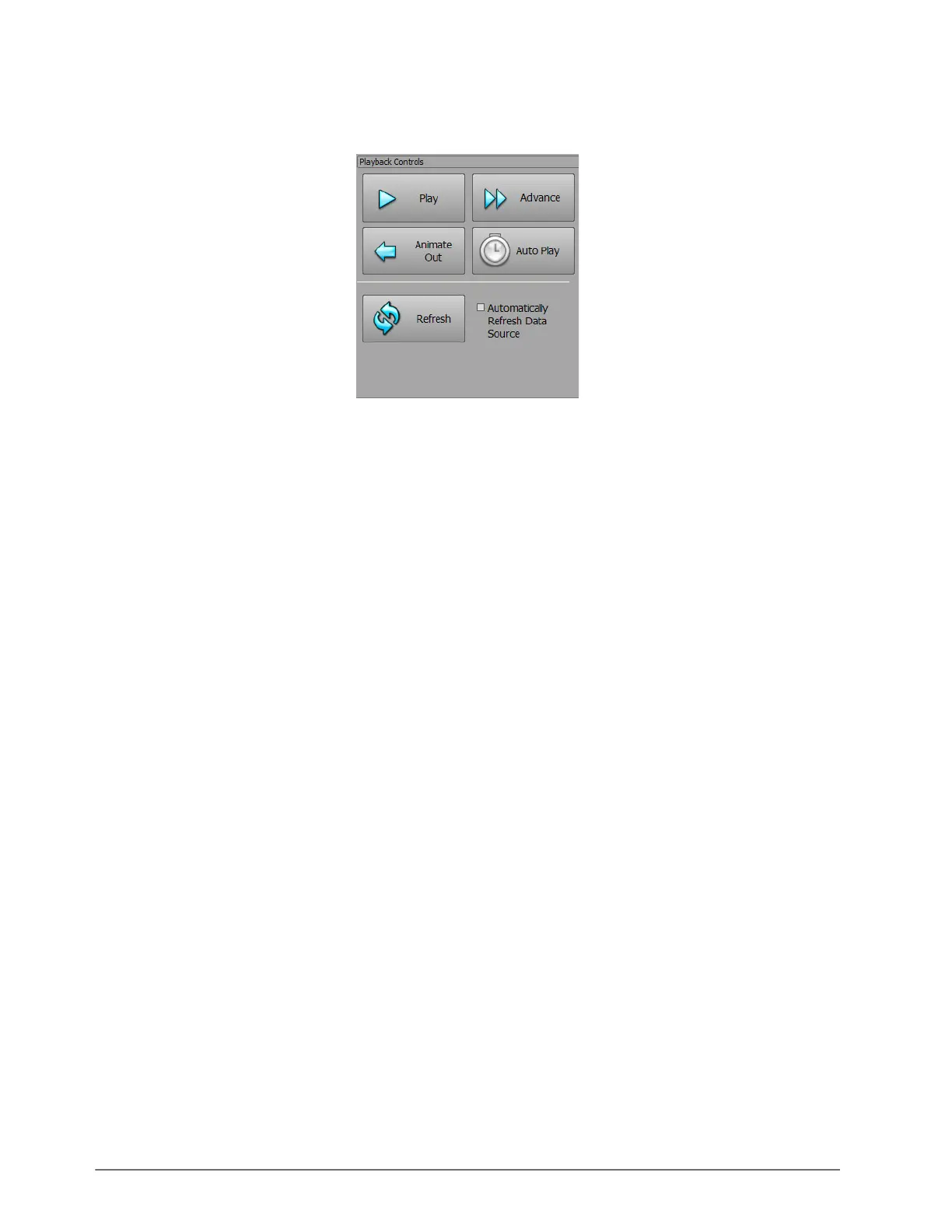
Use the Playback Controls window to playout a rundown from a data source or playlist.
Play — click this button to play a selected item from the rundown.
An item can also be played by double-clicking the item when the Playback Controls are enabled in the data source
rundown or playlist rundown. Enable the playback controls by clicking the Enable Playback Controls button in
the Inception Source / Mass Relevance Source / Twitter / Arktan / Never.No / Wayin / Playlist window menu.
Advance — click this button to advance to the next cued item in the rundown.
Animate Out — click this button to animate the item out.
Auto Play — click this button to auto play the items in the rundown.
Refresh (data source rundowns only) — click this button to refresh the data source and update the rundown. This
button does not apply to playlists.
Automatically Refresh Data Source (data source rundowns only) — select this check box to automatically refresh
the data and update the rundown with newly added items. This option does not apply to playlists.


 To Next Page