3–10 XPression Connect User Guide (10.5)
Setting Up a Twitter Rundown
Use Twitter as a data source to play out tweets in a rundown.
XPression must be launched and a project loaded before launching XPression Connect, or XPression Connect
will not be able to display scenes in Scene Settings or Preview.
1. In XPression, open or set up a project to be used with XPression Connect.
2. In the Data Sources window, double-click a Twitter source.
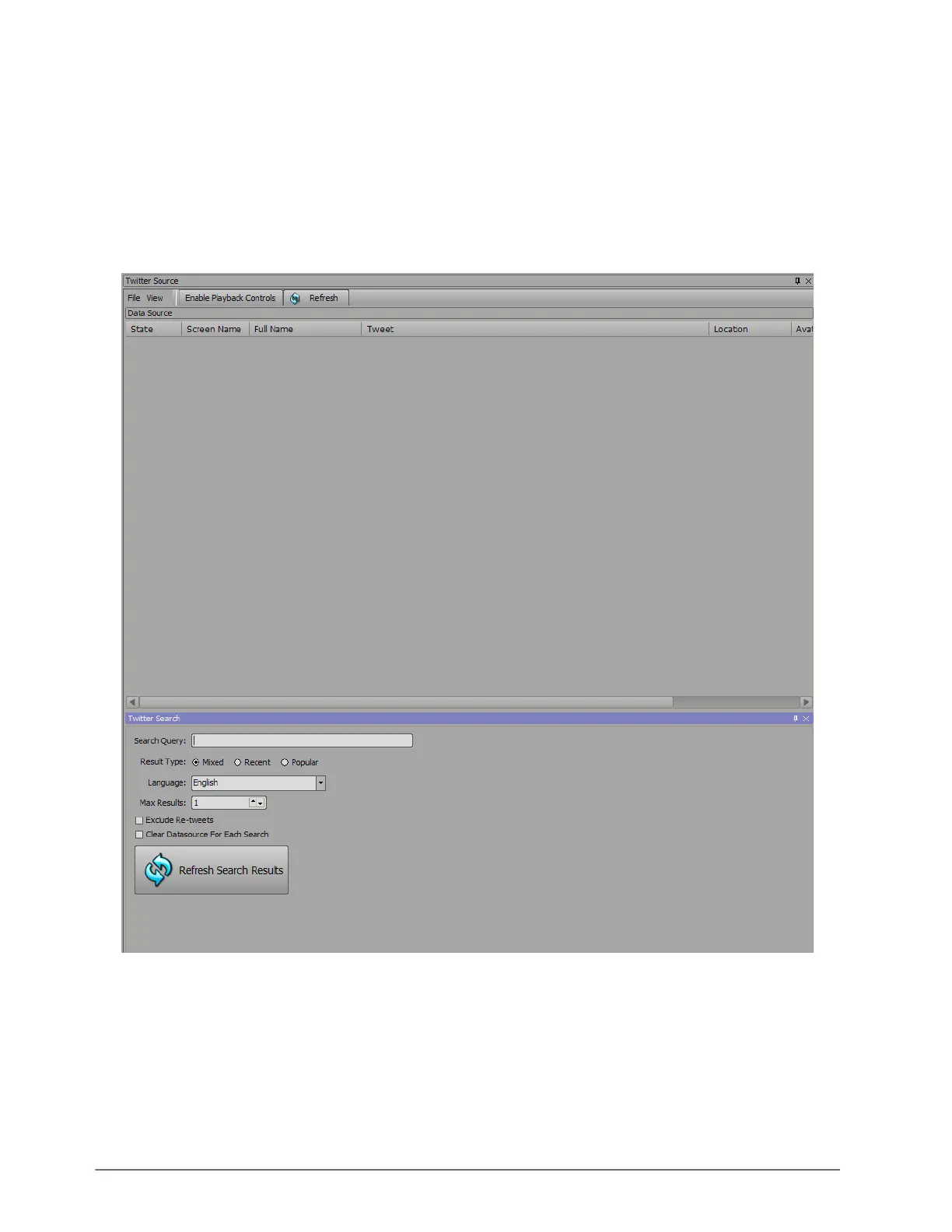
The Twitter Source and Twitter Search windows open in the rundown area.
3. Use the Twitter Search window to define the search criteria for the Twitter source rundown:
a. In the Search Query box, enter a subject or topic to query Twitter for related results. For example, a sports
league, etc.
b. Select a Result Type:
• Mixed — returns search results that include the most recent tweets and the most popular tweets.
• Recent — returns search results that only include the most recent tweets.
• Popular — returns search results that only include the most popular tweets.
c. Use the Language menu to select a language for the tweets that are being searched.



 To Next Page