XPression Connect User Guide (10.5) 3–5
Adding a Data Source
XPression must be launched and a project loaded before launching XPression Connect, or XPression Connect
will not be able to display scenes in Scene Settings or Preview.
1. In XPression Connect, click the Data Sources tab.
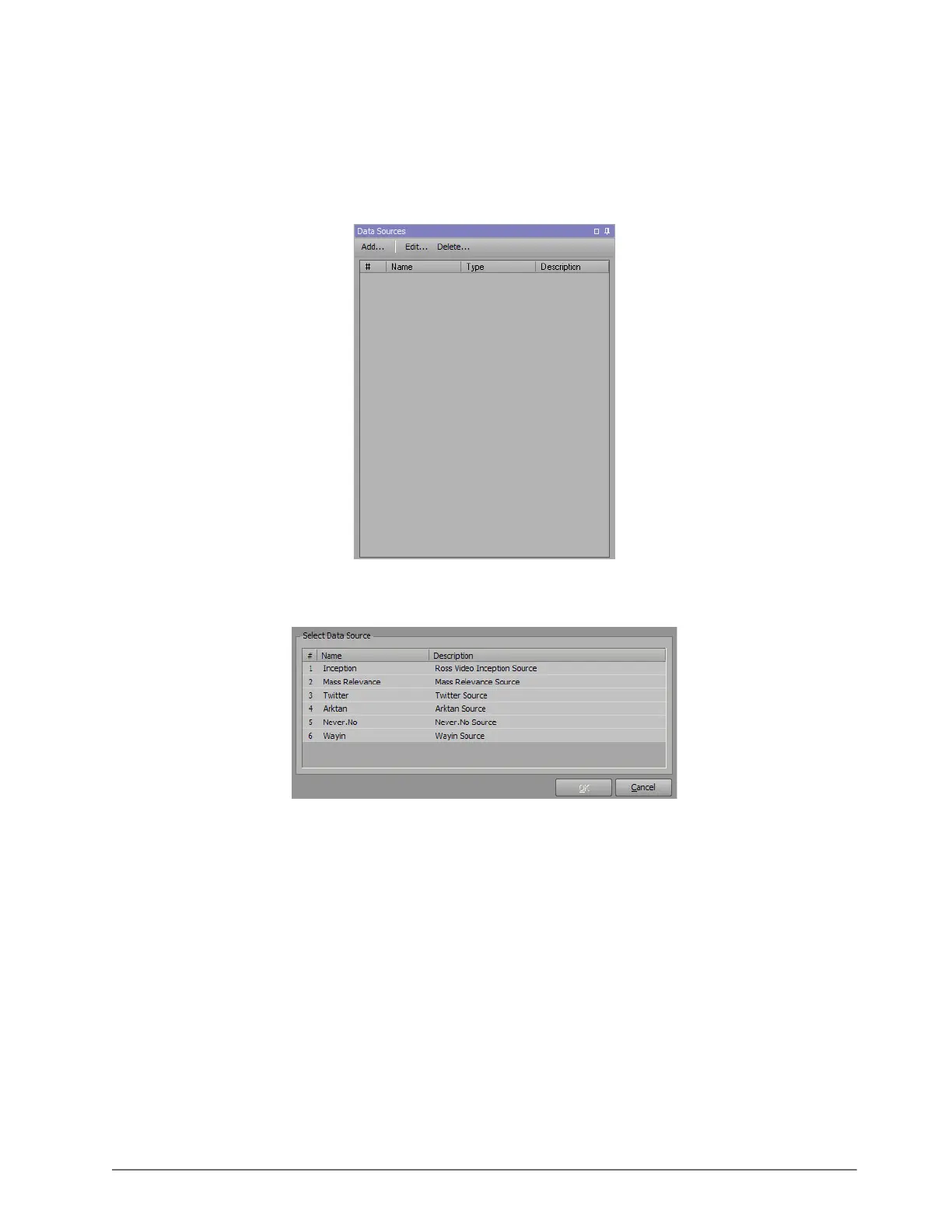
The Data Sources window opens.
2. Click Add.
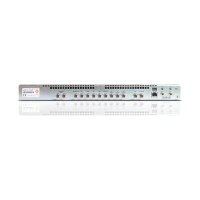
The Add Data Source dialog box opens.
3. Select a data source from the list:
• Inception — use feeds from the Inception social media tool.
• Mass Relevance — use feeds from the MassRelevance social media tool.
• Twitter — use feeds from the Twitter social media tool.
• Arktan — use feeds from the Arktan social media tool.
• Never.No — use feeds from the Never.No social media tool.
• Wayin — use feeds from the Wayin social media tool.
4. Click OK.
The dialog box for the selected data source opens.


 To Next Page