14 FIRST USE
6.3_LOCKING AND UNLOCKING THE PHONE
Press the Power key to lock the phone. When the screen
is locked, you can still receive messages and calls.
If you leave your phone undisturbed for a while, the screen
will lock automatically.
To unlock the phone, press the Power key again. After
the screen has lit up, drag the lock icon to the unlock icon
to unlock the phone.
Depending on your security settings, the phone may ask for a PIN
to unlock. Please note that this is NOT the PIN of your SIM card, but
a code that can be assigned under System settings
Security
Screen lock.
6.4_USING THE TOUCHSCREEN
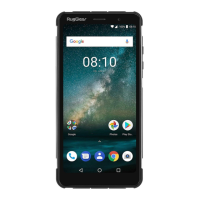
This phone features a capacitive touchscreen. It is not necessary to
press the screen for it to work, a simple tap is enough.
The following gestures can be used with this phone:
Tap
To open an application (app), or to enter a character using
the on-screen keyboard, tap it with a nger.
Tap and hold
Tap and hold your nger to the screen for more than two
seconds to access further options where available.
Drag
Tap an icon and hold your nger to the screen. Then drag it
to where you would like to place it.
Double tap
Perform two taps onto a webpage or image to zoom in.
Double tap again to zoom out.
6.3_LOCKING AND UNLOCKING THE PHONE
6.3_LOCKING AND UNLOCKING THE PHONE
to lock the phone. When the screen
Power key to lock the phone. When the screen Power key
is locked, you can still receive messages and calls.
If you leave your phone undisturbed for a while, the screen
To unlock the phone, press the
Power key again. After Power key
the screen has lit up, drag the lock icon to the unlock icon
Depending on your security settings, the phone may ask for a PIN
to unlock. Please note that this is NOT the PIN of your SIM card, but
a code that can be assigned under
6.4_USING THE TOUCHSCREEN
6.4_USING THE TOUCHSCREEN
This phone features a capacitive touchscreen. It is not necessary to
press the screen for it to work, a simple tap is enough.
The following gestures can be used with this phone:
To open an application (app), or to enter a character using
the on-screen keyboard, tap it with a nger.
Tap and hold your nger to the screen for more than two
seconds to access further options where available.
Tap an icon and hold your nger to the screen. Then drag it
to where you would like to place it.
Perform two taps onto a webpage or image to zoom in.
Double tap again to zoom out.


 To Next Page