16 DISPLAY LAYOUT
7_DISPLAY LAYOUT
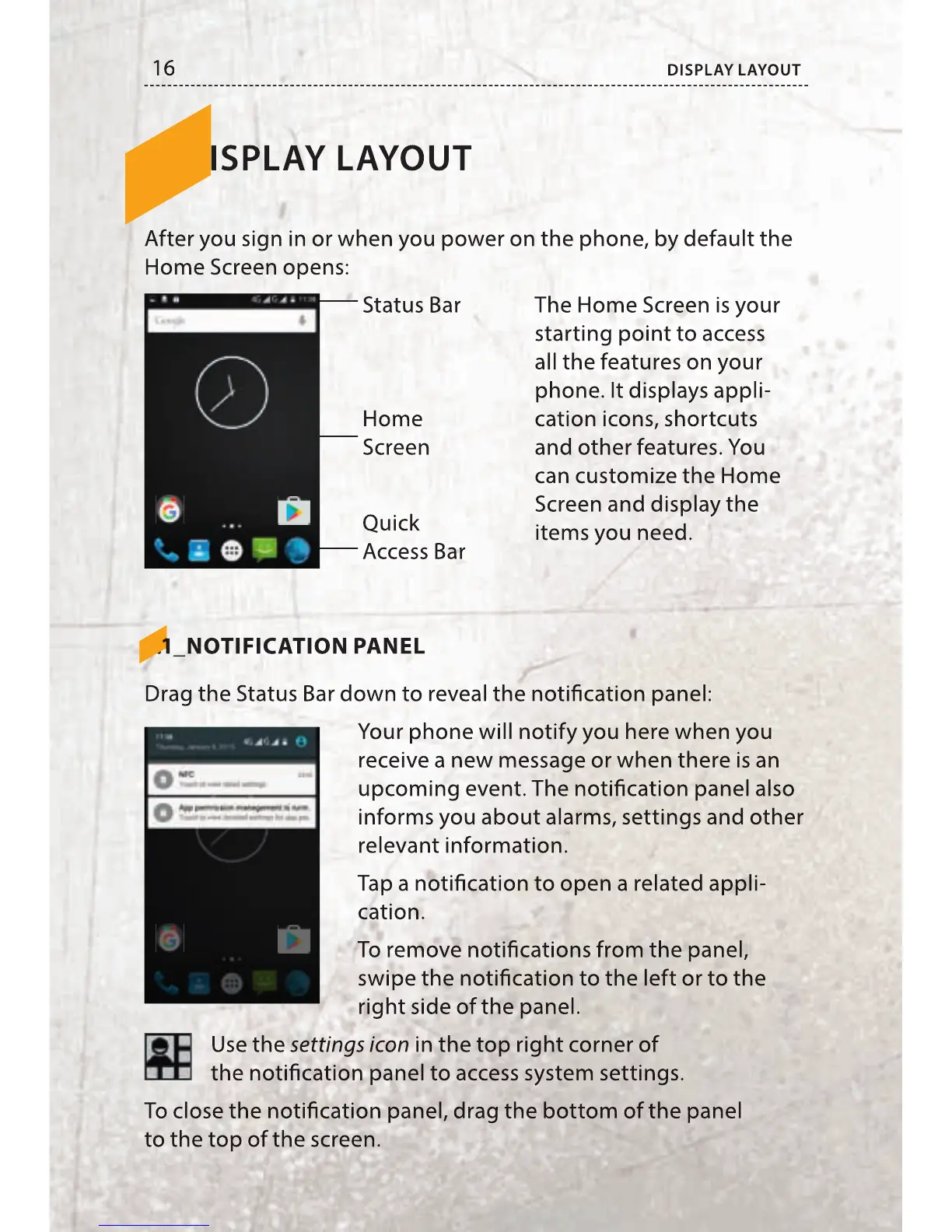
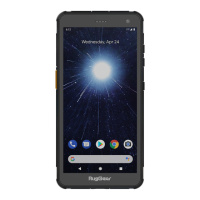
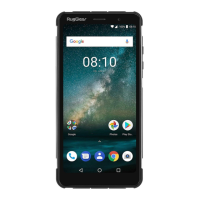
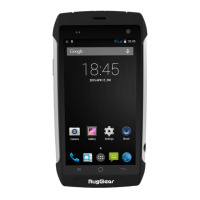
After you sign in or when you power on the phone, by default the
Home Screen opens:
Status Bar
Home
Screen
Quick
Access Bar
The Home Screen is your
starting point to access
all the features on your
phone. It displays appli-
cation icons, shortcuts
and other features. You
can customize the Home
Screen and display the
items you need.
7.1_NOTIFICATION PANEL
Drag the Status Bar down to reveal the noti cation panel:
Your phone will notify you here when you
receive a new message or when there is an
upcoming event. The noti cation panel also
informs you about alarms, settings and other
relevant information.
Tap a noti cation to open a related appli-
cation.
To remove noti cations from the panel,
swipe the noti cation to the left or to the
right side of the panel.
Use the settings icon in the top right corner of
the noti cation panel to access system settings.
To close the noti cation panel, drag the bottom of the panel
to the top of the screen.


 To Next Page