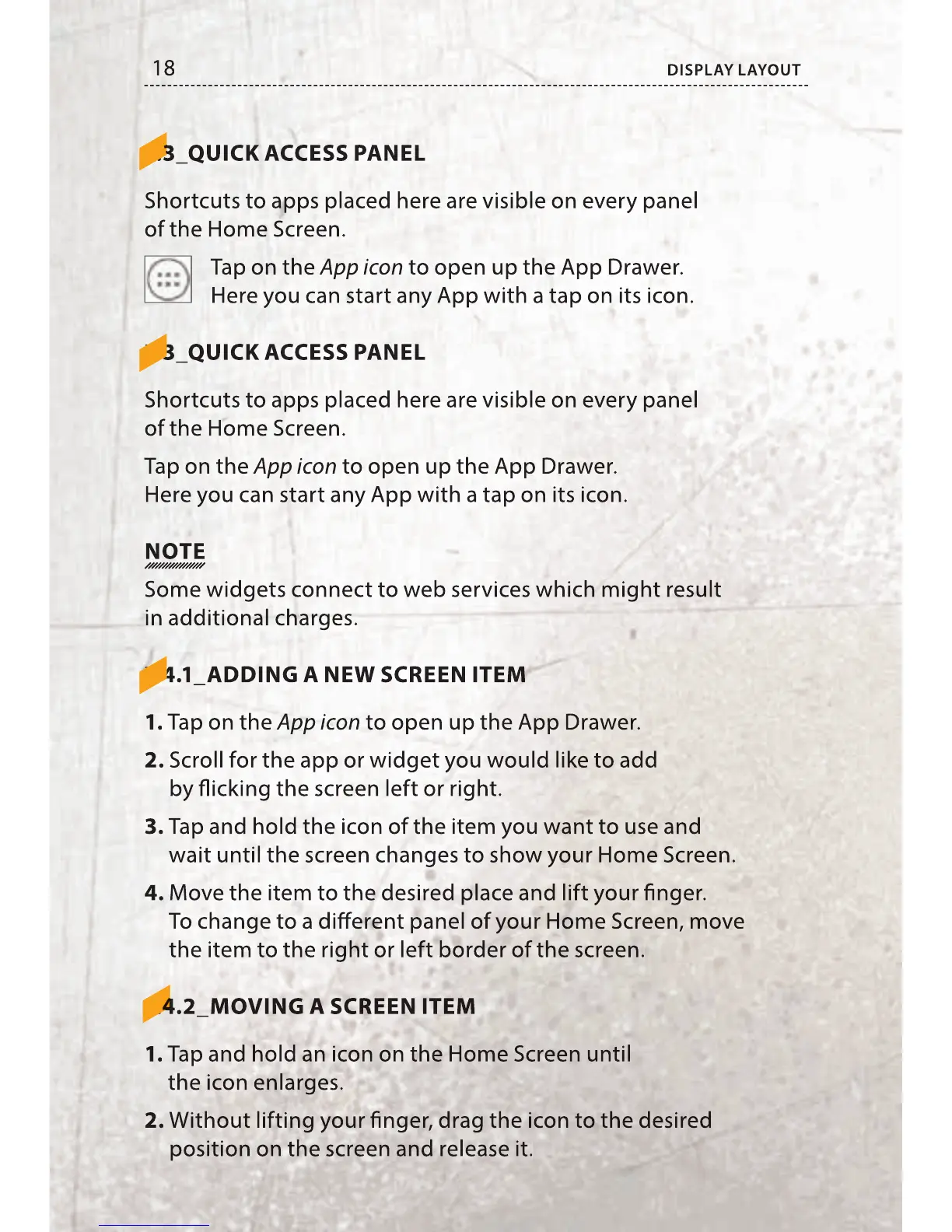
18 DISPLAY LAYOUT
7.3_QUICK ACCESS PANEL
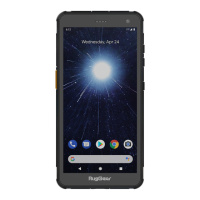
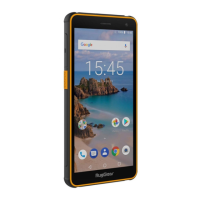
Shortcuts to apps placed here are visible on every panel
of the Home Screen.
Tap on the App icon to open up the App Drawer.
Here you can start any App with a tap on its icon.
7.3_QUICK ACCESS PANEL
Shortcuts to apps placed here are visible on every panel
of the Home Screen.
Tap on the App icon to open up the App Drawer.
Here you can start any App with a tap on its icon.
NOTE
Some widgets connect to web services which might result
in additional charges.
7.4.1_ADDING A NEW SCREEN ITEM
1. Tap on the App icon to open up the App Drawer.
2. Scroll for the app or widget you would like to add
by icking the screen left or right.
3. Tap and hold the icon of the item you want to use and
wait until the screen changes to show your Home Screen.
4. Move the item to the desired place and lift your nger.
To change to a di erent panel of your Home Screen, move
the item to the right or left border of the screen.
7.4.2_MOVING A SCREEN ITEM
1. Tap and hold an icon on the Home Screen until
the icon enlarges.
2. Without lifting your nger, drag the icon to the desired
position on the screen and release it.
Shortcuts to apps placed here are visible on every panel
to open up the App Drawer.
Here you can start any App with a tap on its icon.
Shortcuts to apps placed here are visible on every panel
to open up the App Drawer.
Here you can start any App with a tap on its icon.
Some widgets connect to web services which might result
7.4.1_ADDING A NEW SCREEN ITEM
7.4.1_ADDING A NEW SCREEN ITEM
to open up the App Drawer.
Scroll for the app or widget you would like to add
by icking the screen left or right.
Tap and hold the icon of the item you want to use and
wait until the screen changes to show your Home Screen.
Move the item to the desired place and lift your nger.
To change to a di erent panel of your Home Screen, move
the item to the right or left border of the screen.
7.4.2_MOVING A SCREEN ITEM
7.4.2_MOVING A SCREEN ITEM
Tap and hold an icon on the Home Screen until
Without lifting your nger, drag the icon to the desired
position on the screen and release it.


 To Next Page