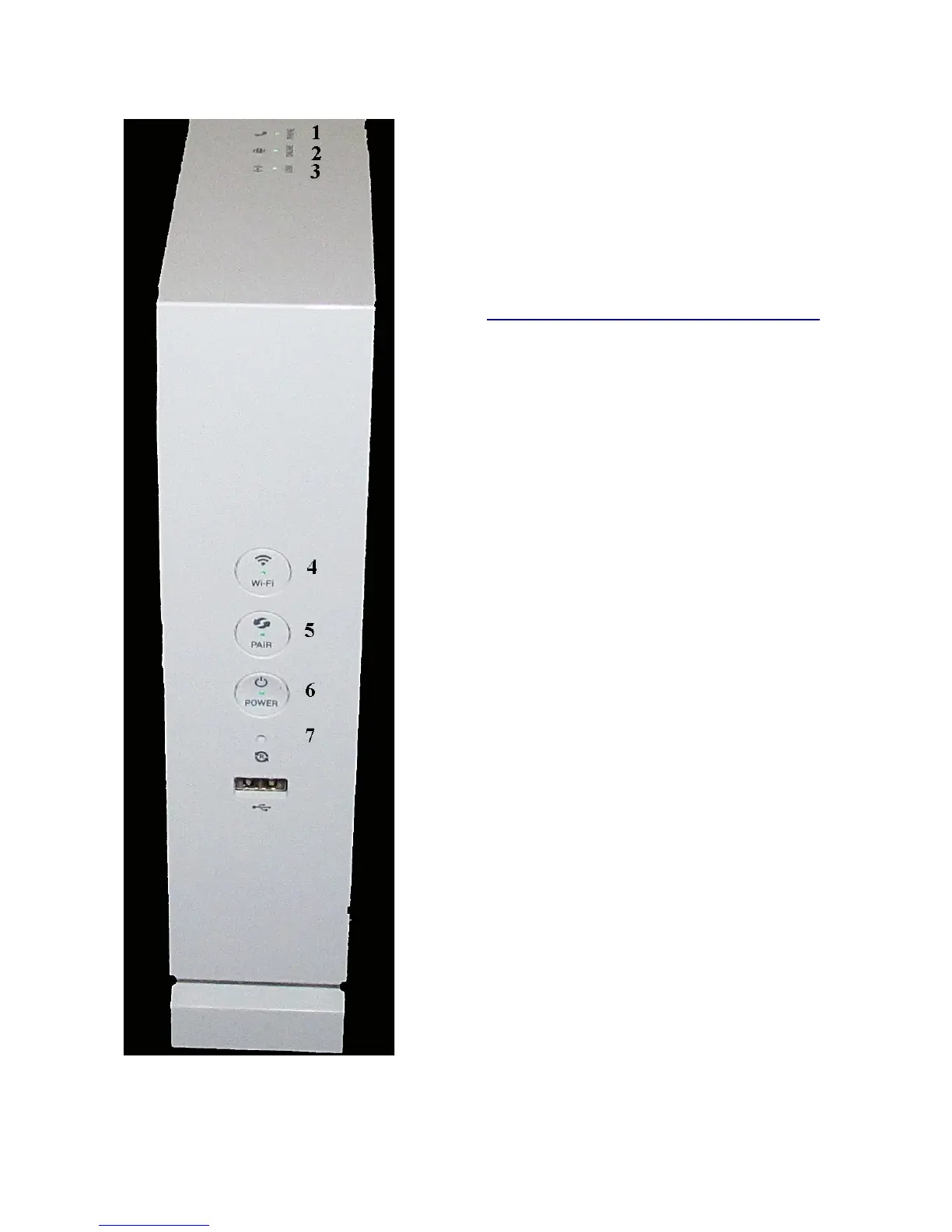
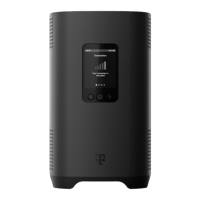
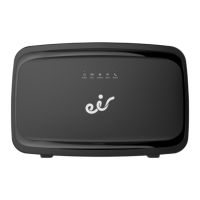
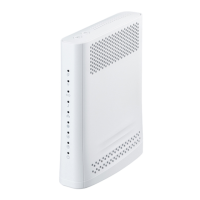
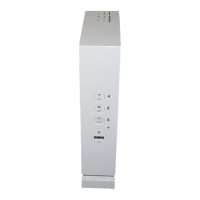
Lights and Buttons:
1. Phone
Off: Phone line not registered
Green: Phone line registered.
Blue: Phone in use.
Red: Fault (Reboot gateway)
2. On Line
Blue: Trying to connect to Telstra Gateway
Green: Connected to Telstra Gateway.
NB: (See changing Telstra User Name and Password)
3. Link
Blue: Gateway trying to sync with DSLAM (ADSL) or
Node (FTTN).
Green: ADSL or VDSL link synchronised. (Working)
Off: ADSL and FTTN connections indicates Gateway can’t
communicate with DSLAM / Node. (Check connection
from Gateway to Telephone Wall Socket).
FTTP or Cable, WAN port not connected.
4. Wi-Fi
Off: All Wi-Fi Bands turned off.
Green: Wi-Fi Band that aren’t disabled in GUI are turned
on. (Could be Green but no Wi-Fi due to Wi_Fi disabled
in GUI)
Press for 5 seconds to turn all Wi-Fi Bands Off.
Press again to turn all Wi-Fi Bands On that had not been
previously turned Off using GUI.
5. Pair
Off: No DECT handset paired to Gateway.
Green: DECT handset paired to Gateway
To pair a handset or connect to a WPS enabled Wi-Fi
device press for 5 seconds. The light will blink Blue for 2
minutes. During this time the gateway can be paired with a
handset or connect to a WPS enabled Wi-Fi device.
6. Power
Off: Gateway powered Off
Green: Gateway powered On.
Press to toggle between Off and On.
7. Reset
Use a paper clip and press for 5 seconds to reset Gateway


 To Next Page