EasyManua.ls Logo

Sainlogic WS-0310 - User Manual

Sainlogic WS-0310
53 pages
Print Icon
To Next Page IconTo Next Page
Loading...
1
SAINLOGIC WS-0310 Professional WIFI
Weather Station User Manual
1.Introduction
Thank you for your purchase of the WS0310 Professional WIFI
Wireless Weather station. The following user guide provides step by
step instructions for installation, operation and troubleshooting.
2.Warnings
Warning: Any metal object may attract a lightning strike, including
your weather station mounting pole. Never install the weather station in
a storm.
Warning: Installing your weather station in a high location may
result in injury or death. Perform as much of the initial check out and
operation.
3.Getting Started
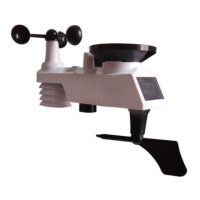
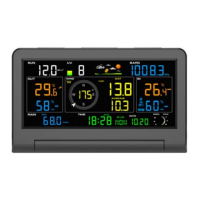
The WS0310 weather station consists of a display console (receiver), a
sensor array with Integrated Outdoor Transmitter and mounting
hardware.
3.1. Parts List
The WS0310 weather station consists of the following parts (as
referenced in Figure 1 ).
QTY
Item
Image
1
Display Console
(LxHxW):8.3X1.0X6.1 in
LCD Dimensions (LxW): 6.7 x
4.9 in

Questions and Answers

Summary

Introduction and Warnings

Safety Precautions

Important safety precautions regarding lightning and falling hazards.

Getting Started

Parts List

Lists all components of the WS0310 weather station.

Sensor Assembly Setup

Insert Transmitter Batteries

Instructions for inserting batteries into the outdoor transmitter.

Display Console Setup

Console Layout

Explains the layout and components of the display console.

Console Power and Battery Setup

Instructions for setting up the display console with power and batteries.

Weather Station Installation

Pre-Installation Checkout

Recommends operating the station temporarily before final installation.

Site Survey Guidelines

Guidelines for choosing the optimal installation location.

Wireless Communication Best Practices

Sensor Installation and Calibration

Northern Hemisphere Wind Calibration

Details wind direction calibration for Northern Hemisphere installations.

Southern Hemisphere Wind Calibration

Console Operation Basics

Low Battery Indicator

Explains the low battery indicator and when to replace batteries.

Quick Display Mode

How to enter and exit the Quick Display Mode.

Advanced Console Operations

Set (Program) Mode

Guide to entering and navigating the console's programming settings.

Reset Min;Max Records

Procedure for clearing recorded minimum and maximum values.

Snooze Mode Operation

How to silence alarms temporarily.

Alarm Management

Backlight Control

Controls for backlight brightness and behavior.

Alarm Operation Overview

How alarms function and how to silence them.

Viewing Alarm Settings

Steps to view current high and low alarm settings.

Configuring Alarm Thresholds

Guide to configuring specific alarm thresholds.

Beeper Settings

Time Synchronization

WeatherCloud.net Registration

Account Sign Up

Step-by-step guide to creating a WeatherCloud account.

Add Device to WeatherCloud

Wunderground.com Registration

WiFi Connectivity Setup

Connect Console WiFi via PC

Steps for connecting the console to WiFi using a PC.

Connect Console WiFi via Mac

Steps for connecting the console to WiFi using a Mac.

Connect Console WiFi via Mobile Device

Steps for connecting the console to WiFi using an iPhone, iPad, or Android.

Online Data Configuration

Access Console Web Interface

Accessing the console's web interface via IP address.

Configure Station Details Online

Inputting station details into the web interface for upload.

Save Configuration Settings

Saving the configuration settings.

Post-Setup Procedures

Disconnect from Console WiFi

Instructions for disconnecting from the console's WiFi after setup.

View Data on Weather Underground

How to view collected weather data on Wunderground.com.

View Data on Weathercloud

How to view collected weather data on Weathercloud.net.

Firmware Upgrade

Access Firmware Upgrade Interface

Accessing the firmware upgrade interface.

Upload Firmware File

Selecting and uploading the firmware file for upgrade.

Confirm Firmware Update

Confirmation of successful firmware update.

Additional Console Features

Weather Forecasting Explanation

Explanation of the weather forecasting feature.

Understanding Weather Icons

Explains the meaning of different weather forecast icons.

Moon Phase Display

Displays different phases of the moon.

Feels Like Temperature and AT

Explains "Feels Like" temperature and apparent temperature (AT).

Pressure Threshold Setting

How to adjust the pressure threshold for weather forecasting.

Factory Default Restore

Product Specifications

Wireless Specifications

Details about the wireless transmission capabilities.

Measurement Specifications

Technical specifications for the measured parameters.

Power Consumption Details

Information on power requirements and battery life.

WiFi Specifications

Technical details regarding WiFi connectivity.

Maintenance Procedures

Troubleshooting Guide

Remote Sensor Communication Issues

Solutions for when the remote sensor is not communicating.

Console Dash Indicators

Troubleshooting steps for dash indicators on the console.

Temperature Reading Discrepancies

Steps to resolve discrepancies between indoor and outdoor temperature readings.

Humidity Reading Discrepancies

Steps to resolve discrepancies between indoor and outdoor humidity readings.

Weak Console Display Contrast

Solution for a weak display contrast on the console.

WiFi Icon Display Issues

Steps to troubleshoot missing WiFi icon on the console.

Data Upload Troubleshooting

Solutions for issues with data upload to online services.

Sainlogic WS-0310 Specifications

General IconGeneral
BrandSainlogic
ModelWS-0310
CategoryWeather Station
LanguageEnglish

Related product manuals