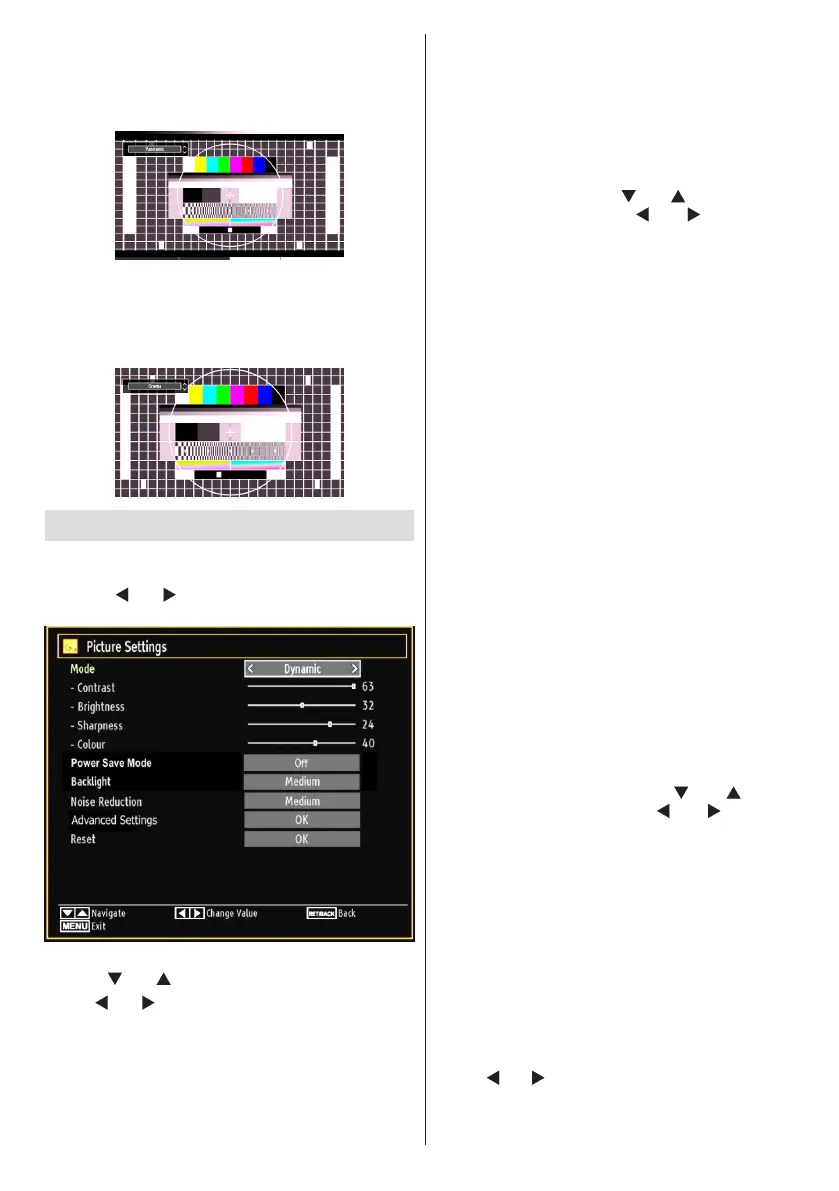
Panoramic
This stretches the left and right sides of a normal
picture (4:3 aspect ratio) to ll the screen, without
making the picture appear unnatural.
The top and bottom of the picture are slightly cut off.
Cinema
This zooms up the wide picture (16:9 aspect ratio) to
the full screen.
ConguringPictureSettings
You can use different picture settings in detail.
Press “MENU” button and select the Picture icon
by using “
” or “ ” button. Press OK button to view
Picture Settings menu.
Operating Picture Settings Menu Items
Press “• ” or “ ” button to highlight a menu item.
Use “•
” or “ ” button to set an item.
Press • “MENU” button to exit.
Picture Settings Menu Items
Mode: For your viewing requirements, you can set
various screen modes. The Picture mode can be set
to one of these options: Cinema,Game,Dynamic
and Natural.
Contrast: Sets the lightness and darkness values
of the screen.
Brightness: Sets the brightness value for the
screen.
Sharpness: Sets the sharpness value for the objects
displayed on the screen.
Colour: Sets the colour value, adjusting the colors.
Power Save Mode: Use “
” or “ ” button to select
Power Save Mode. Press “ ” or “ ” button to set
Power Save Mode as Eco, Picture Off and Disabled.
See the section, “Environmental Information” in
this manual for further information on Power Save
Mode.
Backlight (optional): This setting controls the
backlight level and it can be set to Low, Medium,
High and Auto.
Noise Reduction: If the broadcast signal is weak and
the picture is noisy, use Noise Reduction setting to
reduce the noise amount. Noise Reduction can be set
to one of these options: Low, Medium, High or Off.
Advanced Settings
Colour Temp• : Sets the desired colour tone. Setting
Cool option gives white colours a slight blue
stress. For normal colours, select Normal option.
Setting Warm option gives white colours a slight
red stress.
Picture Zoom• :Sets the picture size to Auto,16:9,
Subtitle,14:9, 14:9 Zoom, 4:3, Panoramic or
Cinema.
HDMI True Black (optional):• While watching from
HDMI source, this feature will be visible in the Picture
Settings menu. You can use this feature to enhance
blackness in the picture. You can set this feature as
“On” for activating HDMI True Black mode.
Film Mode (optional)• : Films are recorded at a
different number of frames per second to normal
television programmes. Press “
” or “ ” buttons
to select Film mode. Press “ ” or “ ” buttons to
set this feature Auto or Off. Turn this feature to Auto
when you are watching lms to see the fast motion
scenes clearly.
Colour Shift:• Adjust the desired colour tone.
Reset: Resets the picture settings to factory default
settings.
While in VGA (PC) mode, some items in Picture menu
will be unavailable. Instead, VGA mode settings will be
added to the Picture Settings while in PC mode.
PC Picture Settings
For adjusting PC picture items, do the following:
Press “
” or “ ” button to select Picture icon. Picture
menu appears on the screen.



 To Next Page