26
ENG
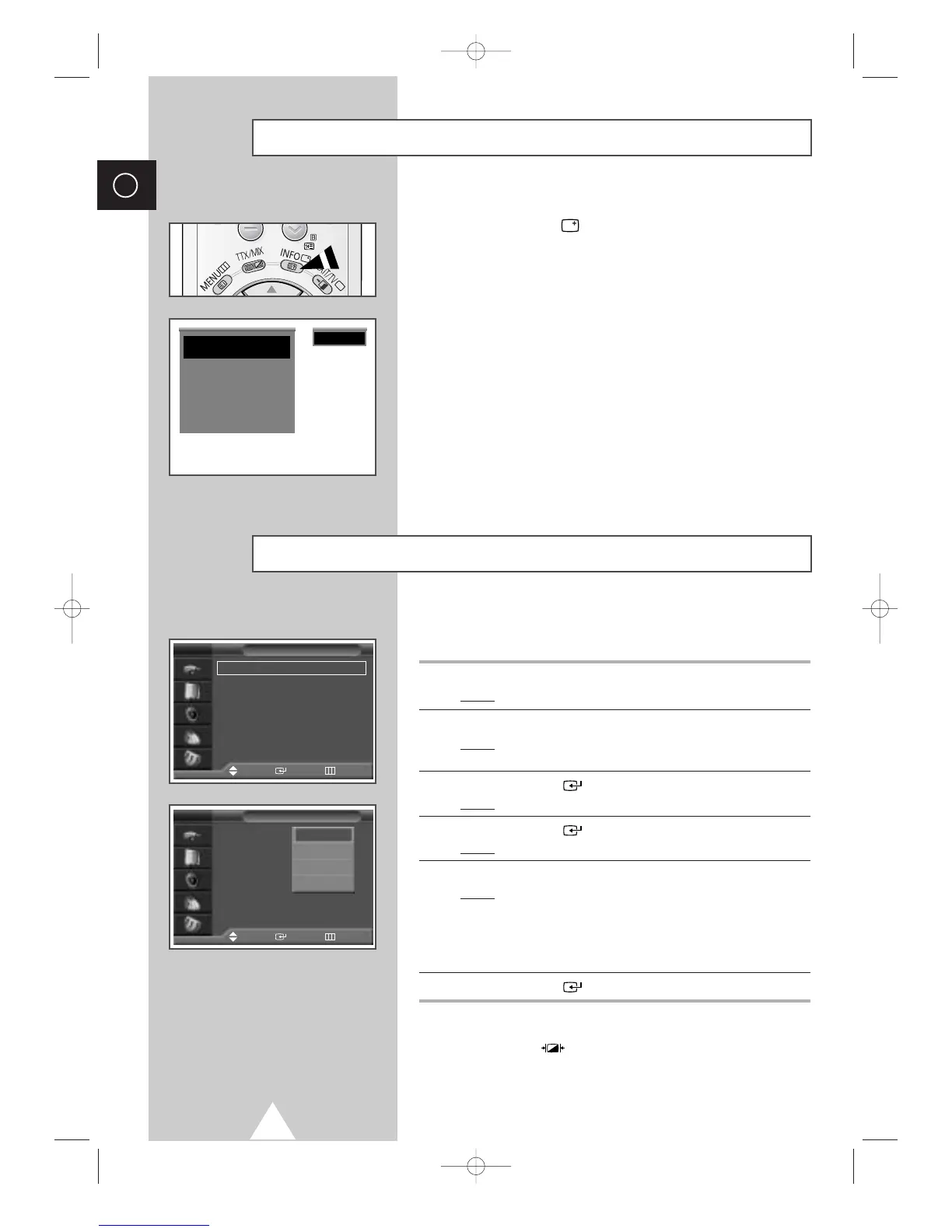
Displaying Information
You can select the type of picture which best corresponds to your
viewing requirements.
1 Press the MENU button.
Result
: The main menu is displayed.
2 Press the † or … button to select Picture.
Result
:
The options available in the
Picture
group are
displayed.
3 Press the ENTER () button.
Result
: The Mode is selected
.
4 Press the ENTER () button again.
Result
:
The options available are listed.
5 Select the option by pressing the † or … button.
Result
: The following modes are available depending on the
input source.
◆ Dynamic - Standard - Movie - Custom
◆ High - Middle - Low - Custom
(PC or DVI Mode)
.
6 Press the ENTER () button to confirm.
➣
You can also set these options simply by pressing the
P.MODE (: Picture Mode) button.
Changing the Picture Standard
You can view the channel information and setting status you select
by pressing the “INFO
()
” button on the remote control.
P 1 ✽
Picture : Dynamic
Sound : Music
00 : 00
Mono
Mode : Dynamic
√√
Custom
√√
Colour Tone : Normal
√√
Colour Control
√√
Film Mode : Off
√√
Size : 16 : 9
√√
DNIe : On
√√
PIP
√√
Picture
Move Enter Return
TV
Mode : Dynamic
Custom
Colour Tone : Normal
Colour Control
Film Mode : Off
Size : 16 : 9
DNIe : On
PIP
Picture
Move Enter Return
TV
Dynamic
Standard
Movie
Custom




 To Next Page