Playback/Editing
62
Playing back
Trimming a video during playback
1
Press [ ] at the point where you want the new video
to begin and then rotate [Zoom] to the right.
2
Press [ ] to resume playback.
3
Press [ ] at the point where you want the new video
to end, and then rotate [Zoom] to the right.
4
Select Yes.
• The original video must be at least 10 seconds long.
• The camera saves the edited video as a new file.
Capturing an image during playback
1
Press [ ] at the point where you want to save a still
image.
2
Press [ ].
A captured image has the same resolution as the original video file and is
saved as a new file.
Playing a video
You can play a video, capture an image from a video, or crop a
video.
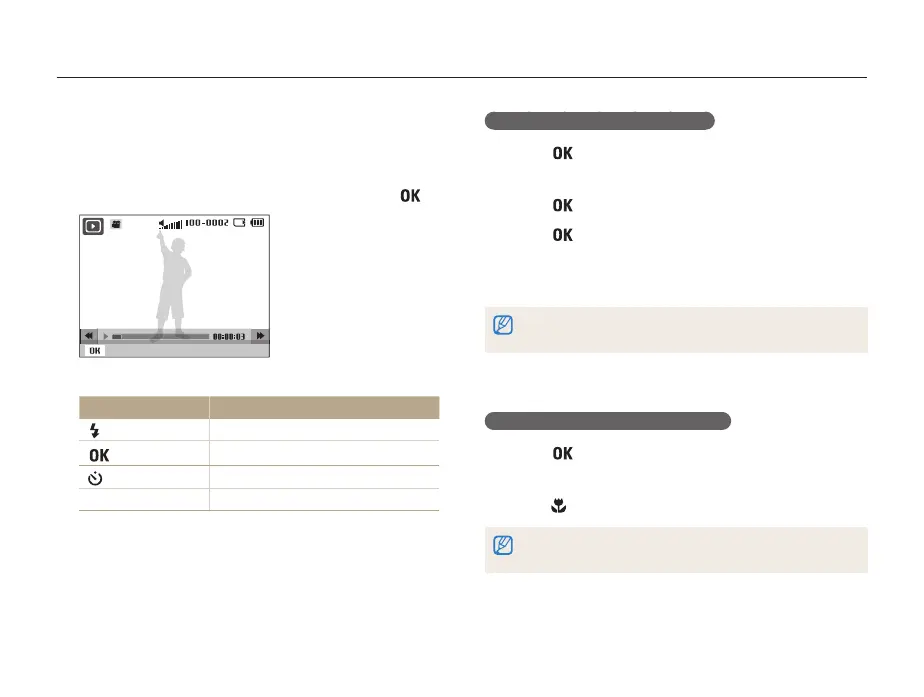
1
In Playback mode, select a video, and then press [ ].
Pause
2
Use the following buttons to control playback.
Press To
[
]
Scan backward.
[ ]
Pause or resume playback.
[ ]
Scan forward.
[Zoom] left or right
Adjust the volume


 To Next Page