Basics
35
Using additional keyboard functions
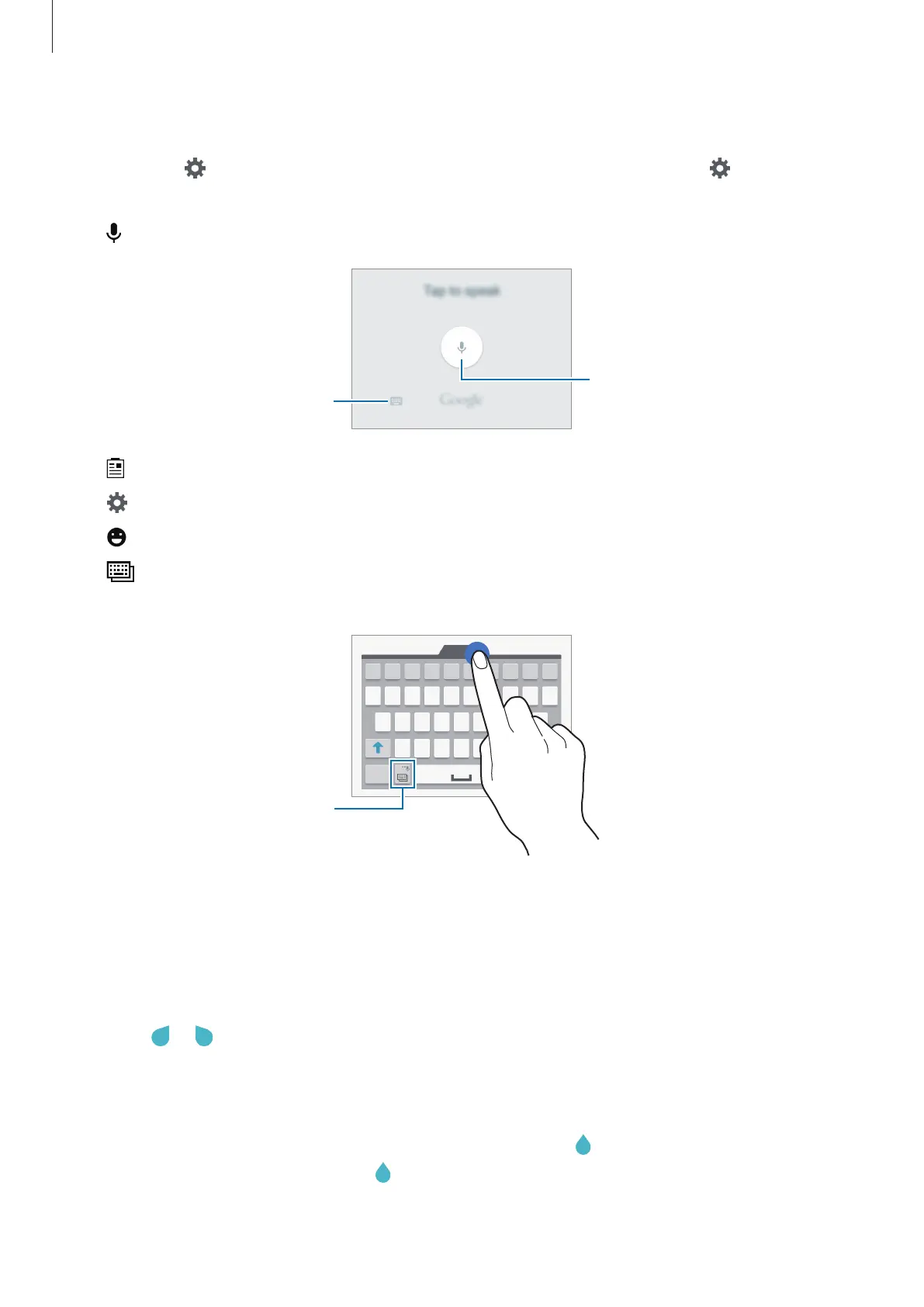
Tap and hold to use various functions. Other icons may appear instead of depending
on the last function that was used.
•
: Enter text by voice.
Open the keyboard.
Start or pause entering text by
voice.
•
: Add an item from the clipboard.
•
: Change the keyboard settings.
•
: Enter emoticons.
•
: Switch to the floating keyboard. You can move the keyboard to another location by
dragging the tab.
Switch to the standard keyboard.
Copying and pasting
1
Tap and hold over text.
2
Drag or to select the desired text, or tap
Select all
to select all text.
3
Tap
Copy
or
Cut
. The selected text is copied to the clipboard.
4
Place the cursor where the text is to be inserted and tap
→
Paste
. To paste text that
you have previously copied, tap
→
Clipboard
and select the text.















 To Next Page