· 10 · English
CONNECTING TO AN EXTERNAL DEVICE
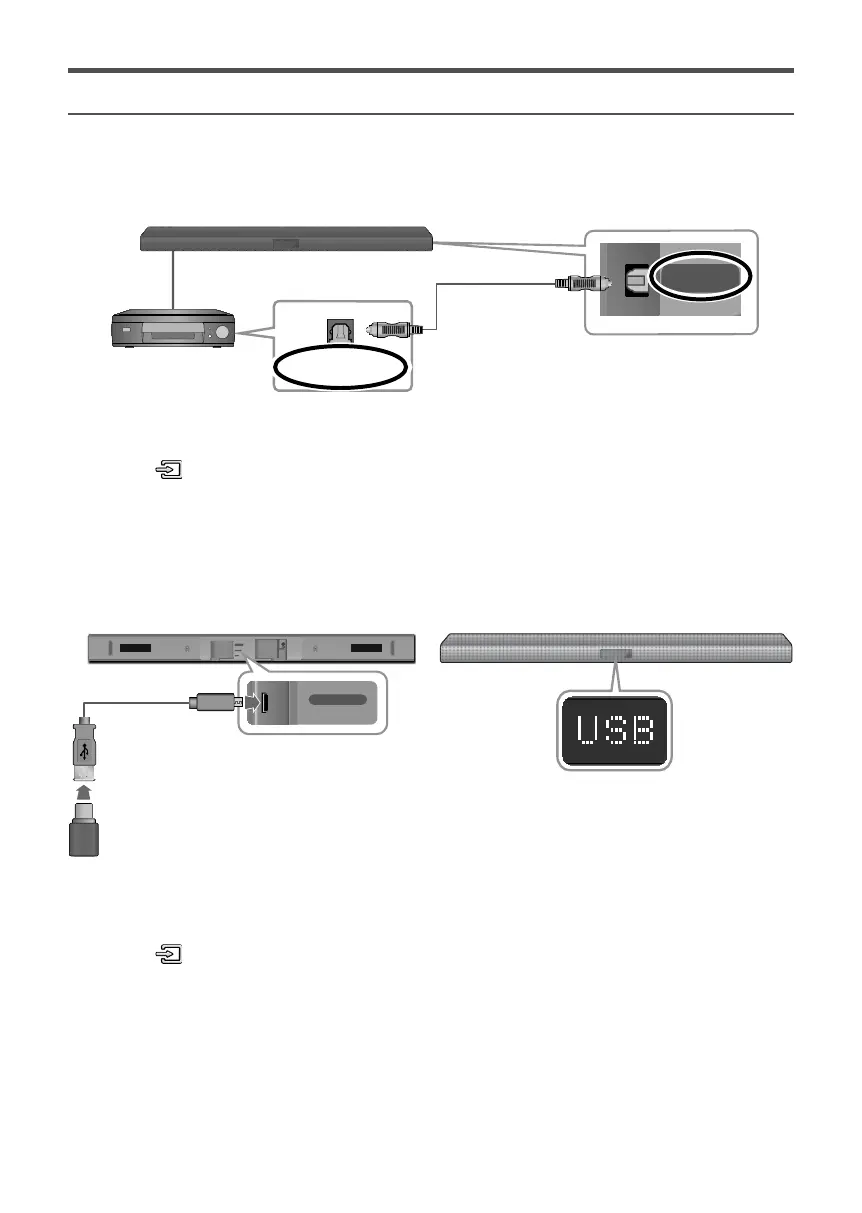
Optical Cable
You can enjoy sound from separate external devices such as a BD player/game console/set-top box, etc. by
connecting them to your Soundbar.
DIGITAL AUDIO IN
(OPTICAL)
Soundbar
Bottom of Soundbar
External Device
OPTICAL OUT
Optical Cable
1. Connect an Optical Cable as shown in the illustration above.
2. Press the
button on the right side of your Soundbar or the SOURCE button on your remote control to
select D.IN mode.
3. The Soundbar shows D.IN on its display and outputs sound from the external device.
USB
You can play music files located on USB storage devices through the Soundbar.
Display
DIGITAL AUDIO IN
(OPTICAL)
USB (5V 0.5A)
AUX IN
DC 24V
Micro USB to
USB adapter Cable
USB port
1. Connect a Micro USB to USB adapter cable with a male USB 2.0 Micro USB plug (Type B) on one end and a
standard female 2.0 USB jack (Type A) on the other end to the micro USB jack on your Soundbar.
2. Connect your USB device to the female end of the adapter cable.
3. Press the
button on the Soundbar main unit’s right side or the SOURCE button on the remote control to
select the USB mode.
4. USB appears on the display screen.
●
The Soundbar connection to the USB device is complete.
●
The Soundbar automatically turns off (Auto Power Off) if no USB device has been connected for more
than 5 minutes.






 To Next Page