ŝ64Ş
Starting PC mode
ƈ Downloading stored images
You can download the still images stored on the camera to your PC's hard disk
and print them or use a photo editing software to edit them.
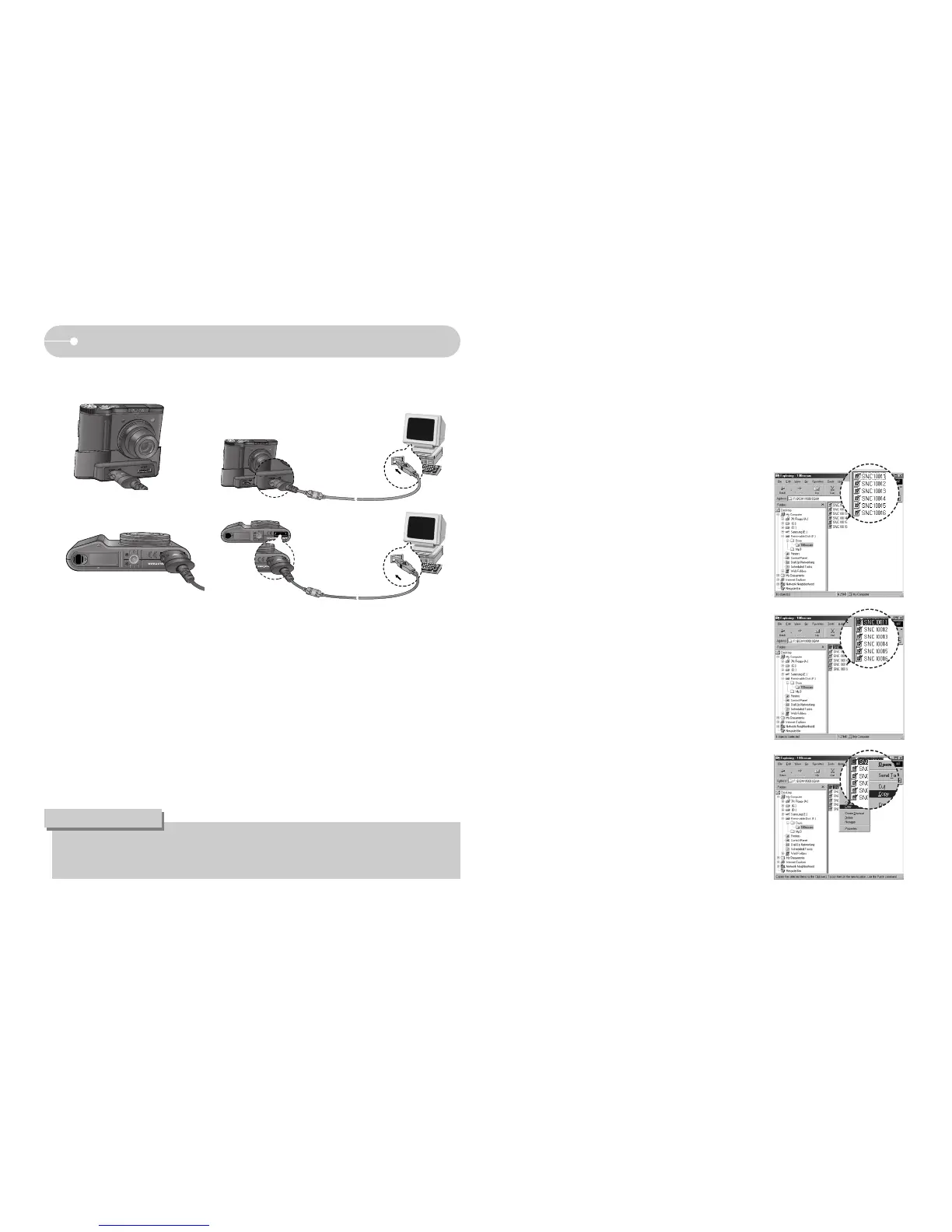
1. Connect the camera to your PC with the USB cable.
2. On your computer's desktop display, select
[My computer] and double click [Removable
Disk ƍ DCIM ƍ 100SSCAM].
The image files will then be displayed.
3. Select an image and press the right mouse
button.
4. A pop-up menu will open.
Click the [Cut] or [Copy] menu.
- [Cut] : cuts a selected file.
- [Copy] : copies files.
5. Click a folder where you want to paste the file.
ƈ Connecting the camera to a PC
ƈ Disconnecting the camera and PC : Refer to page 65
(Removing the removable disk).
ſ If you selected [Printer] in Step 4, when you connect the camera to your
printer, the [Connecting Printer] message will display and the connection will
not be established.
In this case, disconnect the USB cable, and then follow the procedure from
Step 2 and onward.
ƃ Before inserting any cables or AC adapter, check the directions and do not
insert by force. It may cause breakage of cable or camera.
INFORMATION
[Using the USB cable with Cradle (optional)]
[Using the USB cable with Camera]


 To Next Page