EasyManua.ls Logo

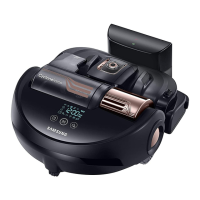
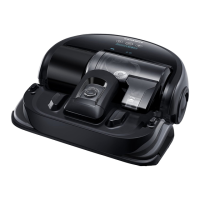
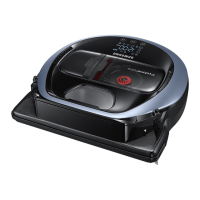
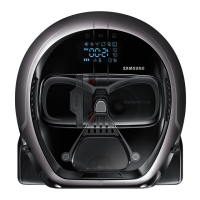
Samsung POWERbot SR10M70 Series - User Manual

Samsung POWERbot SR10M70 Series
40 pages
Print Icon
To Next Page IconTo Next Page
Loading...
POWERbot
User manual
SR10M70

, SR20M70

Series
Before operating this unit, please read the instructions carefully.
For indoor use only.
VR7000_EN_DJ68-00763D-01_SA.indd 1 2017-02-03 오후 5:48:33

Other manuals for Samsung POWERbot SR10M70 Series

Questions and Answers

  • C
    Carla HawkinsAug 20, 2025
    How to fix Samsung POWERbot SR10M70 POWERbot when it cannot find the docking station?
    • B
      bowmansuzanneAug 20, 2025
      If your Samsung Vacuum Cleaner POWERbot cannot find the docking station, first check if there's a power failure or whether the power plug is unplugged. Then, remove any obstacles around the docking station that may prevent the POWERbot from returning. Also, ensure that there is no foreign matter on the charge pins and clean the pins if necessary.
  • C
    Cynthia KimAug 22, 2025
    What to do if my Samsung POWERbot SR10M70 Vacuum Cleaner POWERbot stops during cleaning?
    • M
      michael29Aug 22, 2025
      If your Samsung Vacuum Cleaner POWERbot stops during cleaning, it could be due to a few reasons. The POWERbot's battery might be depleted; if "Lo" is displayed on the display panel or the battery indicator is blinking, place the POWERbot on the docking station to charge it. Alternatively, the POWERbot may be immobilized by an obstacle. If this is the case, pick it up and move it away from the obstacle. Finally, if fabric or string is caught in a drive wheel, turn off the emergency switch and remove the fabric or string before using it again.
  • J
    Jill ReynoldsAug 25, 2025
    Why is my Samsung POWERbot SR10M70 POWERbot not working?
    • S
      Shelly ChristensenAug 25, 2025
      If your Samsung Vacuum Cleaner POWERbot is not working, start by checking if the emergency switch is on and if all the icons are displayed on the display panel. Also, verify if the POWERbot's battery is depleted. If "Lo" is displayed, place the POWERbot on the docking station to charge it. If the battery indicator is blinking, manually place the POWERbot on the docking station to charge. If the remote control is not working, replace the batteries (AAA type).
  • V
    Vanessa MurphyAug 26, 2025
    What to do if Samsung POWERbot SR10M70 POWERbot products don't work when the smartphone is connected?
    • S
      Sarah PetersonAug 26, 2025
      If your Samsung Vacuum Cleaner POWERbot products aren't working even when your smartphone is connected, try these steps: Turn off the Samsung Smart Home app and then run it again. Disconnect the smartphone from the wireless router and then connect it again. Turn off the power supply of the POWERbot, turn it on, wait for a minute or longer, and then run the Smart Home app again.
  • P
    patrick38Aug 28, 2025
    How to troubleshoot point cleaning not working on Samsung Vacuum Cleaner POWERbot?
    • S
      Sara SmithAug 28, 2025
      If point cleaning is not working on your Samsung Vacuum Cleaner POWERbot, avoid pointing the red light directly at the POWERbot; instead, point it on the floor within 0.5 m of the POWERbot. Also, do not use point cleaning in direct sunlight, under bright light, or on dark floors.
  • J
    Jared DavidAug 29, 2025
    Why doesn't the smart clean function work on my Samsung POWERbot SR10M70 POWERbot?
    • B
      Brooke NguyenAug 29, 2025
      The smart clean function on your Samsung Vacuum Cleaner POWERbot may not work if the POWERbot cleans a carpet with short fibre and bright color, as it may recognize the carpet as a floor.
  • J
    jessica68Aug 31, 2025
    Why is the edge clean master function not working on my Samsung Vacuum Cleaner POWERbot?
    • V
      Vanessa MitchellAug 31, 2025
      The Edge clean master function on your Samsung Vacuum Cleaner POWERbot may not work if the POWERbot cannot recognize the wall, if there is an obstacle made of reflective material in front of the wall, if the wall itself is made of reflective material, or if the wall is a dark color.
  • J
    Joshua HolmesSep 2, 2025
    Why aren't the functions of the Samsung Smart Home App working with my Samsung POWERbot SR10M70 POWERbot?
    • C
      Christopher HardingSep 2, 2025
      If the functions of the Samsung Smart Home App are not working with your Samsung Vacuum Cleaner POWERbot, check if the Smart control blocking function of the POWERbot is set. When Smart control is locked, the Wi-Fi indicator is turned off.
  • J
    jacksonjasonSep 4, 2025
    Why is the suction power weak on my Samsung Vacuum Cleaner POWERbot?
    • M
      michael52Sep 4, 2025
      If the suction power of your Samsung Vacuum Cleaner POWERbot is weak, there might be several reasons. If the filter inspection indicator is on, turn off the emergency switch and clean the dustbin. Also, if there's too much dust in the dustbin, turn off the emergency switch and empty it. A blocked intake could also be the cause; in this case, turn off the emergency switch and remove any foreign matter from the intake. Finally, if the noise suddenly increases, turn off the emergency switch and empty the dustbin.
  • J
    Jamie ShortSep 6, 2025
    Why does my Samsung Vacuum Cleaner POWERbot suddenly clean diagonally?
    • A
      Adam CunninghamSep 6, 2025
      Your Samsung Vacuum Cleaner POWERbot may clean diagonally if the docking station is installed along the grain of wooden floors or tiles. The POWERbot might also move diagonally if it's taking the shortest route to another area, if it hit an obstacle at an angle, if it was charged at an angle at the docking station, or if the grain of the wooden/tile floor is skewed in that direction.

Summary

Safety Information

Caution and Warning Symbols

Explanation of symbols indicating danger of death, serious injury, or material damage.

Other Symbols Used

Details of other symbols, including Samsung Smart Home support and where to find more information.

Battery Charger and Docking Station Safety

Safety guidelines for operating and maintaining the battery charger and docking station.

General Safety Precautions

Essential safety rules for operating the POWERbot and its components.

Installation

Installation Note

Important notes regarding the placement and power supply of the docking station for optimal performance.

Charging

Smart Charging

Automatic return to docking station to recharge when battery is low in Auto clean mode.

Automatic Charging

How the POWERbot automatically returns to the docking station to charge when battery is low.

Recharging

Commanding the POWERbot to recharge at the docking station while it is in cleaning.

Low Battery (Lo)

Instructions for manually charging the POWERbot when the battery is low or exhausted.

Using POWERbot

Turning Power On;Off

Instructions on how to turn the POWERbot's power on and off using the main button.

Cleaning Modes

Explanation of different cleaning modes like Auto, Spot, Repeat, and Manual clean.

Special Cleaning Functions

Details on advanced cleaning functions such as Smart clean and Edge Clean Master.

Boundary Markers

How to use boundary markers to prevent the POWERbot from entering restricted areas.

Using the Remote Control

Remote Control Functions

Overview of remote control buttons for power, cleaning modes, and suction power adjustments.

Manual and Point Cleaning Operations

How to use manual direction control and point the POWERbot to specific cleaning spots.

Name of Each Part

Top Part Identification

Identification of components on the top surface of the POWERbot, including sensors and buttons.

Bottom Part Identification

Identification of components on the bottom surface of the POWERbot, including wheels, brush, and sensors.

Display Panel Overview

Explanation of icons and indicators displayed on the POWERbot's control panel for different models.

Setting Time and Schedule

Setting the Current Time

Procedure for setting the current time on the POWERbot before scheduling cleaning.

Setting Cleaning Schedule

How to set one-time or daily cleaning schedules using the remote control or device buttons.

Cancelling Schedules

Steps to cancel scheduled cleaning sessions during setup or after they have been set.

Cleaning and Maintaining

Cleaning the Dustbin

Step-by-step guide on how to remove, empty, and clean the dustbin and its components.

Cleaning Sensors and Camera

Instructions for cleaning sensors and camera with a soft cloth to ensure optimal performance.

Cleaning Brushes and Wheels

Maintenance procedures for cleaning the main brush, auto shutter tool, and driving wheels.

Samsung Smart Home App

Preparing Network Connection

Steps for setting up your wireless router and ensuring network compatibility for the app.

Downloading and Registering the App

Guide to downloading the app, creating an account, and registering the POWERbot for smart control.

Controlling POWERbot via App

How to use the app's main screen, user menus, and control functions for the POWERbot.

Notes and Cautions

Charging Notes and Cautions

Important points to consider during charging, including overheating and automatic charging issues.

Usage Notes and Cautions

Tips for using the POWERbot, including handling thresholds, corners, and potential limitations.

Battery and Sensor Information

Details about battery care, warranty, and potential interference with the IrDA sensor.

Information Codes

Error Codes for SR10 M701 Series

List of error codes and specific troubleshooting steps for the SR10M701*** POWERbot models.

Error Codes for Other Series

List of error codes (C01-C07) and troubleshooting actions for SR10M702/703 and SR20M70 series.

Troubleshooting

POWERbot Not Working or Stopping

Troubleshooting steps for when the POWERbot does not work at all or stops unexpectedly during cleaning.

Suction Power Issues

Solutions for weak suction power, including checking the dustbin and intake blockages.

Smart Home App Connectivity Problems

Resolving issues with connecting the app, logging in, or app functions not working.

Cleaning Function Malfunctions

Diagnosing why smart clean or edge clean master functions may not work correctly.

Open Source Announcement

Specifications

Samsung POWERbot SR10M70 Series Specifications

General IconGeneral
ModelSR10M70
BrandSamsung
CategoryVacuum Cleaner
Dust Collection TypeBagless
Battery TypeLi-ion
Battery Voltage14.4 V
Run Time60 min
Charging Time240 min
Suction Power ControlYes
Edge Clean ModeYes
Spot CleaningYes
SchedulingYes
Wi-Fi ConnectivityYes
Self-ChargingYes
Remote ControlYes
Dustbin Capacity0.7 L
ConnectivityWi-Fi
Climbing Ability15 mm
Voice ControlYes
Cleaning ModesAuto, Spot, Edge, Manual
NavigationVisionary Mapping™ Plus & FullView Sensor™ 2.0

Related product manuals