EasyManua.ls Logo

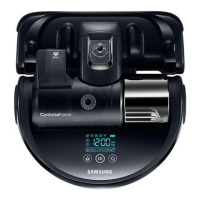
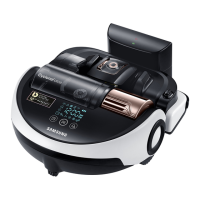
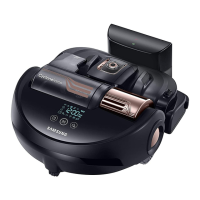
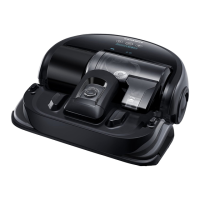
Samsung POWERBOT - User Manual

Samsung POWERBOT
120 pages
Print Icon
To Next Page IconTo Next Page
Loading...
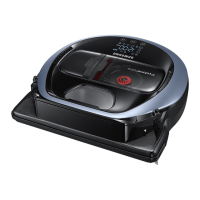
POWERbot
User manual
SR1AM70

, SR2AM70

Series
Before operating this unit, please read the instructions carefully.
For indoor use only.
1_VR7000_EN_DJ68-00763C-02_USA.indd 1 2017-02-23 오전 12:26:51

Other manuals for Samsung POWERBOT

Questions and Answers

  • R
    Ryan GravesSep 10, 2025
    What to do if there appears a message saying there is a failure during Easy-Setup?
    • H
      howardjasonSep 10, 2025
      If you see a message indicating a failure during Easy-Setup, it might be due to the distance from the wireless router or other obstacles. Try again after a while.
  • S
    Shelley RiveraAug 22, 2025
    What to do if Samsung POWERbot has stopped during cleaning?
    • Z
      Zachary ThomasAug 22, 2025
      If your Samsung POWERbot Vacuum Cleaner stops during cleaning, there could be a few reasons. If 'Lo' is displayed on the display panel or the battery indicator is blinking, place the POWERbot on the docking station to charge it. If the POWERbot is stuck on an obstacle like a cord or threshold, pick it up and move it away. Also, check the drive wheels for any caught fabric or string, and if found, turn off the emergency switch and remove it before using the POWERbot again.
  • A
    Ashley JacksonAug 25, 2025
    What to do if point cleaning is not working on Samsung POWERbot?
    • M
      Michael RandallAug 25, 2025
      If point cleaning isn't working on your Samsung POWERbot Vacuum Cleaner, make sure you're pointing the red light on the floor within 1.6 ft (0.5 m) of the POWERbot, instead of directly at it. Also, avoid using point cleaning in direct sunlight, under bright light, or on dark floors.
  • C
    Chris PittmanAug 26, 2025
    Why Intelligent power control function does not work on Samsung POWERbot?
    • S
      Sally HeathAug 26, 2025
      The intelligent power control function on your Samsung POWERbot Vacuum Cleaner may not work properly if the POWERbot cleans a carpet with short fiber and bright color, as it may mistakenly recognize the carpet as a floor.
  • J
    julia39Aug 27, 2025
    Why has my Samsung Vacuum Cleaner POWERbot stopped during cleaning?
    • D
      Daisy StrongAug 27, 2025
      Your Samsung POWERbot Vacuum Cleaner might have stopped during cleaning because it is immobilized by an obstacle such as a cord or threshold, or fabric or string is caught in a drive wheel. If the POWERbot is stuck, pick it up and move it away from the obstacle. If fabric or string is caught in a drive wheel, turn off the emergency switch and remove the fabric or string before using it again.
  • D
    douglas00Aug 29, 2025
    How to troubleshoot a Samsung Vacuum Cleaner POWERbot that is not working?
    • K
      Kim Henry DVMAug 29, 2025
      If your Samsung POWERbot Vacuum Cleaner is not working at all, check if the emergency switch is on. Also, verify if all the icons are displayed on the display panel and ensure the POWERbot's battery is not depleted. If the remote controller is not working, replace the batteries (AAA type).
  • T
    Teresa WongSep 18, 2025
    Why does my Samsung Vacuum Cleaner POWERbot suddenly clean diagonally?
    • K
      Kelly BonillaSep 18, 2025
      Your Samsung POWERbot Vacuum Cleaner might suddenly clean diagonally if the docking station is not installed along the grain of wooden floors or tiles. Check if the docking station is installed correctly. The POWERbot may also clean in a diagonal direction if it is moving to another area using the shortest route, if it made contact with an obstacle at a diagonal angle, if it was charged at an angle, or if the grain of the wooden/tile floor skews in that direction.
  • C
    cguerraSep 12, 2025
    Why Edge clean master function works though there is no wall or corner for Samsung POWERbot?
    • I
      ibarracatherineSep 12, 2025
      The Edge clean master function on your Samsung POWERbot Vacuum Cleaner might activate even without a wall or corner if small obstacles are arranged in a narrow space. The POWERbot might mistakenly recognize the front obstacle as a wall, triggering the Edge clean master function.
  • N
    Nicole JohnsonSep 8, 2025
    What to do if the products do not work even though the smart phone is normally connected to the POWERbot?
    • T
      teresa57Sep 8, 2025
      If your products aren't working even though your smartphone is connected to the POWERbot, try these steps: Turn off the Samsung Smart Home app and then run it again, or disconnect the smartphone from the wireless router and then connect it again. You can also try turning off the power supply of the POWERbot, turning it back on, waiting for a minute or longer, and then running the Smart Home app again.
  • J
    jlongSep 5, 2025
    Why Edge clean master function does not work on Samsung POWERbot?
    • M
      Meagan HernandezSep 5, 2025
      The Edge clean master function on your Samsung POWERbot Vacuum Cleaner may not work if the POWERbot cannot recognize the wall. This can also occur if there is an obstacle made of reflective material in front of the wall, if the wall itself is made of reflective material, or if the wall is a dark color.

Summary

Safety information

Safety Symbols and Warnings

Defines warning symbols used in the manual and specific warnings.

California Proposition 65 Warning

Specific warning about chemicals known to cause cancer and reproductive harm.

Installation

Docking Station Setup and Connection

Steps to connect the docking station and power for automatic charging.

Accessories and Installation Notes

Included Accessories

Lists available accessories for the robot, such as remote control and filters.

Installation Notes

Key considerations for optimal docking station placement and operation.

Charging the POWERbot

Smart Charging Functionality

Automatic return to docking station for charging when battery is low.

Manual Charging Procedure

Steps to turn on the robot, place it on the dock, and check charging status.

Using the POWERbot

Power On;Off and Basic Modes

How to turn the unit on/off and select Auto/Spot clean modes.

Recharging and Energy-saving Mode

How to initiate recharge and enter energy-saving mode.

Selecting Cleaning Modes

Cleaning Mode Operations and Icons

Details on Auto, Spot, Repeat, and Manual cleaning modes with display icons.

Special Cleaning Functions

Cleaning Methods by Mode

Descriptions of Auto, Spot, Manual, and Repeat clean modes.

Intelligent Power and Edge Clean

Intelligent power control and edge clean master features explained.

Boundary Markers and Energy-saving

Boundary Marker Placement Guidelines

Guidelines for placing markers to prevent entry into restricted areas.

Energy-saving Mode Operation

How to select and cancel energy-saving mode for power conservation.

Using the Remote Control

Remote Control Layouts (A, B, C Types)

Overview of different remote control layouts and button configurations.

Remote Control Functions

Power, Recharging, and Start;Stop

Basic control functions of the remote for power and cleaning.

Cleaning Modes and Suction Power

How to select cleaning modes and adjust suction power via remote.

Additional Functions (Sound, Wi-Fi)

Adjusting sound settings and controlling Wi-Fi function with the remote.

Manual Control and Point Cleaning

Manual Clean and Direction Control

How to manually control the robot's movement and direction.

Point Cleaning Functionality

Using the remote control to guide the robot to clean specific spots.

Remote Control Battery Insertion

How to insert batteries into the remote control unit.

POWERbot Component Identification

Topside Components

Identification of parts on the top of the POWERbot, including sensors and buttons.

Bottomside Components

Identification of parts on the bottom of the POWERbot, including wheels and sensors.

Display Panel Information

SR1 AM7010 UW Display Panel

Explanation of indicators and buttons on the display for the SR1AM7010UW model.

SR1 AM7040 W;SR2 AM70 Display Panel

Explanation of indicators and buttons on the display for SR1AM7040W/SR2AM70 models.

Setting Time and Schedule

Setting the Current Time

Procedure to set the device's current time for scheduling.

Setting Cleaning Schedules

Procedure to set one-time or daily cleaning schedules.

Cancelling Schedules During Setup

How to cancel scheduled cleaning during the setup process.

Schedule Setting Without Remote

Setting Daily Schedule (SR1 AM7010 UW)

How to set a daily schedule using the robot's buttons without a remote.

Cancelling Daily Schedule (SR1 AM7010 UW)

How to cancel a daily schedule using the robot's buttons without a remote.

Cleaning and Maintenance

Dustbin and Filter Cleaning

Step-by-step guide to clean the robot's dustbin and filter.

Sensor and Camera Cleaning

How to clean optical sensors and the camera lens for optimal performance.

Brush, Shutter, and Wheel Maintenance

Brush and Auto Shutter Tool Care

How to clean the robot's main brush and the auto shutter tool.

Driving Wheel Cleaning

How to clean the robot's driving wheels to ensure smooth movement.

Samsung Smart Home App Setup

Preparing the Wireless Network

Requirements for setting up the wireless router for app connectivity.

Connecting to the Smart Home App

Smart Control and Wi-Fi Indicators

Understanding the indicators for smart control and Wi-Fi status.

Creating a Samsung Account for App

Steps to create a Samsung account required for using the app.

Downloading and Registering the App

App Download and Installation

How to get and install the Samsung Smart Home app on Android or iOS devices.

Product Registration (Easy-Setup)

Steps for registering the robot with the Samsung Smart Home Service.

Controlling POWERbot via App

App Main Screen and User Menus

Overview of the app's main screen, user menus, and control options.

POWERbot Control Functions in App

How to control the robot's functions like power, modes, and schedule via the app.

Charging and Usage Notes

Charging Precautions

Important notes regarding battery charging, overheating, and charging issues.

Usage Cautions

Cautions to observe during operation, including thresholds and cleaning limitations.

Battery and Sensor Information

Battery Information and Care

Guidelines for battery purchase, use, storage, and warranty information.

IrDA Sensor Performance Factors

Factors affecting infrared sensor performance, such as lighting and interference.

Information Codes and Checklist

Error Code Indicators and Meanings

Understanding blinking indicators and error codes for troubleshooting.

Troubleshooting Checklist Items

Common issues like getting stuck or matter caught, with their solutions.

Error Codes and Solutions

Specific Error Codes (C01-C07)

Specific error codes (C01-C07) and their corresponding solutions.

Troubleshooting Common Issues

POWERbot Not Working or Stopped

Solutions for when the robot won't operate or stops during cleaning.

Suction Power and Navigation Problems

Troubleshooting weak suction, docking failures, and diagonal cleaning.

Docking and Point Cleaning Failures

Solutions for issues related to docking station connection and point cleaning.

Smart Home App Troubleshooting

App Connectivity and Login Issues

Solutions for app connection problems and failure to log into Samsung account.

App Functionality and Performance Issues

Troubleshooting app functions, intelligent modes, and connectivity.

Open Source Software Information

Obtaining Source Code and Licenses

How to get the corresponding source code and license information for the software.

Product Specifications

SR1 AM7010 UW Series Specifications

Detailed specifications including size, weight, power, and cleaning modes.

SR2 AM70 Series Specifications

Detailed specifications including size, weight, power, and cleaning modes.

Samsung POWERBOT Specifications

General IconGeneral
SensorFullView
Number of filters1 pc(s)
Maximum input power- W
ShapeD-shape
Display typeLED
Product colorBlue
Built-in displayYes
Dust container typeBagless
Cleaning speed320 mm/sec
Dust capacity (total)0.7 L
HEPA filtration system-
Battery capacity- mAh
Package depth530 mm
Package width476 mm
Package height184 mm
Package weight7120 g
Weight and Dimensions IconWeight and Dimensions
Depth362 mm
Width378 mm
Height135 mm
Weight4490 g

Videos

How to Add SAMSUNG POWERbot R7065 Robot Vacuum to POWERbot-e app

How to Factory Reset SAMSUNG POWERbot Robot Vacuum

Related product manuals