EasyManua.ls Logo

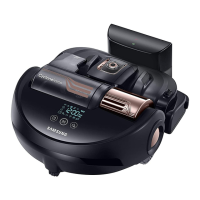
Samsung POWERbot SR2AJ9250W Series - User Manual

Samsung POWERbot SR2AJ9250W Series
116 pages
Print Icon
To Next Page IconTo Next Page
Loading...
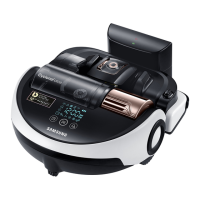
POWERbot
User manual
SR2AJ9250W
Series
• Beforeoperatingthisunit,pleasereadtheinstructionscarefully.
• Forindooruseonly.
SR9200J_3ge_DJ68-00732F-00_USA.indb 1 2016-07-29 오후 2:14:09

Questions and Answers

  • J
    Jennifer FernandezAug 17, 2025
    What to do if my Samsung POWERbot SR2AJ9250W POWERbot has stopped during cleaning?
    • B
      Bruce RodriguezAug 17, 2025
      If your Samsung POWERbot Vacuum Cleaner has stopped during cleaning, and "Lo" is displayed on the panel, take it to the docking station to charge. If it's stuck on an obstacle, move it away. Also, if fabric or string is caught in a drive wheel, turn off the emergency switch and remove it.
  • C
    Courtney ElliottAug 20, 2025
    How to fix Samsung POWERbot SR2AJ9250W POWERbot not working at all?
    • P
      Patricia RobertsAug 20, 2025
      If your Samsung POWERbot Vacuum Cleaner isn't working, check if the emergency switch is on. Make sure all icons are displayed on the panel and that the battery isn't depleted. If 'Lo' is displayed, charge it. If the remote isn't working, replace the batteries.
  • J
    Jeffrey TateAug 22, 2025
    What to do if the 'Filter inspection indicator' is on even after the dustbin has been emptied in my Samsung Vacuum Cleaner?
    • B
      Barbara RayAug 23, 2025
      If the 'Filter inspection indicator' is on even after emptying the dustbin of your Samsung POWERbot Vacuum Cleaner, turn off the emergency switch and then turn it back on. If that doesn't work, empty the dustbin again and re-clean the filter thoroughly.
  • M
    Marcus FaulknerAug 26, 2025
    Why is point cleaning not working on my Samsung POWERbot SR2AJ9250W Vacuum Cleaner POWERbot?
    • T
      teresagrayAug 26, 2025
      If point cleaning isn't working on your Samsung POWERbot Vacuum Cleaner, avoid pointing the red light directly at it; instead, point it on the floor within 4 ft (1 m). Also, don't use point cleaning in direct sunlight, under bright light, or on dark floors.
  • T
    Traci RichardsAug 28, 2025
    Why my Samsung Vacuum Cleaner POWERbot cannot find the docking station?
    • L
      Lindsay CoffeyAug 28, 2025
      If your Samsung POWERbot Vacuum Cleaner isn't finding the docking station, first ensure there isn't a power failure or that the power plug isn't unplugged. Also, remove any obstacles around the docking station. If there's foreign matter on the charge pins, clean it off.
  • K
    kevin78Aug 31, 2025
    Why is the suction power weak on my Samsung POWERbot SR2AJ9250W Vacuum Cleaner POWERbot?
    • L
      leachrobertAug 31, 2025
      If your Samsung POWERbot Vacuum Cleaner's suction power is weak, and the 'Filter inspection indicator' is on, turn off the emergency switch and clean the dustbin. If the dustbin is too full, empty it. Also, check the intake for blockages and remove any foreign matter. If the noise suddenly increases, turn off the emergency switch and empty the dustbin.
  • G
    Glenda HillSep 2, 2025
    Why does my Samsung POWERbot SR2AJ9250W POWERbot suddenly clean diagonally?
    • K
      Kristopher Evans Jr.Sep 3, 2025
      If your Samsung POWERbot Vacuum Cleaner cleans diagonally, check if the docking station is installed along the grain of wooden floors or tiles. It might also be taking the shortest route to another area or reacting to obstacles or the floor's grain.
  • S
    Sylvia ConnerSep 5, 2025
    Why the products do not work even though the smart phone is normally connected to the POWERbot Samsung POWERbot SR2AJ9250W?
    • T
      tgilbertSep 5, 2025
      If the products do not work even though the smart phone is normally connected to the POWERbot, turn off the Samsung Smart Home app and run it again, or disconnect the smart phone from the wireless router and then connect it again. Alternatively, turn off the power supply of the POWERbot, turn it on, wait for a minute or longer, and then run the Smart Home app again.
  • D
    Drew MeadowsSep 8, 2025
    Why does my Samsung POWERbot SR2AJ9250W POWERbot move around at the same place?
    • S
      Samantha RyanSep 8, 2025
      If your Samsung POWERbot Vacuum Cleaner moves around in the same place, it might be because the dust sensor mode is on. This mode makes the POWERbot focus on cleaning dusty areas. Also, check for and remove any foreign matters caught between the dustbin and power brush.
  • C
    Carolyn WebbSep 12, 2025
    Why location recognizing function does not operate on my Samsung POWERbot SR2AJ9250W POWERbot?
    • L
      Lisa WardSep 12, 2025
      If the location recognizing function of your Samsung POWERbot Vacuum Cleaner isn't working, operate the POWERbot again near the area where it stopped previously. If it doesn't recognize the environment or starts cleaning more than 4 ft (1 m) away from where it stopped, searching may be difficult.

Summary

Safety Information

Symbol and Warning Explanations

Explains the meaning of various warning, caution, and informational symbols used in the manual.

General Operating and Electrical Safety

Covers essential safety practices for operating the appliance and its electrical components to prevent hazards.

Regulatory Compliance Notices

Details compliance information, including FCC and IC notices for radio frequency regulations.

Operational and Cleaning Precautions

Provides crucial safety advice for using, cleaning, and maintaining the POWERbot to avoid damage or injury.

Installation and Setup

Docking Station Placement and Power Connection

Instructions on where to place the docking station and how to connect its power supply correctly.

Accessories and Installation Guidelines

Lists included accessories and provides essential notes for successful docking station installation.

Charging the POWERbot

Initial Charging Procedure and Indicators

Step-by-step guide for the first charge and how to interpret charging status lights and displays.

Recharging Modes and Troubleshooting

Explains automatic/manual recharging and offers solutions for common recharging issues.

Operating the POWERbot

Basic Operation and Mode Selection

Covers powering on/off, starting cleaning, and selecting basic cleaning modes like Auto and Spot.

Detailed Cleaning Modes and Methods

Explains how to select Auto, Spot, and Manual cleaning modes, detailing their cleaning patterns.

Navigation and Area Restriction Features

Describes the location recognition function and how to use boundary markers to define cleaning areas.

Energy-Saving Mode Management

Details how to activate, deactivate, and manage the Energy-saving mode for efficient battery charging.

Remote Control Operations

Basic Functions and Battery Installation

Explains the primary functions of the remote control and how to insert batteries.

Manual Navigation and Point Cleaning

Covers using the remote for manual control and the point cleaning feature to guide the robot.

Component Identification

Top, Bottom, and Display Panel Components

Identifies and labels all major parts of the POWERbot, including the top, bottom, and display panel.

Time and Schedule Settings

Setting Current Time and Cleaning Schedules

Guides users on setting the current time and scheduling cleaning sessions for automatic operation.

Cleaning and Maintenance

Dustbin and Sensor Cleaning Procedures

Provides step-by-step instructions for cleaning the dustbin, filters, sensors, and camera.

Power Brush and Driving Wheel Maintenance

Details the process for removing, cleaning, and reassembling the power brush and cleaning the driving wheels.

Samsung Smart Home App

Network Preparation and Account Setup

Explains how to prepare your wireless network and set up a Samsung account for app usage.

Product Registration and Connection (Android;iOS)

Provides detailed steps for registering the POWERbot with the app on both Android and iOS devices.

App Control Features and Functions

Describes how to use the app interface to control the POWERbot, check status, and utilize smart home features.

Notes and Cautions

Charging, Usage, and Cleaning Advisories

Offers important notes and cautions regarding charging, using the robot, and cleaning practices.

Battery and Sensor Specific Cautions

Highlights specific cautions related to the battery, its lifespan, and the functioning of the IrDA sensor.

Information Codes

Understanding and Resolving Error Codes

Lists common information codes displayed on the robot and provides steps for troubleshooting.

Troubleshooting Guide

Common Symptoms and Solutions

Offers a comprehensive guide to diagnose and resolve various operational issues the POWERbot might encounter.

Open Source Announcement

Open Source Software Information

Provides information on obtaining the source code for the open-source software used in the product.

Product Specifications

Technical Specifications Overview

Lists the detailed technical specifications of the POWERbot, including size, weight, power, and performance.

Samsung POWERbot SR2AJ9250W Series Specifications

General IconGeneral
ModelSR2AJ9250W
Wi-Fi ConnectivityYes
App ControlYes
Auto RechargeYes
Virtual GuardYes
Battery TypeLi-ion
Charging Time120 minutes
Voice ControlAmazon Alexa, Google Assistant
FeaturesFullView Sensor 2.0, Edge Clean Master, Self-Cleaning Brush
TypeRobotic Vacuum Cleaner
Navigation TechnologyVisionary Mapping Plus

Related product manuals