ENGLISH
51
Setting the Date/Title Color
Advanced Recording
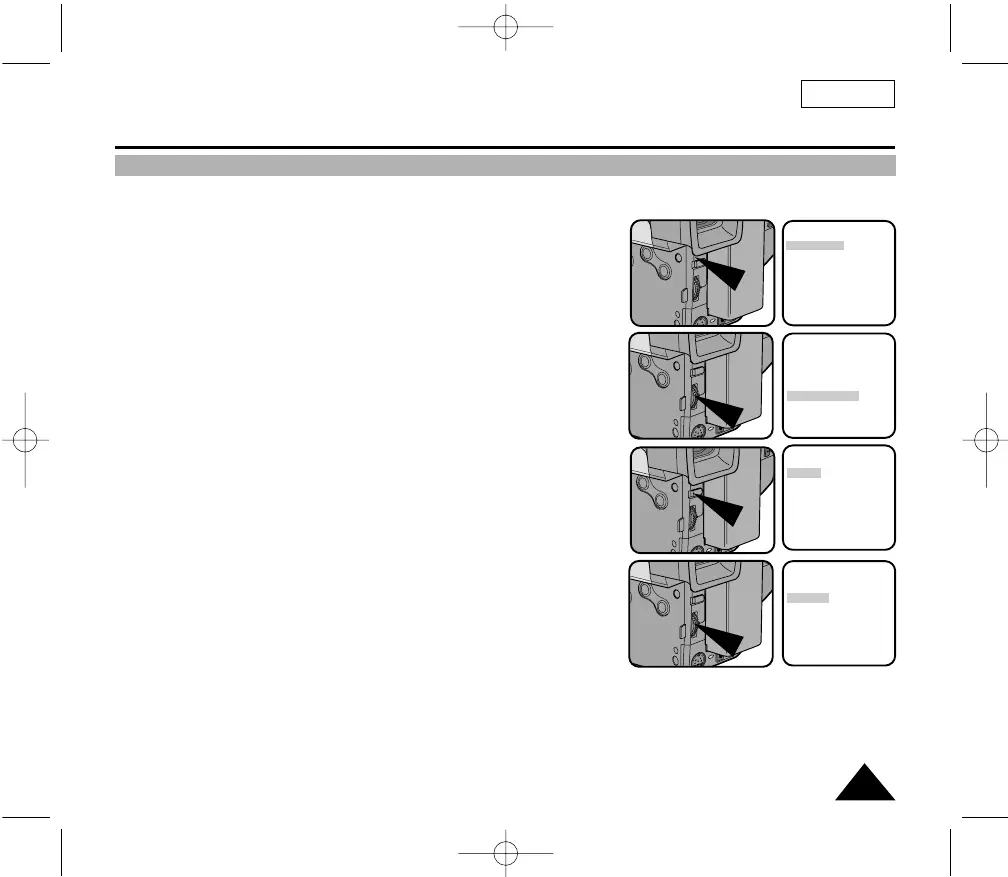
1. Set the power switch to CAMERA mode. (see page 18)
2. Press the MENU ON/OFF button.
■ The MENU list will appear.
3. Turn the UP/DOWN dial to D/TITLE COLOR.......WHITE.
4. Press ENTER.
■ A list of available colors will appear.
5. Turn the UP/DOWN dial to select the appropriate color.
6. Press ENTER.
■ Press the DATE/TIME button to choose whether the date and/or
time will be displayed.
7. Press the MENU ON/OFF button to end setting.
■
The Title and Date/Time will appear in the Color you chose.
MENU
LCD ADJUST
DIS........................OFF
D.ZOOM ..............OFF
WHITE BAL ..........AUTO
DISPLAY ..............ON
LANGUAGE..........
ENGLISH
WL REMOCON ....ON
NEXT: MENU
MENU
CUSTOM SET
CLOCK SET
TITLE SET
TITLE....................OFF
D/TITLE COLOR ..WHITE
C.RESET..............0:00:00
DEMO ..................OFF
EXIT: MENU
DATE/TITLE COLOR SELECT
[WHITE]
WHITE
YELLOW
CYAN
MAGENTA
RED
GREEN
BLUE
EXIT: MENU
DATE/TITLE COLOR SELECT
[YELLOW]
WHITE
YELLOW
CYAN
MAGENTA
RED
GREEN
BLUE
EXIT: MENU
00732M SCL901 SEA (46-71) 12/26/03 10:46 AM Page 51


 To Next Page