ENGLISH
54
Playing back a Tape
Notes:
■ SCL901/L906/L907 feature a monaural audio system. If your TV or VCR features a stereo audio system, connect the audio
cable to input “L” of your TV or VCR.
■ You can use an S-VIDEO cable to obtain better quality of pictures if you have a S-VIDEO connector on your TV.
■ While playing back on a TV screen, close the LCD panel. Otherwise, picture distortion may occur.
Playback
1. Use the TV/VIDEO button to select VIDEO on your TV.
2. Connect power source (battery or AC Power Adapter) to the camcorder.
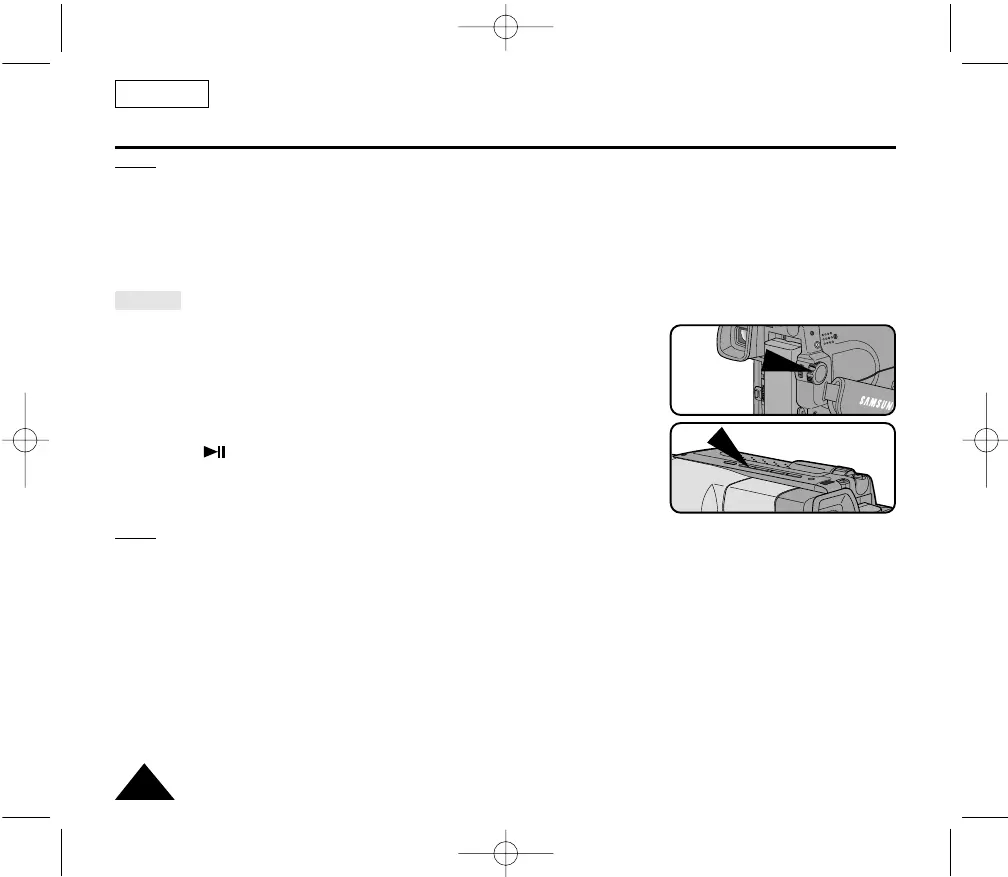
Set the power switch to PLAYER mode.
3. Insert a tape you want to see.
■ Make sure that STOP is displayed.
4. Press the (PLAY/STILL) button.
■ The picture you recorded appears on the TV after 2 to 3 seconds.
■ Press ■ (STOP) to stop playing.
■ If the tape reaches its end during playback, the tape will rewind automatically.
Notes:
■ Vibration from the built-in speaker can cause picture distortion.
■ It is best to turn the built-in speaker off when your camcorder is connected to the TV.
■ The system (Hi8/8mm) is selected automatically, depending on the tape format.
■ This camcorder does not support LP recording and playback.
PLAYER
PLAY/STILL
00732M SCL901 SEA (46-71) 12/26/03 10:46 AM Page 54


 To Next Page