EasyManua.ls Logo

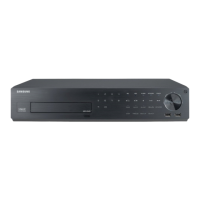
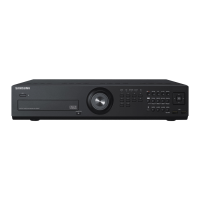
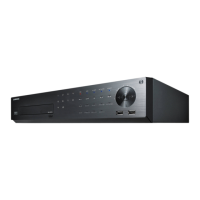
Samsung SRD-894 - User Manual

Samsung SRD-894
154 pages
Print Icon
To Next Page IconTo Next Page
Loading...
4/8 CHANNEL DVR
User Manual
SRD-494/894

Questions and Answers

  • D
    davidyoungSep 2, 2025
    What to do if I can't move the cursor to the Start button when using calendar search on my Samsung DVR?
    • M
      Michael NashSep 2, 2025
      Ensure that both the channel and the date you want to play are marked with the V symbol on your Samsung DVR. You must check both before you can use the Start button.
  • J
    Jamie SanchezAug 31, 2025
    What to do if the Channel button does not work on the Live screen of my Samsung SRD-894 DVR?
    • K
      Kimberly AndersonAug 31, 2025
      The Channel button on your Samsung DVR will not function if the current screen is in event monitoring mode. To exit this mode, press the [ALARM] button, then select a channel.
  • L
    lindseygriffinAug 29, 2025
    Why does my Samsung DVR display the logo image repeatedly?
    • P
      Phillip DavisAug 29, 2025
      This issue with your Samsung DVR may be due to a problem with the main board or corrupted software. Contact the nearest service center for assistance.
  • N
    Nathan Benson DDSAug 28, 2025
    What to do if my Samsung SRD-894 displays a black screen on some channels?
    • C
      Christine DaughertyAug 28, 2025
      First, check if the camera connected to the system is properly displaying the image on your Samsung DVR. Also, verify that the camera is receiving power. If the issue persists on a channel with a weak video signal, especially from a video distributor connected to multiple systems, try inputting the camera's video source directly into the DVR. This can help isolate and resolve the problem.
  • H
    Holly RodriguezAug 26, 2025
    How to release the alarm on a Samsung DVR?
    • W
      Wesley HardyAug 26, 2025
      To release the alarm on your Samsung DVR, press the [MENU] button on the front panel and proceed as follows: 1) To exit the event monitoring mode: In Monitoring Mode, set the event monitoring duration to Off. 2) To silence the alarm sound: In Event Record Mode - Alarm (Motion Detection/Video Loss/Tampering Detection), deactivate the alarm sound. 3) To stop the event: In Event Record Mode - Alarm (Motion Detection/ Video Loss/Tampering Detection), set the mode to Off.
  • I
    Ian SmithAug 25, 2025
    What to do if my Samsung DVR does not turn on?
    • K
      Kristen JacksonAug 25, 2025
      First, check if the power supply is properly connected to your Samsung DVR. Next, verify the system is receiving the correct input voltage from the power source. If it still fails to power on, the power supplier may be faulty and require replacement.
  • S
    Stephanie HenryAug 22, 2025
    What to do if my Samsung SRD-894 DVR image quality of recording data is not good?
    • J
      Jennifer DiazAug 22, 2025
      To improve the recording image quality on your Samsung DVR, increase the resolution and quality level in Menu – Record – Quality / Resolution. 1) For Resolution: Choose a larger size when specifying the recording size (720P/1080P>WD1>4CIF>2CIF>CIF). CIF format images may appear deteriorated when enlarged due to their small size. 2) For Record Quality: Select a higher level for the recording quality. Note that increasing resolution and quality will increase the data size, filling the HDD faster and potentially overwriting data at shorter intervals.

Summary

OVERVIEW

IMPORTANT SAFETY INSTRUCTIONS

Essential guidelines for safe operation and handling of the device.

INSTALLATION

Installing The HDD

Steps and precautions for installing a Hard Disk Drive (HDD) into the DVR.

CONNECTING WITH OTHER DEVICE

MAIN MENU

SYSTEM SETUP

Access point for configuring system properties like Date/Time, Language, and Permissions.

SETTING THE RECORDING

Accessing settings related to recording schedules, event durations, and quality.

CONTROLLING A PTZ DEVICE

SEARCH & PLAY

PLAYBACK

WEB VIEWER

APPENDIX

PRODUCT SPECIFICATION

Detailed technical specifications for the DVR models SRD-494 and SRD-894.

DEFAULT SETTING

Lists the factory default settings for various DVR configurations.

TROUBLESHOOTING

Common problems and their solutions for the DVR.

Samsung SRD-894 Specifications

General IconGeneral
BrandSamsung
ModelSRD-894
CategoryDVR
LanguageEnglish

Related product manuals