Adjusting Your Monitor
7
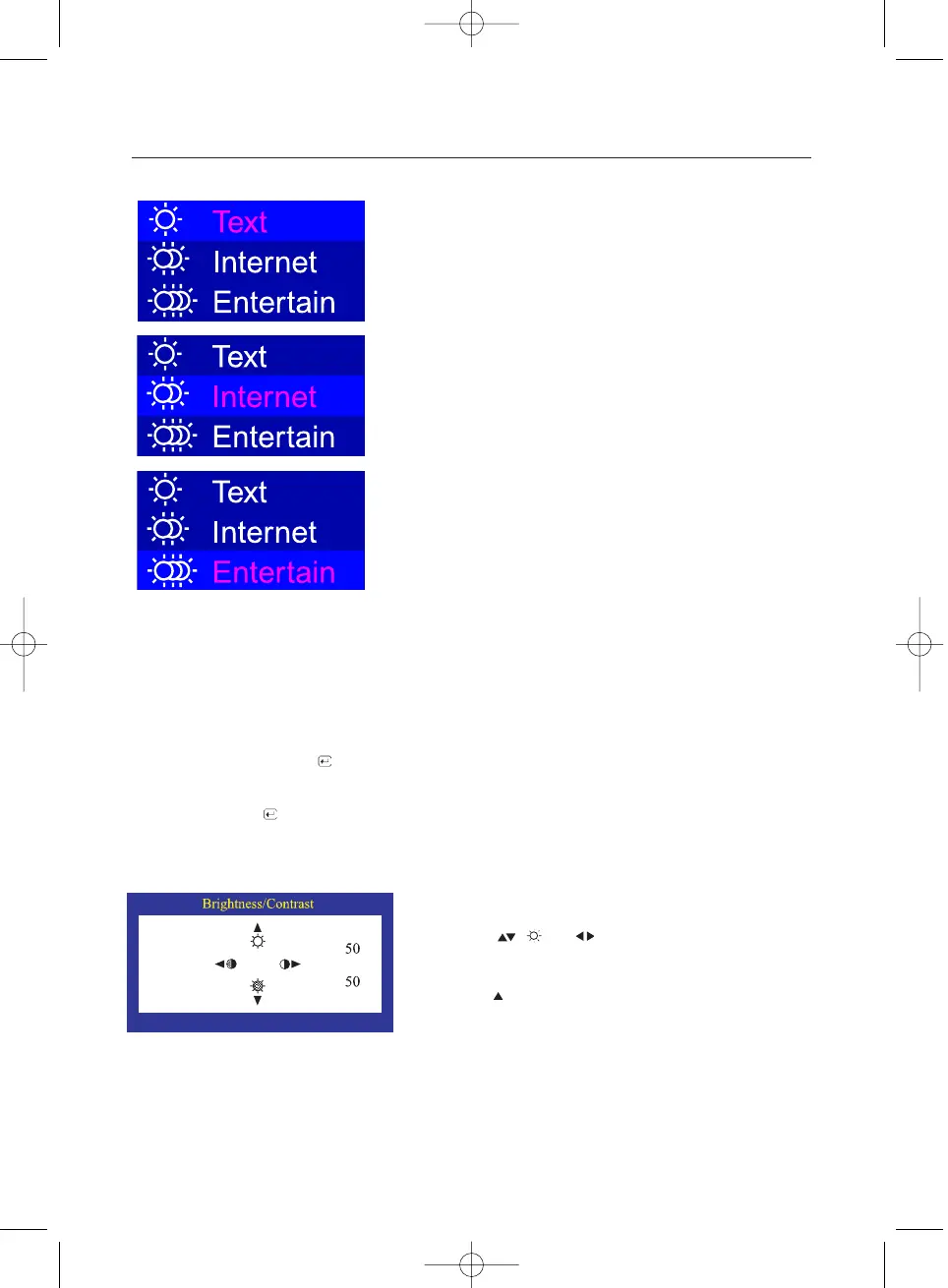
1 Push the MagicBright button.
Push the MagicBright button again and select the desired
mode. When Text is selected, the monitor turns on normal
brightness identical to that of existing monitors, which is
suitable for reading or working with text. When Internet is
selected, the monitor turns on an enhanced brightness
for Internet browsing (text and graphics), while retaining the
readability of text characters. When Entertain is selected,
the monitor switches to maximum brightness (330 cd/m2),
identical to television brightness, which is optimum for
viewing entertainment programs (animation, DVDs,
television or online games).
MagicBright
MagicBright refers to a new monitor feature that offers screen
display quality twice as bright and clear than that of existing
monitors. It provides display brightness and resolution most
appropriate for viewing text, Internet or multimedia animations
to satisfy varying user requirements. The user may easily
select one of three pre-configured brightness and resolution
options by simply pressing one of the MagicBright control
buttons located on the monitorís front.
1 Push the ( ) or ( ) button.
The brightness/contrast display will appear.
2 Push the button to increase the brightness or
the button to decrease the brightness.
Push the button to increase the contrast or
the button to decrease the contrast.
Brightness/Contrast
Adjust Brightness and Contrast.
1 Push the Menu ( ) button for over 5 seconds.
User Delete
When you press the Menu ( ) button for over 5 seconds, all the user adjustment data are
deleted as the LED blinks. This is different from the function that restores the default status.



 To Next Page