9
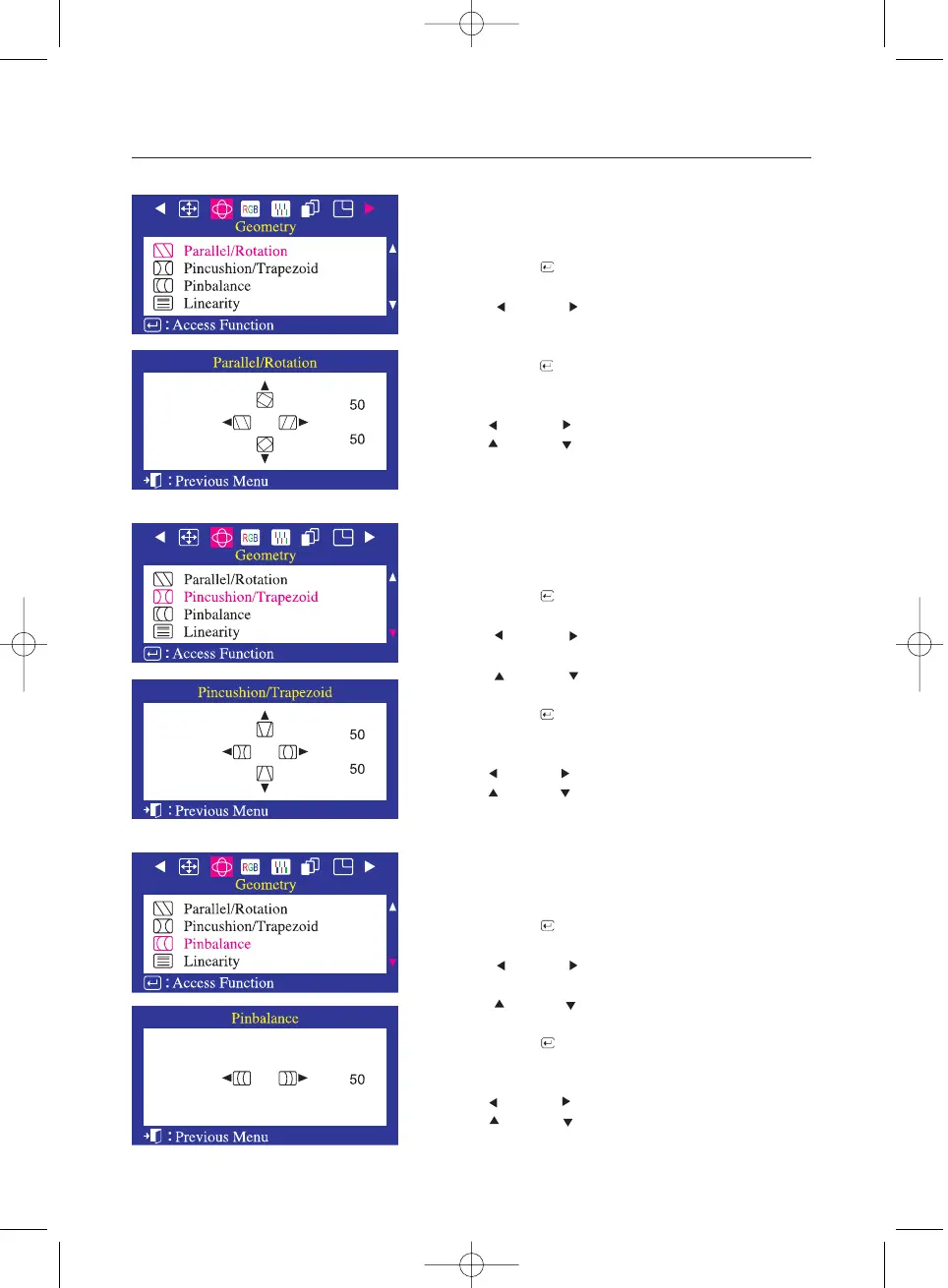
1 Push the Menu ( ) button.
2 Push the button or button until the Geometry
screen is displayed.
3 Push the Menu ( ) button to open the Parallel/Rotation
adjustment screen.
4 Use the button or button to adjust the parallel setting;
Use the button or button to adjust the rotation setting.
Adjusting Your Monitor
Parallel/Rotation
Adjust the parallelogram setting when the display is leaning
left or right; adjust the rotation setting when the entire
display is tilted left or right.
1 Push the Menu ( ) button.
2 Push the button or button until the Geometry
screen is displayed.
push the button or button to select Pincushion/Trapezoid
3 Push the Menu ( ) button to open the Pincushion/Trapezoid
adjustment screen.
4 Use the button or button to adjust the pincushion setting;
Use the button or button to adjust the trapezoid setting.
Pincushion/Trapezoid
Adjust the pincushion setting when the sides of the display
are bowed in or bowed out; adjust the trapezoid setting when
the top or bottom of the display is too large or small.
1 Push the Menu ( ) button.
2 Push the button or button until the Geometry
screen is displayed.
push the button or button to select Pinbalance
3 Push the Menu ( ) button to open the Pinbalance
adjustment screen.
4 Use the button or button to adjust the pincushion setting;
Use the button or button to adjust the trapezoid setting.
Pinbalance
Adjust the pincushion setting when the sides of the display are
bowed in or bowed out; adjust the pinbalance setting when the
top or bottom of the display is too large or small.



 To Next Page