11
Adjusting Your Monitor
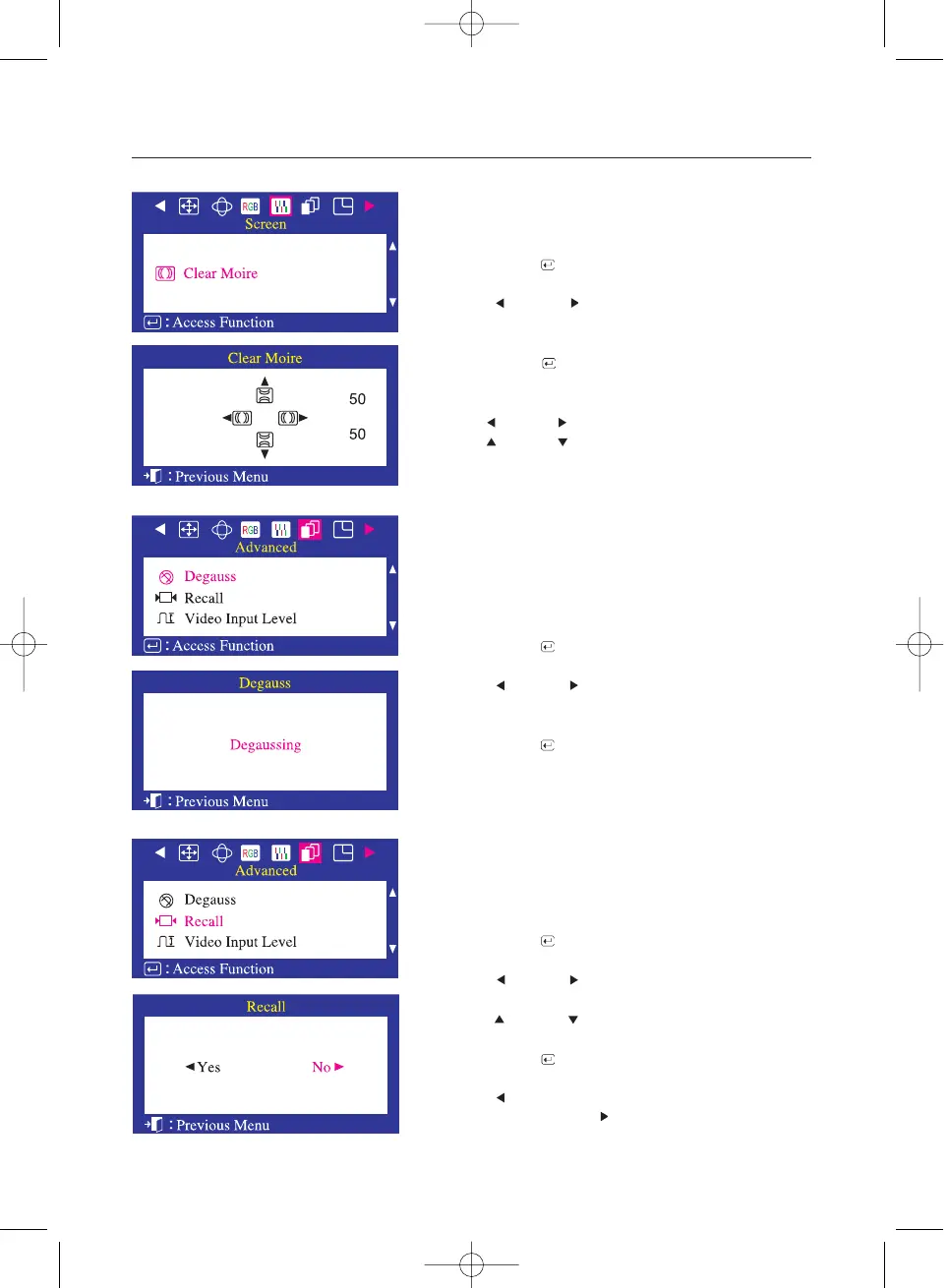
Clear Moire
A 'moiré' pattern can appear on your screen, looking like a
series of concentric circles or arcs. To eliminate this pattern,
use the clear moiré adjustments.
1 Push the Menu ( ) button.
2 Push the button or button until the Advanced
screen is displayed.
3 Push the Menu ( ) button to execute the degauss function.
The degaussing screen will appear. After a few seconds,
the degauss main menu will return.
Degauss
The Degauss feature will remove color impurities caused by
magnetic fields. Do not use the Degauss feature more than
once within a 30-minute period.
Note: The monitor may buzz momentarily, the image colors
may change and the image will jiggle for a few seconds.
These effects are normal.
1 Push the Menu ( ) button.
2 Push the button or button until the
screen OSD is displayed.
3 Push the Menu ( ) button to open the Clear Moire
adjustment screen.
4 Use the button or button to adjust horizontal moiré;
Use the button or button to adjust vertical moiré.
1 Push the Menu ( ) button.
2 Push the button or button until the Advanced
screen is displayed.
push the button or button to select Recall.
3 Push the Menu ( ) button to open the recall selection screen.
4 Push the button to select Yes. If you don't want to
reset the monitor, use the button to select No.
Recall
Use the recall feature to reset these monitor settings to their
original levels: Position, Size, Pincushion, Trapezoid,
Parallelogram, Pinbalance, Rotation, Clear Moire.
Note: If you have selected "Yes", all settings listed above will
be reset. All other settings will remain the same.



 To Next Page