26
PICTURE SIZE
0. NATURAL
1. CINEMA WIDE1
2. CINEMA WIDE2
3. CINEMA WIDE3
4. FULL
[0-4] : SELECT
SETUP
CLOSED CAPTION OFF
CC ADVANCED
PICTURE SIZE
PICTURE SCROLL
: SELECT : ADJUST
Setting the picture size
NATURAL picture size
In some cases, this image will display the size of standard 4:3
with a black side bar.
2
NOTE:
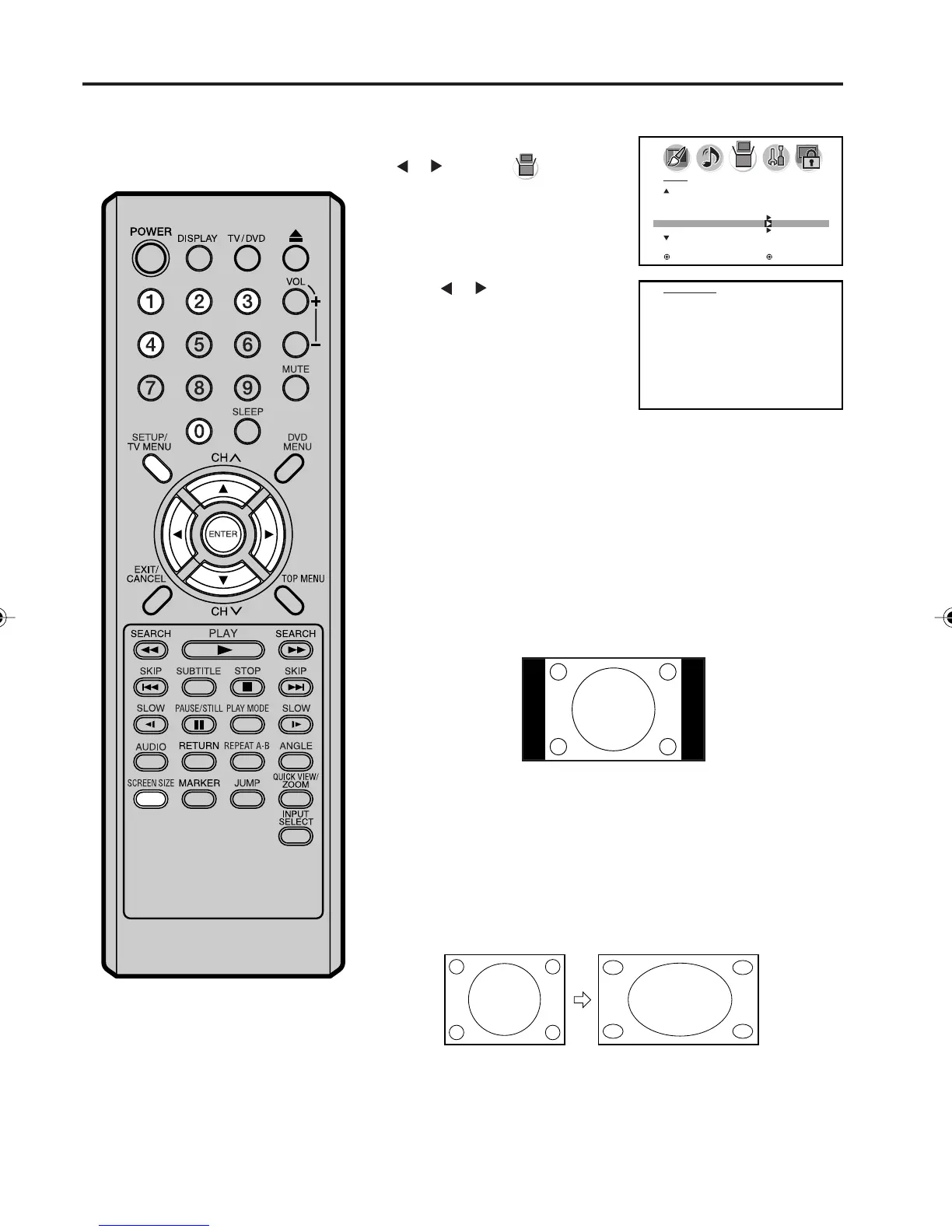
You can also display the PICTURE SIZE menu by pressing the
SCREEN SIZE button on the remote control.
1
Press SETUP/TV MENU. Press
or to select (SETUP)
menu. Press ▲ or ▼ to select
“PICTURE SIZE”.
Selecting the picture size
Press or . The PICTURE
SIZE menu will appear. Press ▲
/ ▼ or a Number button (0-4) to
select the desired picture size, as
described below and on the next
page, then press ENTER.
You can view 480i and 480p format
programs in a variety of picture
sizes—NATURAL, CINEMA
WIDE1, CINEMA WIDE2, CINEMA
WIDE3, and FULL.
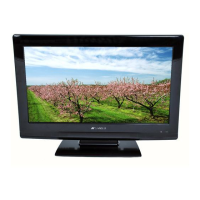
Natural picture size example
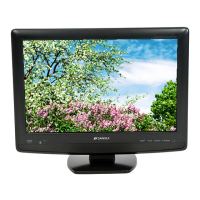
CINEMA WIDE1 picture size (for 4:3 format programs)
To fill the screen, the right and left edges are extended, however;
the center of the picture remains near its former ratio.
The top and bottom edges of the picture may be hidden.
3
Press EXIT to return to the normal screen.
5X10101A[EN] P22-29 3/2/06, 4:03 PM26


 To Next Page