41
The Sapling Company, Inc.
670 Louis Drive
Warminster, PA 18974
USA
P. (+1) 215.322.6063
F. (+1) 215.322.8498
www.sapling-inc.com
41
The Sapling Company, Inc.
670 Louis Drive
Warminster, PA 18974
USA
P. (+1) 215.322.6063
F. (+1) 215.322.8498
www.sapling-inc.com
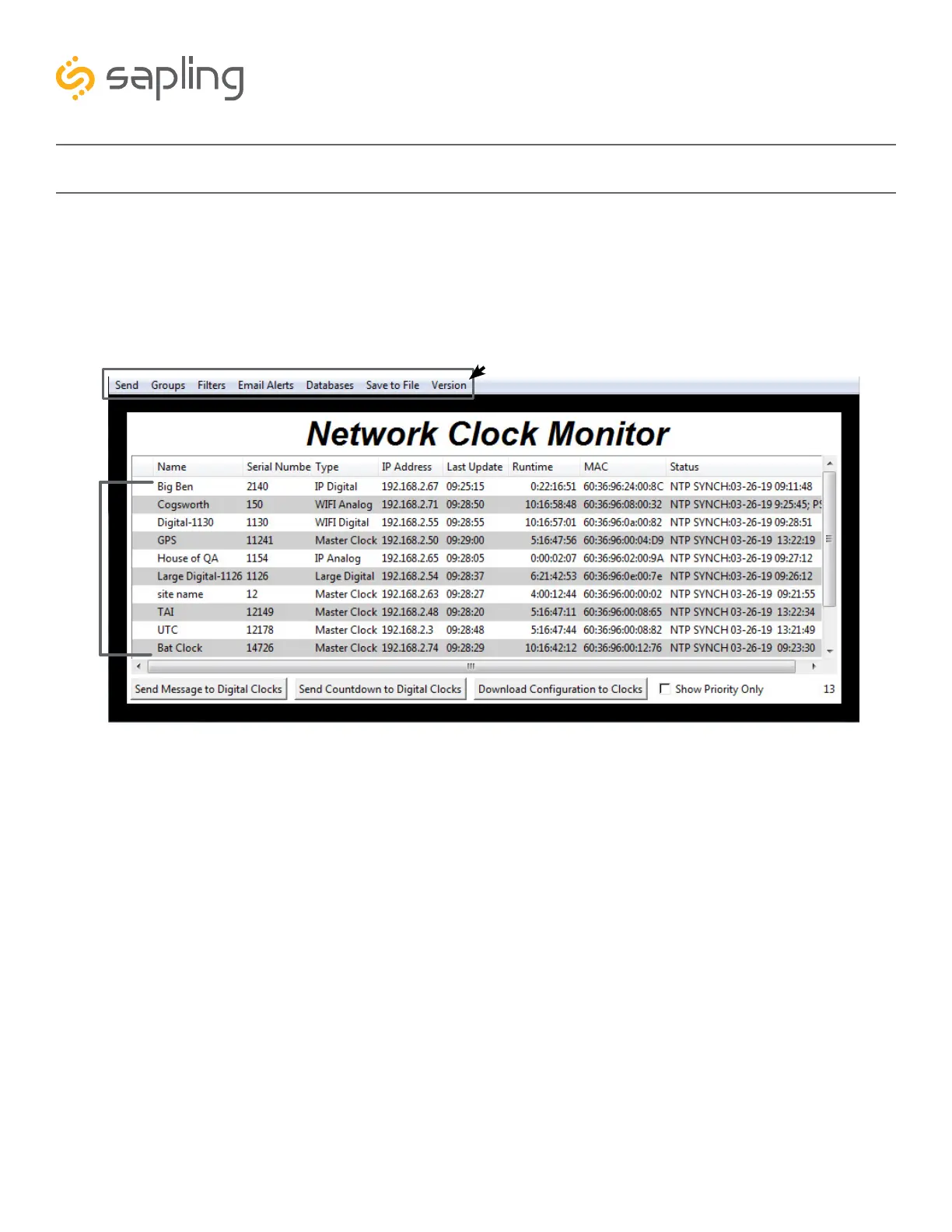
Network Monitor Software - Main Screen
1. Device List - Displays all of the relevant IP devices that are active on the system subnet. The monitor
screen displays the name of the clock, serial number, type of clock, IP address, last updated time, how long
the clock has been running, and the status of the clock. Double clicking on a device in the device list will
open the web interface for that device.
Using a right-handed mouse to right-click on any row in the Device List will open the Quick Access
Menu. See the section in this manual labeled “Network Monitor Software - Quick Access Menu” for more
information.
2. Task Bar - See the section in this manual labeled “Network Monitor Software - Task Bar Options”
3. Show Priority - By selecting this option, the IP device(s) that the user previously “marked as priority”
will be the only clocks shown in the program window.
4. Device Count - This number is the amount of IP devices that are displayed on the Network Monitor
Software.
1
2
3
4
YOUR COPY OF THE NETWORK MONITOR MAY HAVE ADDITIONAL
COLORS OR BRANDING.
THE MONITOR SHOWN IN THIS MANUAL CONTAINS NO BRANDING
OR COLORS.
ALL FEATURES REMAIN THE SAME.
The Network Monitor has two subtypes:
CFA - Intended for use with Wi-Fi Clocks, Master Clocks, Network Repeaters, Wi-Fi Large
Digital Clocks, IP-PoE Digital Clocks, and Network Repeaters.
CFL - Intended for use with Wired IP Large Digital Clocks and IP-PoE Analog Clocks.
You can check the type by clicking on “Version” (5) at the top of the Monitor window.
5


 To Next Page