Section One
8
www.Satloc.com Falcon User Manual, Rev A
1.6 MOVING MAP SCREEN OVERVIEW
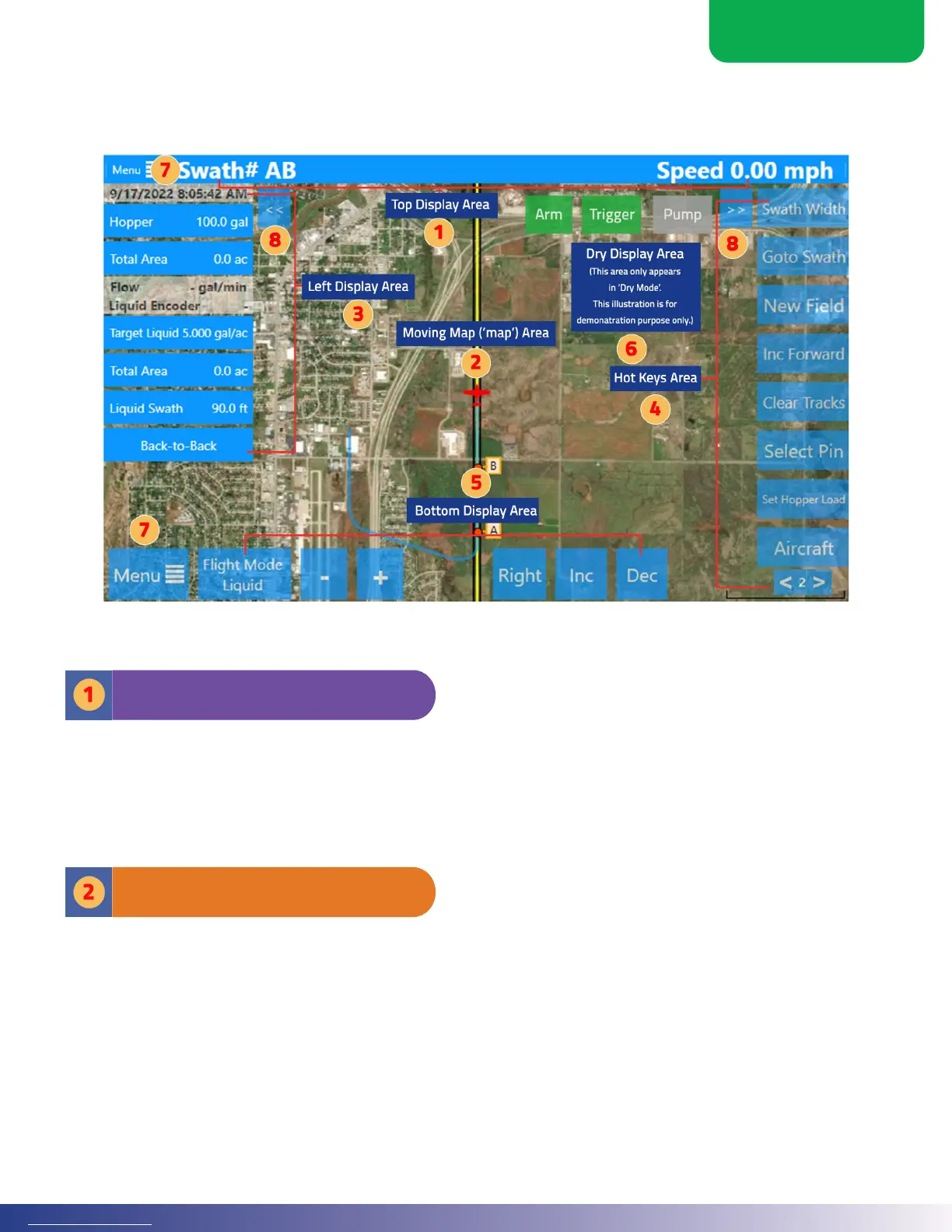
Aer startup or a Job is loaded or created, the touchscreen displays the moving map screen. e moving map screen is
the main display in Falcon/Falcon Pro. Section 2 details setting up display areas on the moving map screen.
In the Top Display Area, three elds contain user-selected information. is is editable from the
screen display menu and is part of the areas automatically updated when Guidance Modes change.
e information presented is as large of a font as possible and is usually visible, regardless of user
interaction. is is the best location to put key information needed to be read quickly and easily.
Appendix B shows options of what can be shown in the Top Display Area and Le Display Area.
Top Display Area
e moving map area (‘moving map’) shows a GIS-generated map of the eld showing the ight track,
swathing lines, application areas “paint,” any job polygons, Marks, and other relevant information.
Satellite or street-map backgrounds are available when the Falcon is connected to the internet.
A distinct capability of the Falcon/Falcon Pro is the ability to upload oine background maps. Oine
background maps are helpful for aircra with slow or reduced internet capabilities. When there is a
poor or limited internet connection, online background maps might not appear, which is why oine
background maps are benecial. ey are easy to load and can provide peace of mind. Because of
additional costs, additional fees apply for oine background maps.
Moving Map Area



 To Next Page