Section One
11
www.Satloc.com Falcon User Manual, Rev A
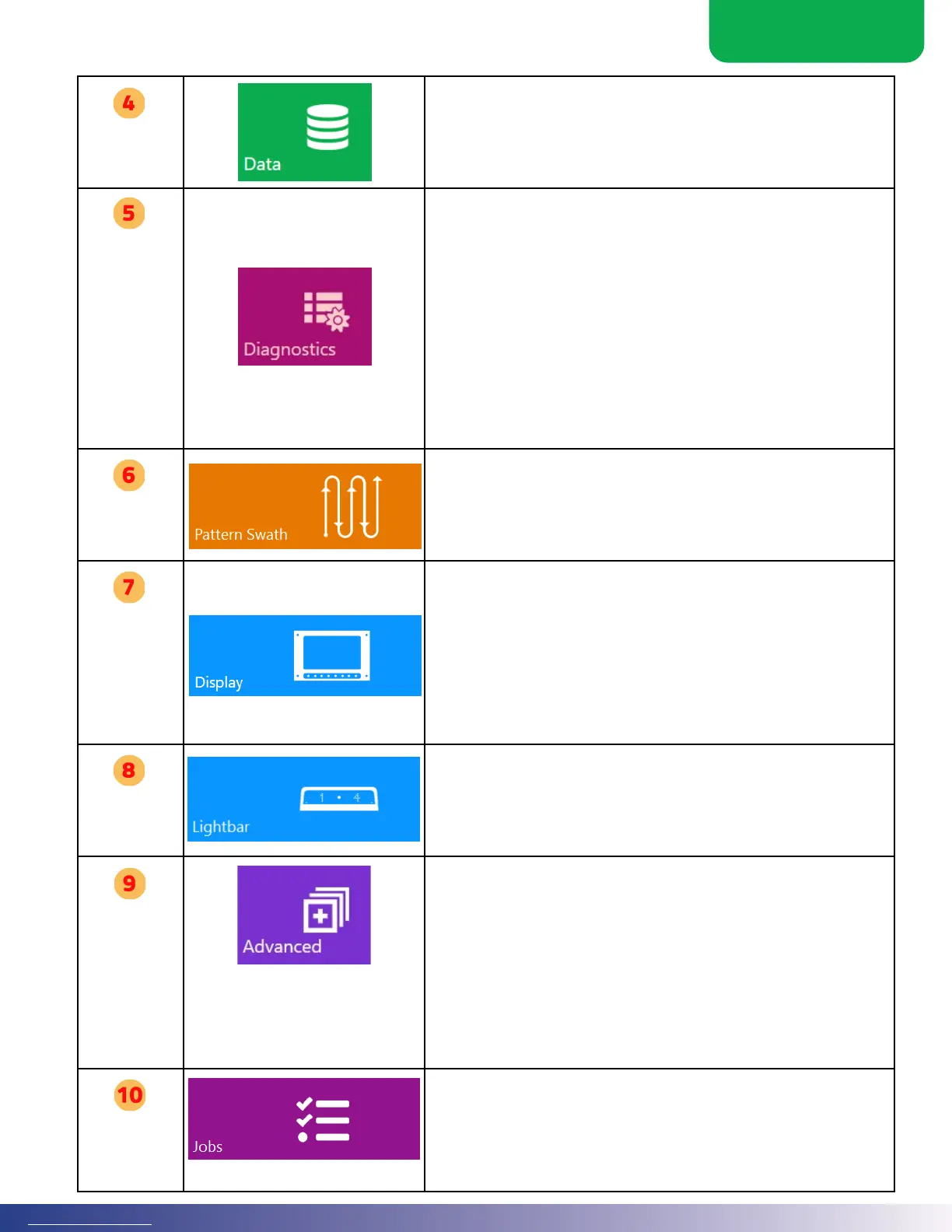
Data
e Data button provides the Cloud connection status and tools to export log les
to USB. is button will lead a user to the following functions.
1. Satloc Cloud
2. External Data
3. Log Export
Diagnositics
e Diagnostics menu is one menu to check the status of every system. Also,
there is a list of all soware and rmware versions in the system and a quick
way to check the status of every system input. is button will lead a user to the
following diagnostic functions.
1. Soware
2. CPU Diagnostics
3. Display Diagnostics
4. Communications
5. Cloud
6. GPS
7. ADS-B In
8. Flow Diagnostics
9. Lightbar Diagnostics
10. Soware Versions
11. IO Diagnostics
Pattern
Swath
Users can pick specic patterns, related settings, and the current swath width
using the Pattern Swath menu. is button will lead a user to the following
functions.
1. Pattern
2. Swath
Display
e Display menu is where the user picks system-wide settings like unit system
and language. Here also is the setup for HotKeys and the screen display
information for various Guidance Modes. Finally, the user can set the colors and
behavior for items on the map and overall display settings like dimming and night
mode. is button will lead a user to the following functions.
1. Units Setup
2. Language Setup
3. Hotkeys
4. Screen Displays
5. Screen Control
Lightbar
e Lightbar menu is where the user sets the data to be displayed on the lightbar.
Other overall settings, like dimming are set here too. is button will lead a user
to the following functions.
1. Lightbar Display
2. Lightbar Setup
Advanced
Advanced Menu contains some less oen used settings and functions. One menu
of note here is visibility. e Falcon attempts to show only information pertinent
to each user. For instance, all Falcon Pros can operate a Transland Meterate, but
turning o the visibility for Meterate will hide that setting everywhere, thereby
reducing unnecessary information. Otherwise, a Satloc technician will help you
pick options here as the need arises.
1. Setup Proles
2. Soware Settings
3. Visibility
4. Authorize Unlocks
5. DB Maintenance
Jobs
e Jobs menu allows loading of Jobs, selection of polygons and automatic pat-
tern swathing selection through the Poly Pattern function. is is also the menu
that imports job les from an external USB. is button will lead a user to the
following functions.
1. Job Selection
2. Import Job(s)



 To Next Page