Section Two
15
www.Satloc.com Falcon User Manual, Rev A
2.1 ADJUSTING REGIONAL SETTINGS & PREFERENCES
Field Description and Navigation Path
Date, Time,
& Time
Zone
Falcon/Falcon Pro is set to the default date and time in the Windows operating soware. Setting the time is
dierent than other systemwide settings. Please pay attention to the details.
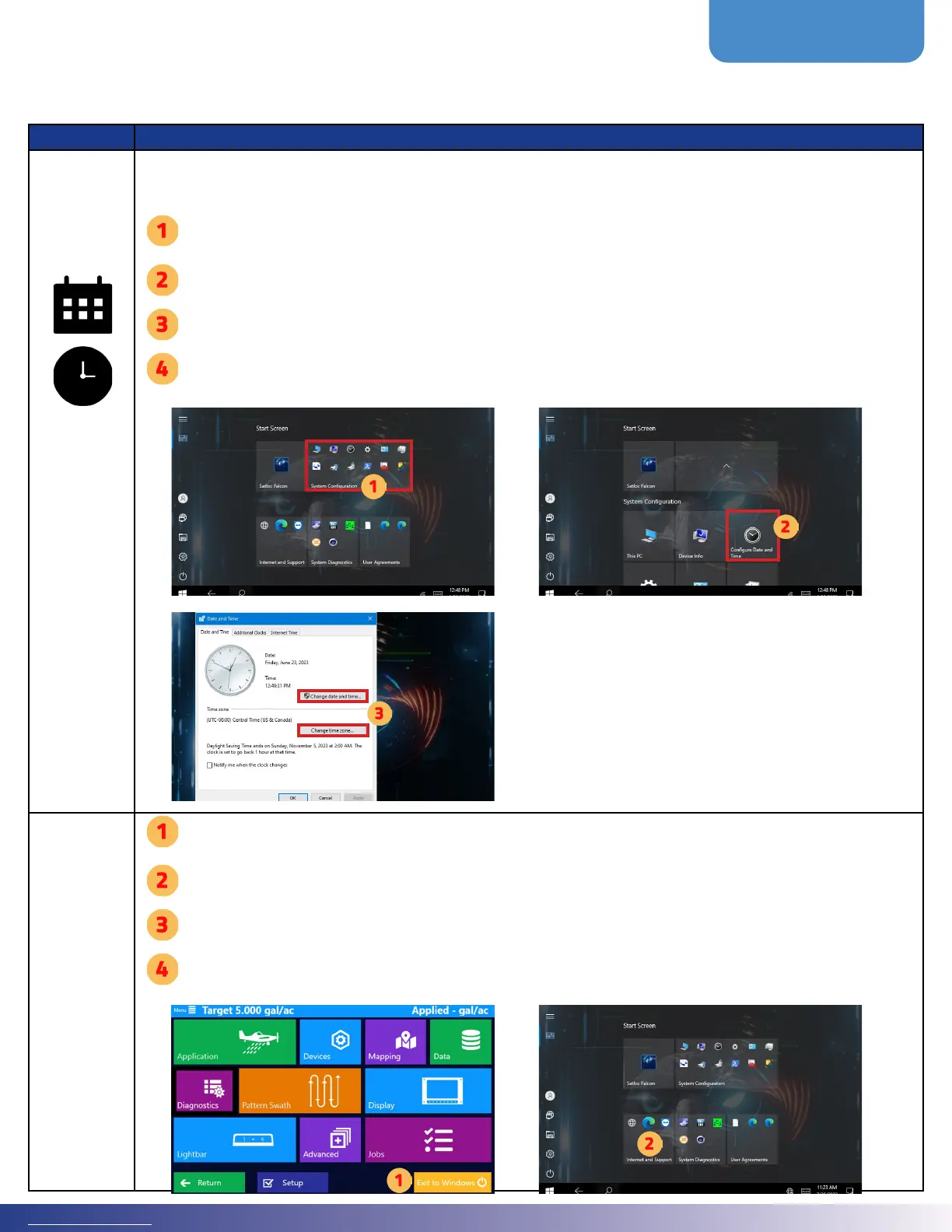
On the Windows screen (“Exit to Windows” if the Falcon soware is up), tap on the “System Congura-
tion” group. If the sceen for Step 1 doesn’t appear, tap the display to make it appear.
Tap “Congure Date and Time.”
On the Date and Time window, press ‘Change date and time’ button and/or ‘Change time zone.’
Make the changes to the date, time and time zone for user preferences.
Connecting
WiFi
On the Main Menu of the Falcon soware, select “Exit to Windows.” (In a future update, there will be a
“Minimize” option in addition to selecting “Yes” to exit.)
On the Windows menu, select “Internet and Support.”
Scroll down and select “Connect Wi-Fi.” is will open Windows’s Wi-Fi menu.
Select a WiFi network and connect.



 To Next Page