Section Two
20
www.Satloc.com Falcon User Manual, Rev A
In each area, the user can create any number of setups naming them whatever they want. From these, one setup can be
designated as the “default” for each possible guidance mode.
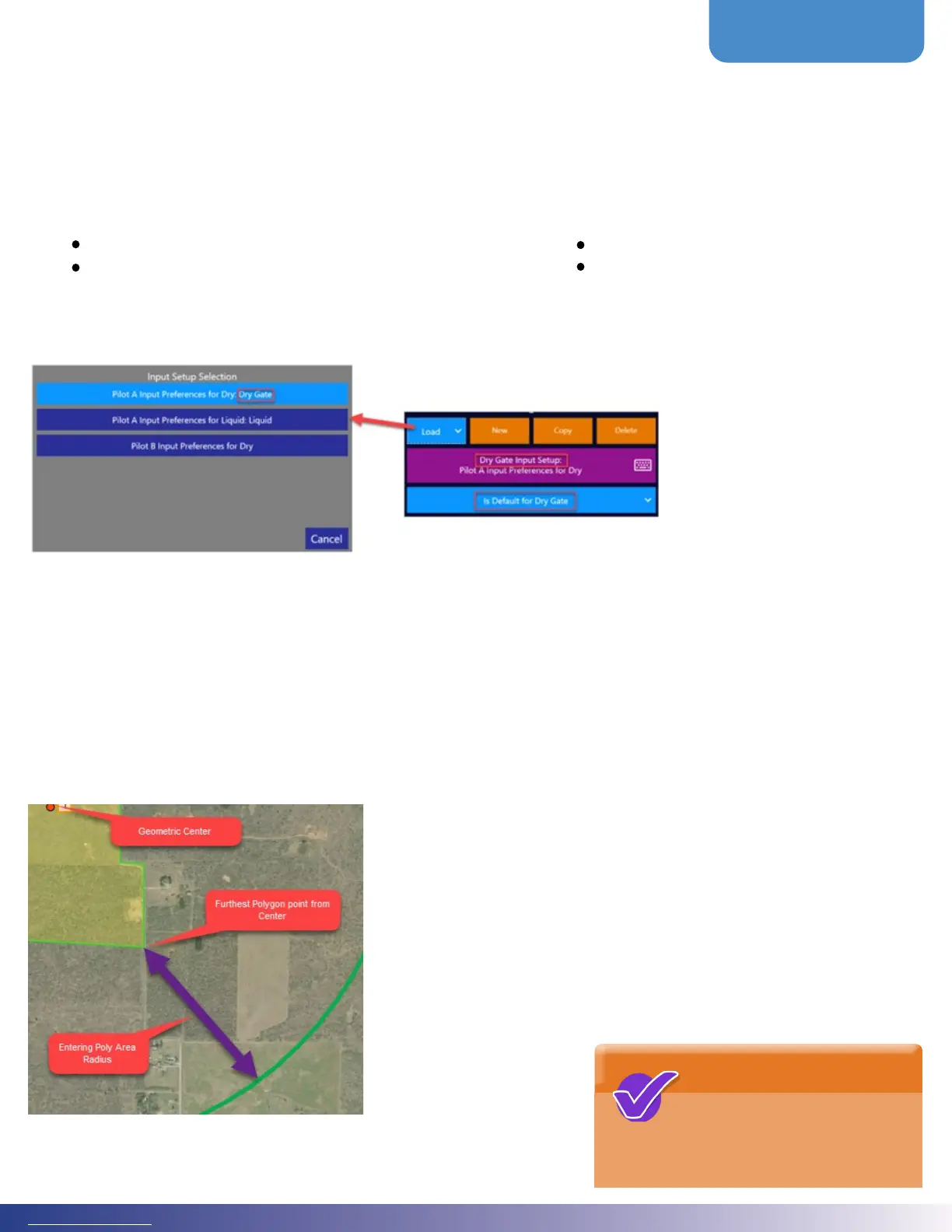
In this example, the pilots
have created three setups for
the Input. e names below
are extra-long to explain this
example better:
• Pilot A Input
Preferences for Dry
• Pilot B Input Preferences
for Dry
• Pilot A Input
Preferences for Liquid
Here the two pilots have dierent preferences on how the inputs should be treated in Dry Gate mode, so they have saved
unique Input setups. Currently the Pilot A version is set to the Dry Gate default. When the Falcon’s Guidance Mode
switches to Dry Gate, the Pilot A Input Preferences for Dry will be loaded automatically.
Pilot B could load his dry setup manually, or set his to default instead. Note: there is no default selected for Ferrying.
When switching to Ferrying Guidance Mode, the Input settings will remain unchanged from their current state.
Satloc recommends setting up a default for Ferrying and each likely application mode.
When the Falcon guides the pilot to a waypoint or polygon, the user can
manually switch the Lightbar, Display, Hotkeys, and Inputs to the proper
application mode, screen button or increment. e Falcon will also
make this switch automatically at a specic radius from the waypoint or
polygon.
From the Main Menu, navigate to Mapping > Guidance Mode. Inside the
Automatic Guidance Settings box, set the two Radii.
For the Polygon radius, this is
a radial distance beyond the
furthest poly point from the
geometric poly center.
NOTE
When guiding to a polygon or waypoint, the system automatically switches to Ferrying Guidance Mode, updating the
display, buttons, lightbar, and inputs accordingly. As the plane approaches the destination or upon pilot action, the
Guidance Mode is switched to the current application mode: Liquid, Dry Gate, etc.
Specically, there are four user setup areas that the Guidance Mode impacts. ese are discussed in more detail later, but
understanding the Guidance Mode concept is important initially.
Screen Display (Information and Buttons at top and le) Hotkeys
Lightbar Display Inputs (Encoder, Extra GPIO, TopHat, etc.)



 To Next Page