Section Two
25
www.Satloc.com Falcon User Manual, Rev A
Satloc recommends setting up custom Hotkeys for all likely application types (Liquid, Dry Gate, etc.) and a
Display Setting for Ferrying. These should be common actions required while in this particular mode.
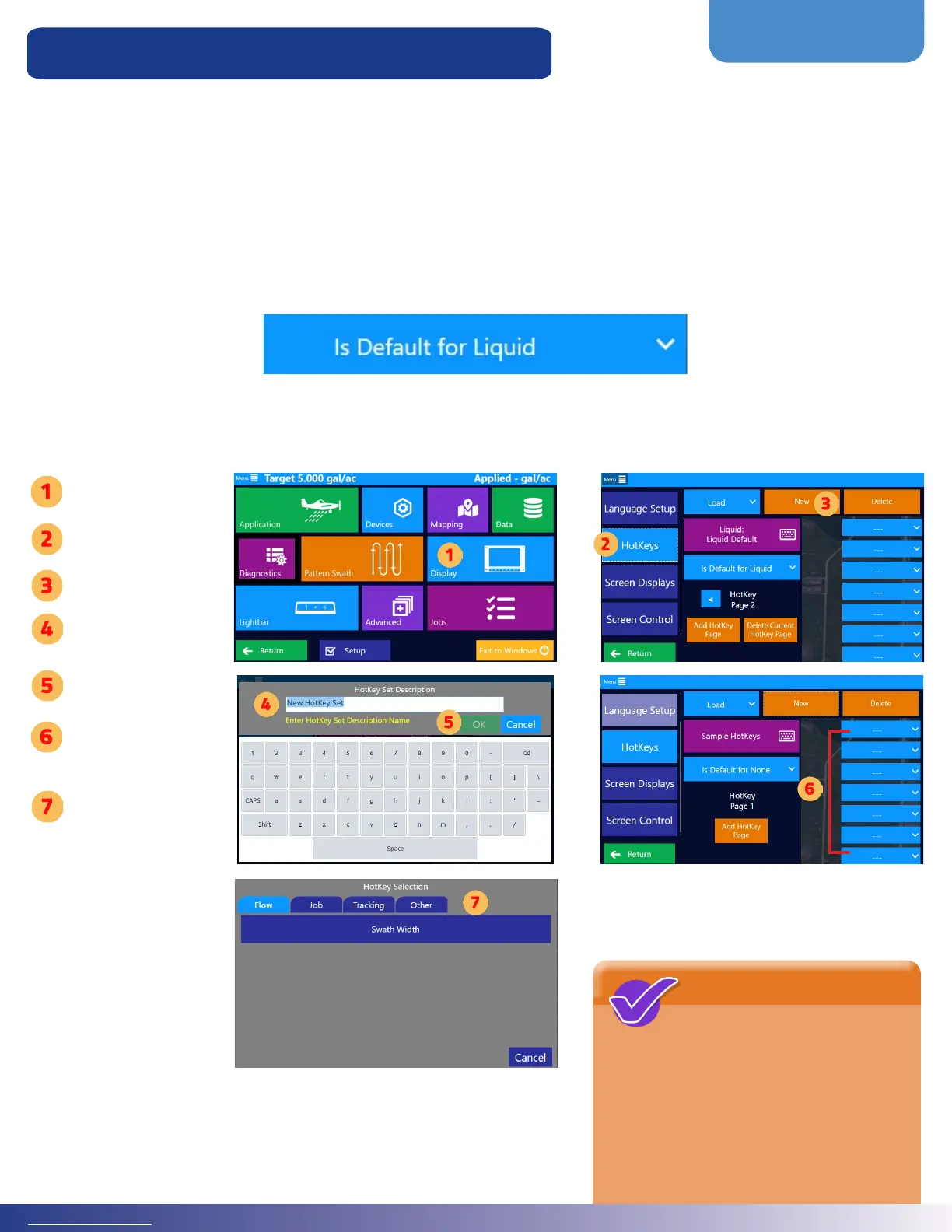
From the Main Menu, navigate to Display > Hotkeys.
Tap ‘New’ and enter a name for this hotkey setup. A pilot can enter and save multiple setups, so your name could be
specic: Bob’s Liquid or Liquid for Forestry.
Note: To have a particular setup loaded upon a specic Guidance Mode, select it to be that mode’s default.
If the default is set for liquid applications, whenever the Falcon is in Liquid Application Guidance Mode, this specic
Hotkey Setup will load. Creating a Hotkey Setup for each likely Guidance Mode is ideal.
Custom Hotkeys for All Application Types
Tap ‘Display’
Tap ‘Hotkeys’
Tap ‘New’
Enter a hotkey set
description name.
Press ‘Ok.’
Select a hotkey
slot dropdown
menu.
Select one of the
four main tabs
at the top of the
HotKey Selection
screen and then
choose an option
for the slot.
NOTE
Up to seven HotKeys can be
displayed at a time; however,
any number of HotKey pages can be
created. Like smart devices, users can set
up multiple pages of hotkeys and navigate
between them as needed. Typically, the
most commonly used buttons are grouped
on page one of the HotKeys area, and less
common buttons are on subsequent pages.



 To Next Page