Pro Remote User Guide | 009-1410-06 45 Perseverance Way, Hyannis, MA 02601
© 2020 Savant Systems, Inc | 201210 7 of 18 Savant.com | 508.683.2500
3. Pro Remote Screens
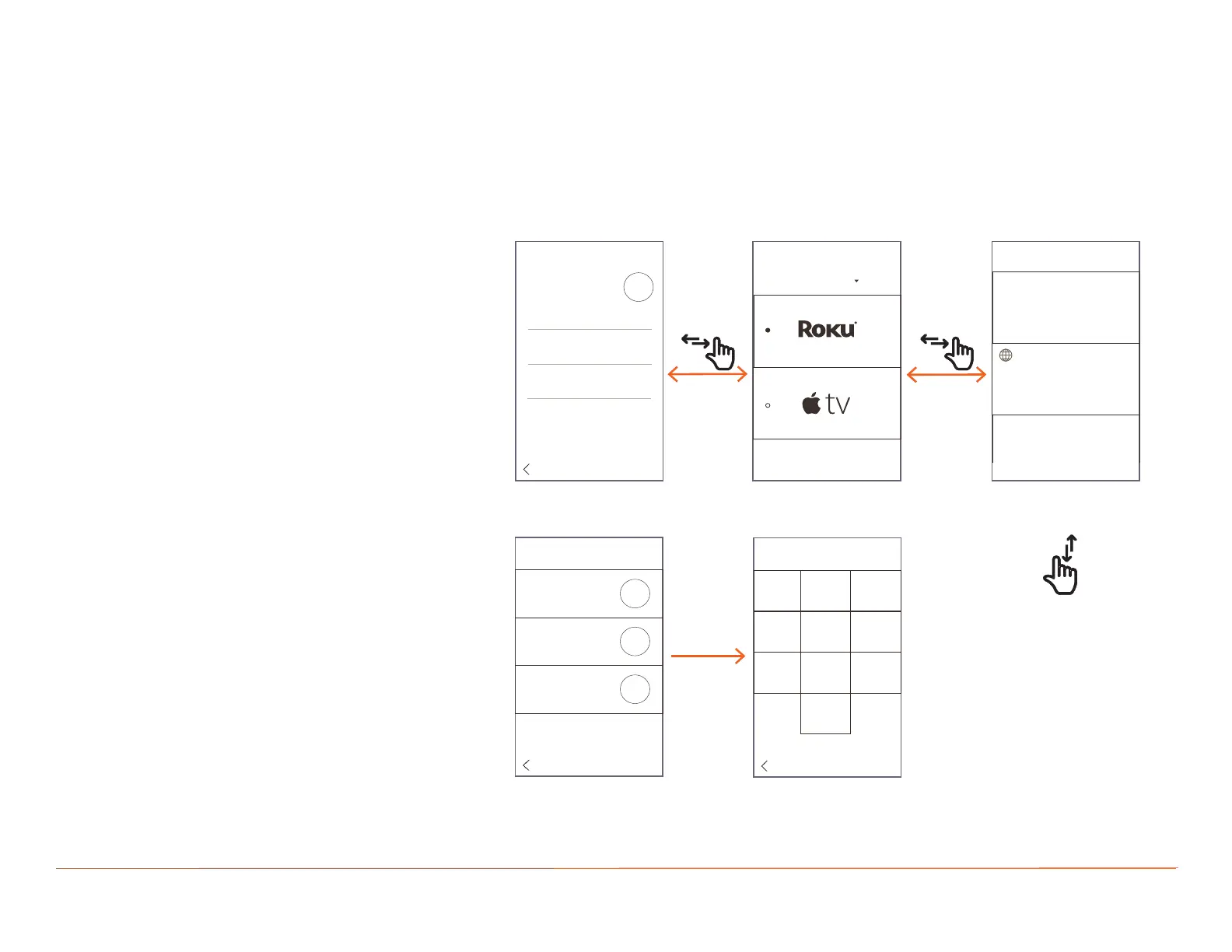
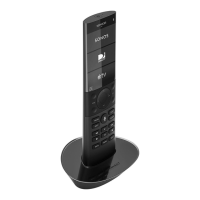
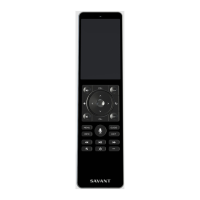
The Pro Remote has several main screens and may vary depending on the Model of the Pro Remote. The diagrams describe general screen navigation.
Refer to the appropriate section for additional information for each screen of the various Pro Remotes.
SETTINGS
About
Remote Settings
Interface Settings
Default Interface
SCENES
+
Entertain
1 Room
Goodnight
4 Rooms
SETTINGS
Harry Dersden
Log Out
HD
Molly Carpenter
MC
Karrin Murphy
KM
Harry Dersden
Log Out
HD
Living Room
SETTINGS SCENES
Settings
- Adjust screen brightness, wake
Sensitivity, and screen sleep timer
- View Version and FCC info
- Activate and Customize Remote
Screen Interfaces
Home
- Scroll through Services
- Tap to open Service
Scenes
- Tap to activate a Scene
- Capture a Scene
Swipe up or Down to
scroll through any screen
Tap the Active User
within Settings to access
the User Log-In screen
User Log-In
- Sign in and out of Users
- Displays Room where
Remote is set in
- Tap User to log in and out
Enter Passcode
1
2 3
4
5 6
7
8 9
0
Remote Passcode
- Pin-code protected when
User signs in
- Enabled and disabled in
the Pro App
3.1. Additional Screen Information
– From the User Log in/Log out screen, tap a
User to log out the active user and log in the
selected user.
– Swipe right on the User Log in screen to
return to the Settings screen.
– To traverse the Settings, Home, and Scenes
screens, simply swipe left or right.
– Scenes created on the Pro Remote are
synced to the Savant Pro App and vice versa.
– Users added in the Savant Pro App are
synced to the Pro Remote.
– Swipe up or down to scroll through the fields
of any screen.
– The Scenes available to each user are the
Scenes set up for that user. Each user has
their own set of Scenes to choose from.
Shared Scenes appear for all users.
– For additional information on each screen,
refer to the appropriate sections.
3.2. User Log In/Log Out
The Remote’s Log in screen is opened when the
Remote is first powered on. Any User Accounts
created in the Savant Pro App will be synced to
and appear on the Remote.
Users can also set a passcode when accessing
their accounts through the Pro Remote. The
passcode must be enabled within User Settings
on the Pro App.


 To Next Page