Pro Remote User Guide | 009-1410-06 45 Perseverance Way, Hyannis, MA 02601
© 2020 Savant Systems, Inc | 201210 8 of 18 Savant.com | 508.683.2500
3.3. Users (Configured Cloud User Accounts)
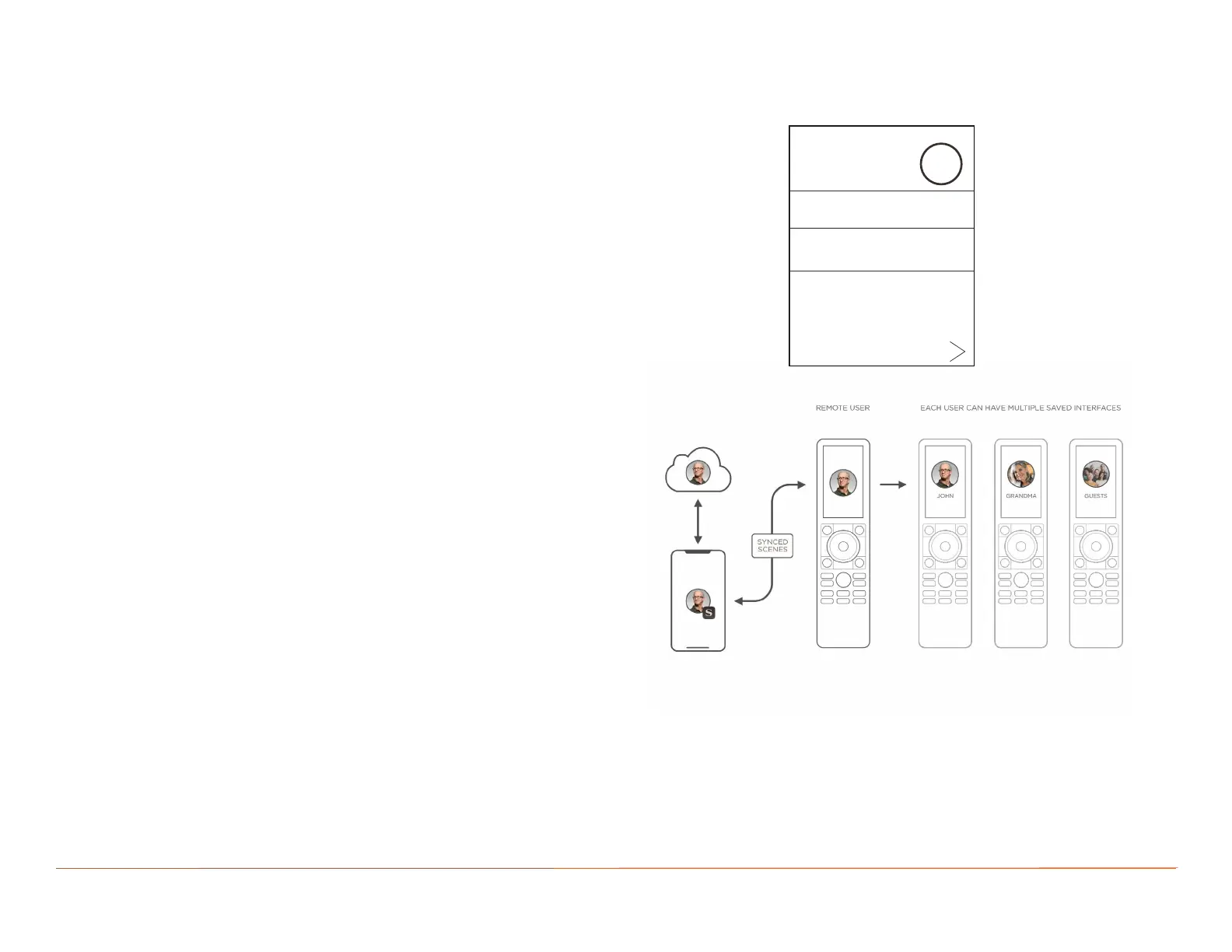
After creating a Savant Pro App Cloud User account in the existing Savant Pro system, the new user is automatically synced to the Pro Remote
(made available). In addition, any other users who were granted access through the Savant Pro App will sync to the Pro Remote as well.
– The active user (logged in) has the words Log out visible just
below the Profile User Name. This indicates which is the active
user.
– Only one user can be active at a time.
– To log out, tap the active user and that user is logged out after a
confirmation screen appears.
3.4. Savant User (Default User Profile)
If the Savant Pro system that the Remote is being added to does
not have an iOS® or Android® device with the Savant Pro App and a
Savant Cloud account created, the user available on the Pro Remote
defaults to user: Savant User. The Savant User on the Remote has
limited access. Basic functions such as adjusting the functions in the
Settings screen and controlling the available Services in the Home
screen are enabled.
1. Since the Remote has such limited access and functionality,
the Remote should be synced to a User Account on the Savant
Cloud Server.
2. To do this, download and install the Savant App to an iOS or
Android® device and create an account.
3. Once the account created is associated with the Savant Pro
system (Savant Host) the Remote will automatically sync to the
system and display the associated cloud accounts.
4. From there a User can be selected.
For information on Downloading, Installing, and Creating a User
for the Savant Pro App, refer to the Savant Pro App User Guide
(009-1399-xx) on the Savant Customer Community or contact your
Integrator for assistance.
Log Out
About
Remote Settings
Interface Settings
John Doe
Default Interface
JD


 To Next Page