Maxprobe Settings
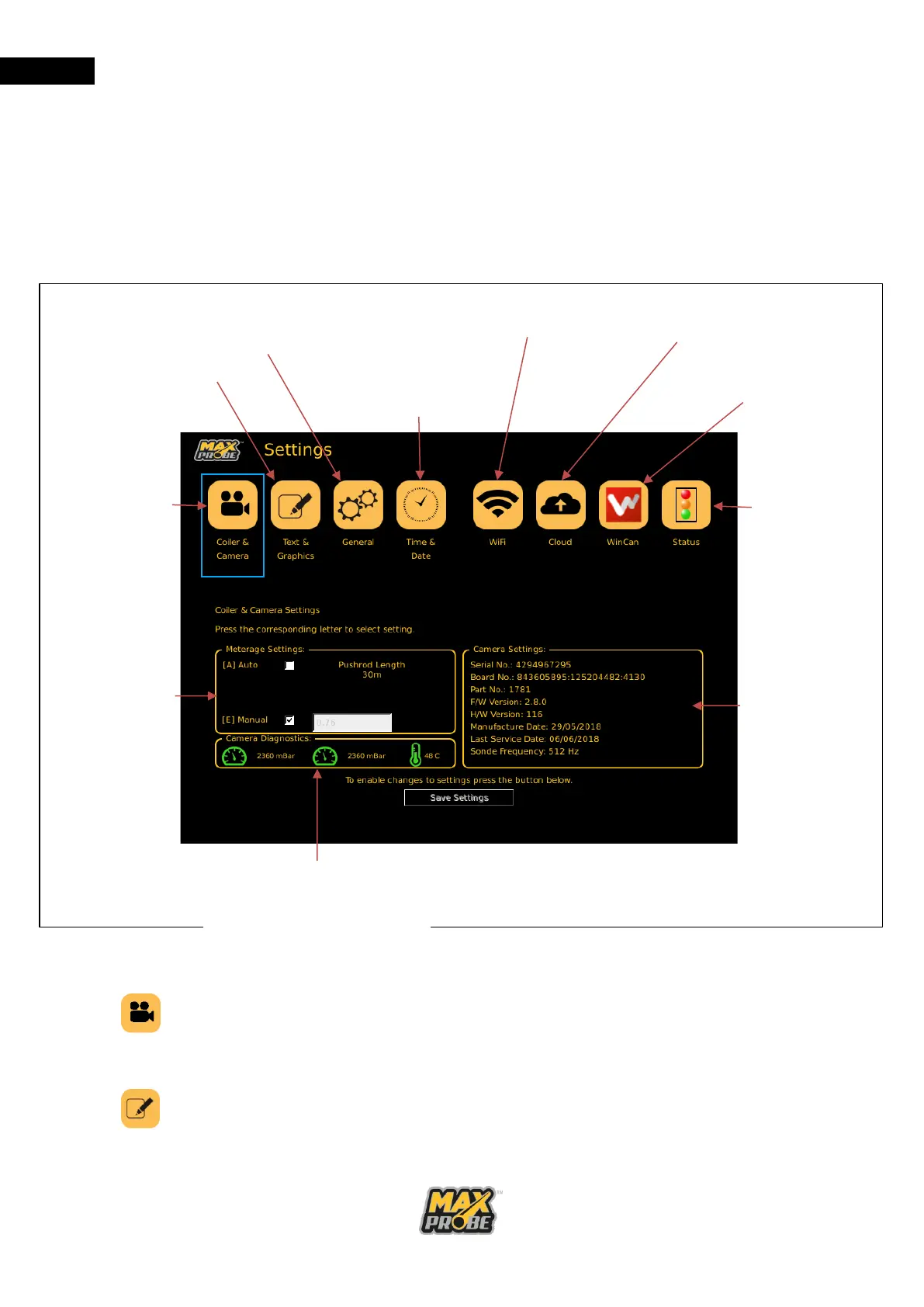
The settings menu (see Figure 13) is accessed by pressing the “Settings” button on the
keyboard and allows users to administer features of the Maxprobe system. Within this
menu, users can perform administrative tasks such as adjusting the system time and date,
connecting to wireless networks, and connecting to WinCan web. Below is a brief list
illustrating the main functions that are accessed through the settings menu and a description
of their operation.
Figure 13: Maxprobe Settings
Provides a health check of the components within a system
and allows users to view serial numbers, camera
temperature/pressure, service dates as well as change the
coiler meterage setting.
Option to allow users to enter automated text that will appear
at the end of every recording and configure the length of time
it will appear for.



 To Next Page