3.5 Managing File Configuration
After starting the ScanViewer scanning software, you need to manage file
configuration. There are two main ways to manage file configuration:
Replace the RGF file
Open the ScanViewer scanning software and click "Menu Bar - Other - Device
Management - Replace Authorization File" to replace the RGF file in the U disk
provided with the KSCAN scanner. When the device license is about to expire,
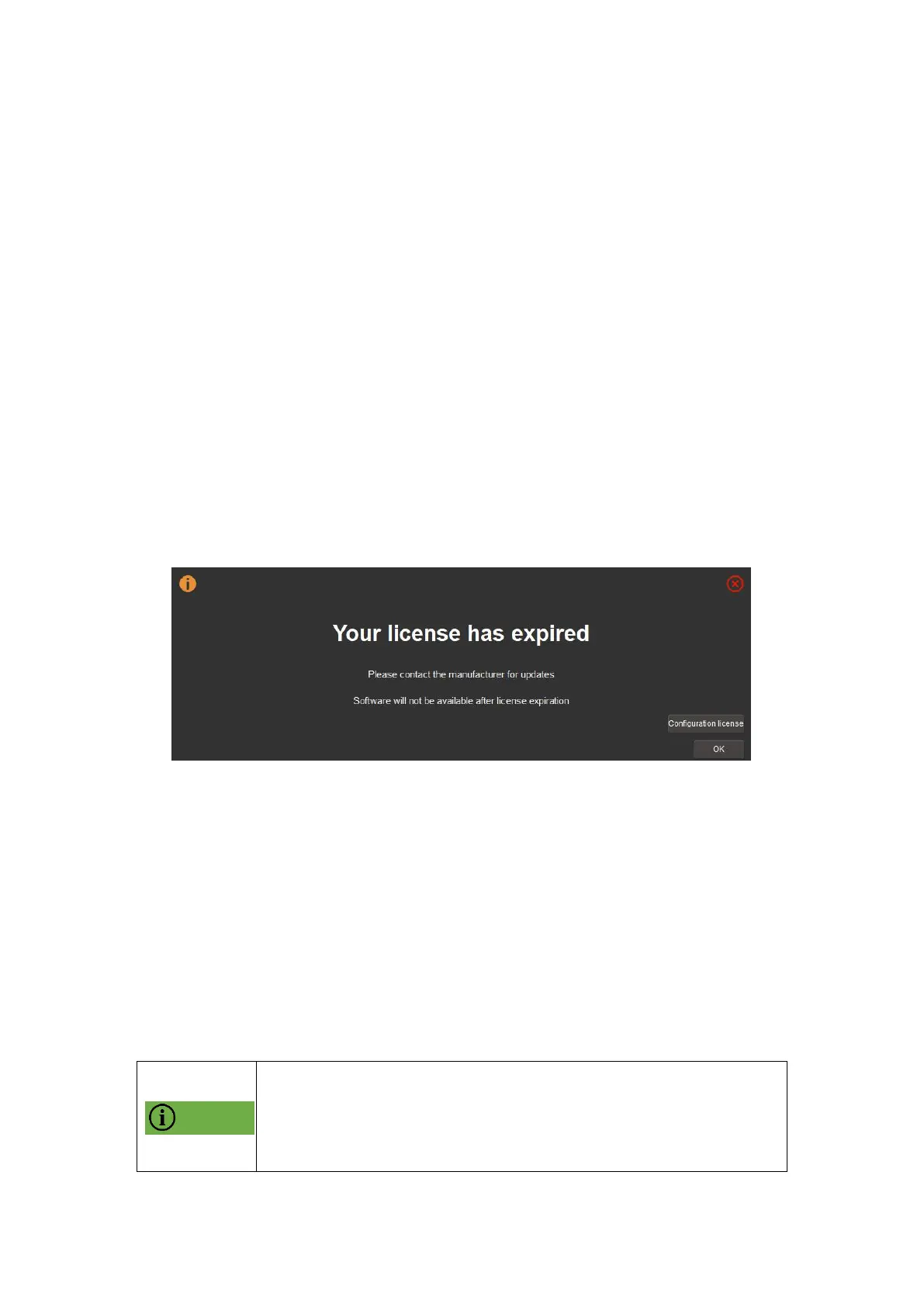
the software will pop up a prompt box to replace the valid RGF file by clicking
"configuration license". As shown in Figure 3-12.
Figure3- 12 Authorization prompt box
Replace the authorization folder
Open ScanViewer scanning software, click "Menu Bar - Other - Device
Management - Replace Authorization Folder", and replace it with "Backup -
LowPartSW-SETXXXX (Product Model)" in the U disk provided with the
KSCAN scanner.
When photogrammetry software needs to change the configuration of
management files, right-click the software shortcut "Open the configuration of
files", open the Glopho folder, and replace the authorized folder.


 To Next Page